
Every page in the CallBack portal is listed in the menu on the left. The menu shows only the pages you can open, so what you see depends on your access.
Use the menu
- Sign in to the CallBack portal.
- Pick a page from the menu on the left. The page you are on is highlighted.
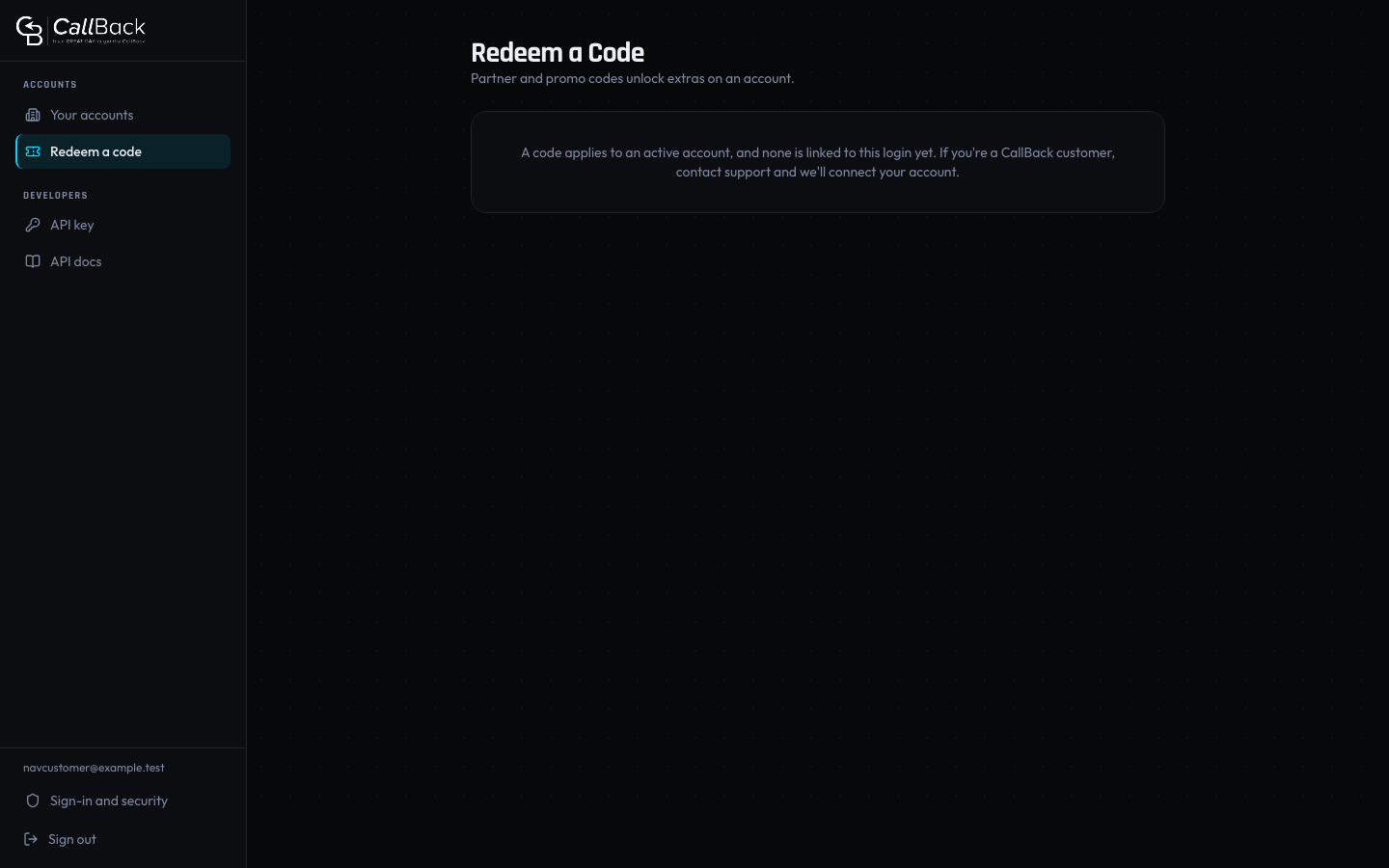
The menu groups pages by what you want to do.
- Accounts. Your accounts lists the organizations and accounts you can open. Redeem a code applies a partner or promo code to one of your accounts.
- This organization. Shows while you manage an organization, with its seats and settings, usage rebill invoices and commission tracking.
- Developers. API key and API docs, for connecting Claude or your own tools to the CRM.
Your email address, Sign-in and security and Sign out sit at the bottom of the menu.
Use the menu on a phone
Tap the menu button at the top left of the page.
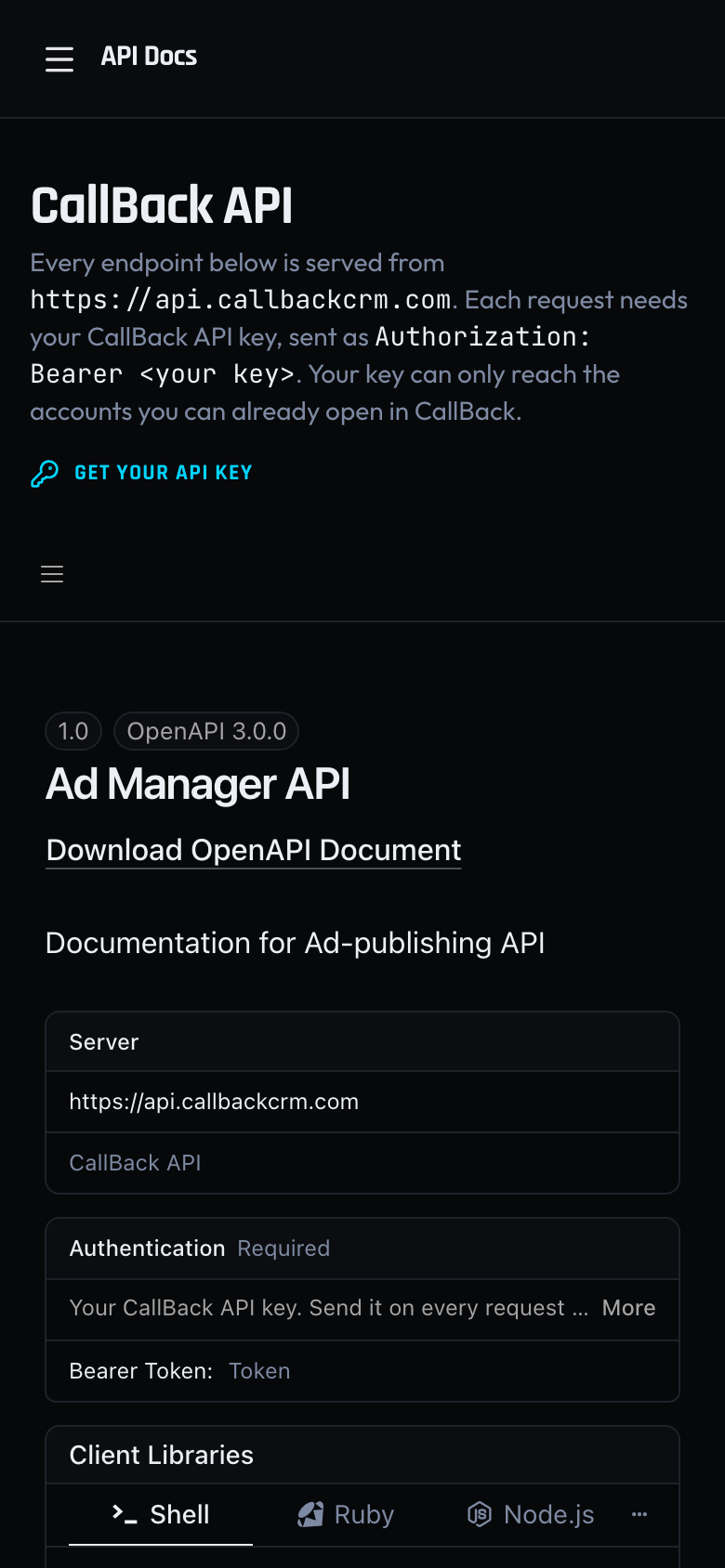
Tap the page you want. The menu closes on its own.
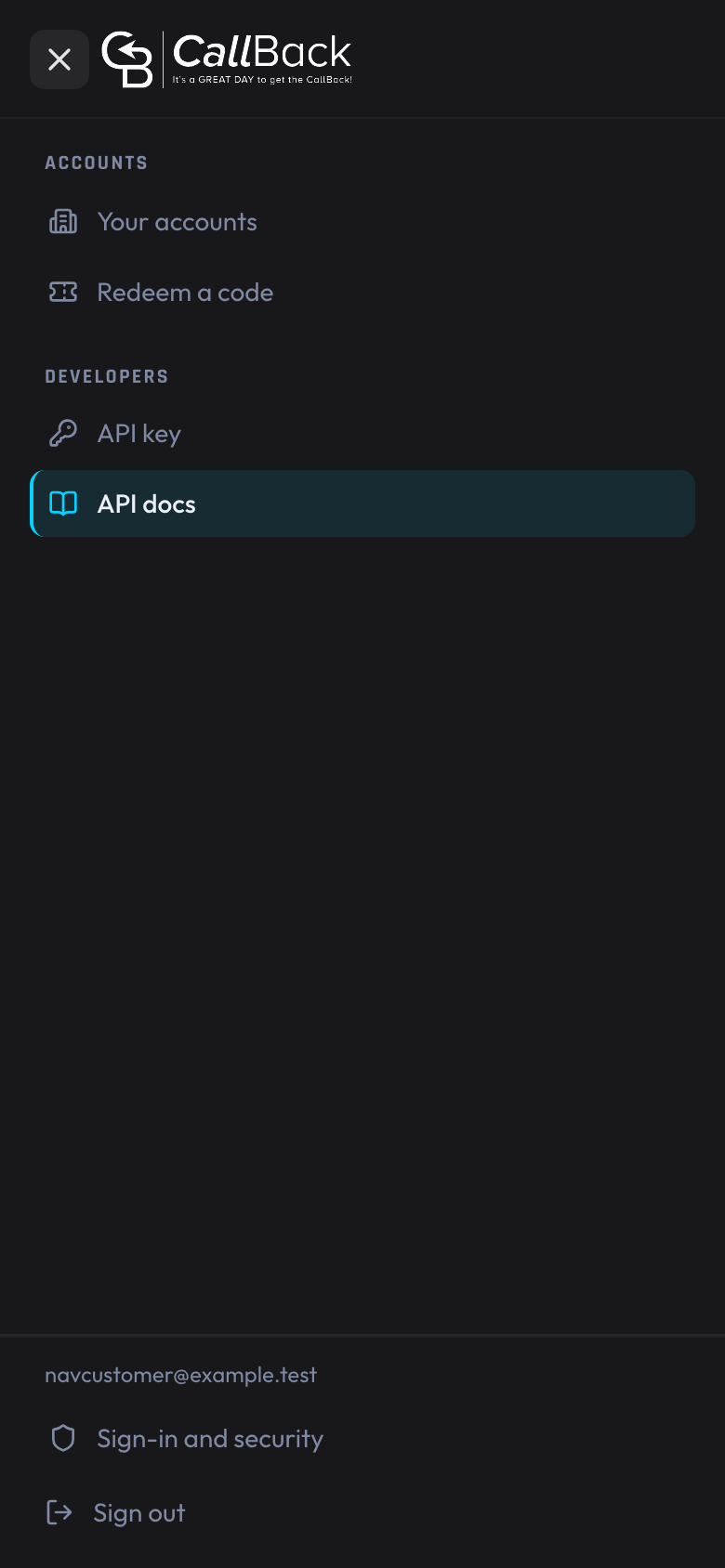
Redeem a code
- Click Redeem a code in the menu, or the Redeem it link on Your accounts.
- Type the code.
- Find the account the code is for, and pick it from the list.
- Click Apply code. Keep the page open until it says the setup is done.