
Your CallBack API key lets Claude, or any app you trust, work in the CallBack CRM for you. The key does what you can do in the CRM and never more. It reaches the sub-accounts you reach when you sign in, and it can change data only where you are an admin. Users the CRM limits to their own assigned records cannot use a key. You can have one key at a time.
Create your key
Sign in to the CallBack portal.
Click API Key in the menu at the top of the portal.
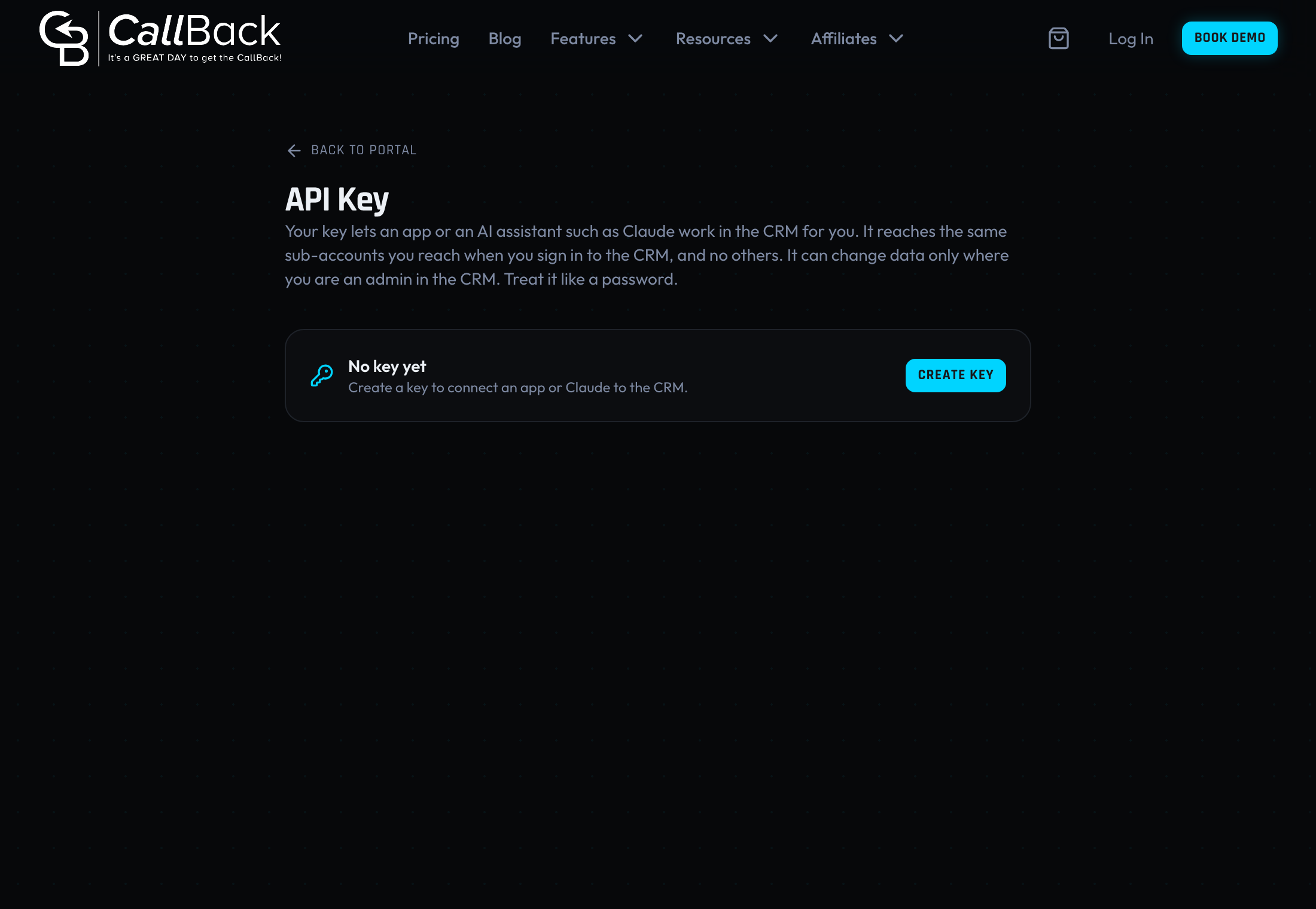
Click Create key.
Copy the key right away. This is the only time the page shows the whole key. After you leave the page it only shows the last four characters.
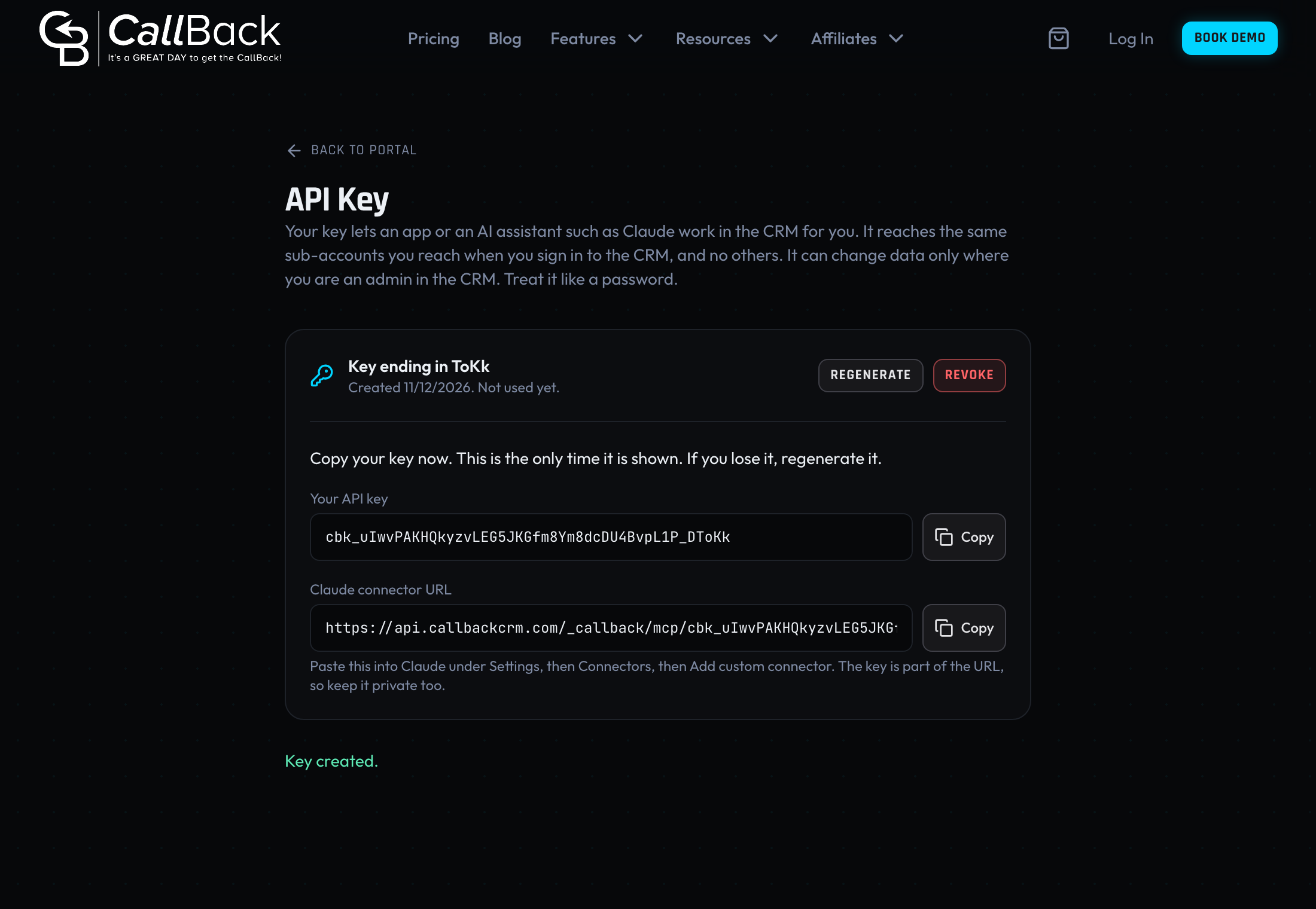
Keep the key private. Anyone who has it can do in the CRM whatever your key can do.
Add CallBack to Claude
- On the API Key page, right after you create the key, click Copy next to Claude connector URL.
- In Claude, open Settings, then Connectors, then Add custom connector.
- Name it CallBack and paste the URL. Save it.
- Start a chat and ask Claude about your CRM, for example "list my sub-accounts" or "show the newest contacts in my agency account".
Claude asks you before it creates, changes or deletes anything in the CRM. Read each request before you allow it.
Use the key in another app
Send the key as a bearer token to https://api.callbackcrm.com, followed by an API path from the
API Docs page in the portal, for example
https://api.callbackcrm.com/contacts/?locationId=<your sub-account id>. The API Docs page lists every
path, what it takes and what it returns, and Use the CallBack API shows how to
open it. Name the sub-account with a locationId on each request.
See when the key was last used
The API Key page shows when the key was created and when it was last used.
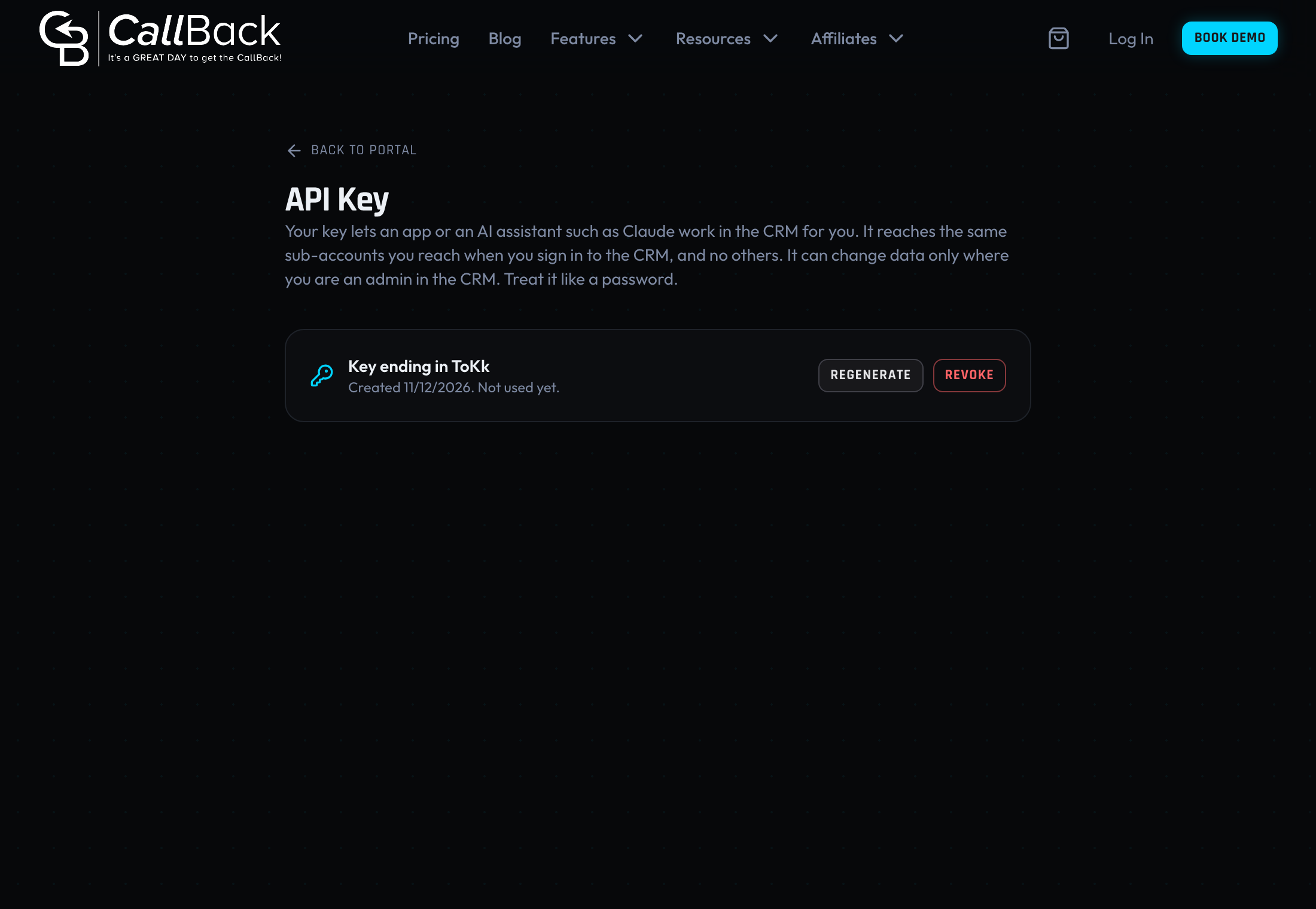
Replace a key you lost or shared
Click Regenerate.
Click Regenerate key to confirm.
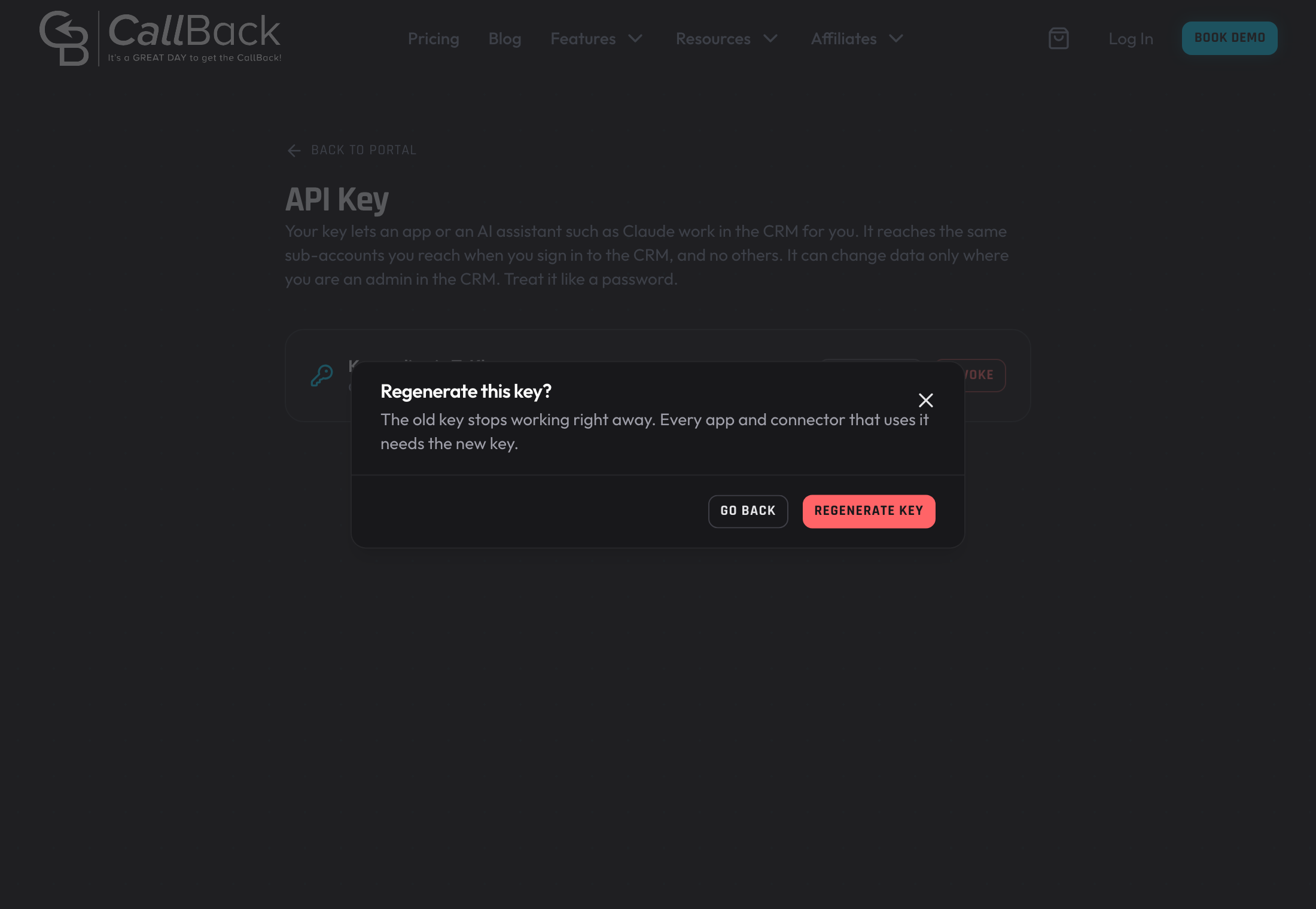
The old key stops working right away. Copy the new key and give it to every app and connector that used the old one.
Turn the key off
Click Revoke.
Click Revoke key to confirm.
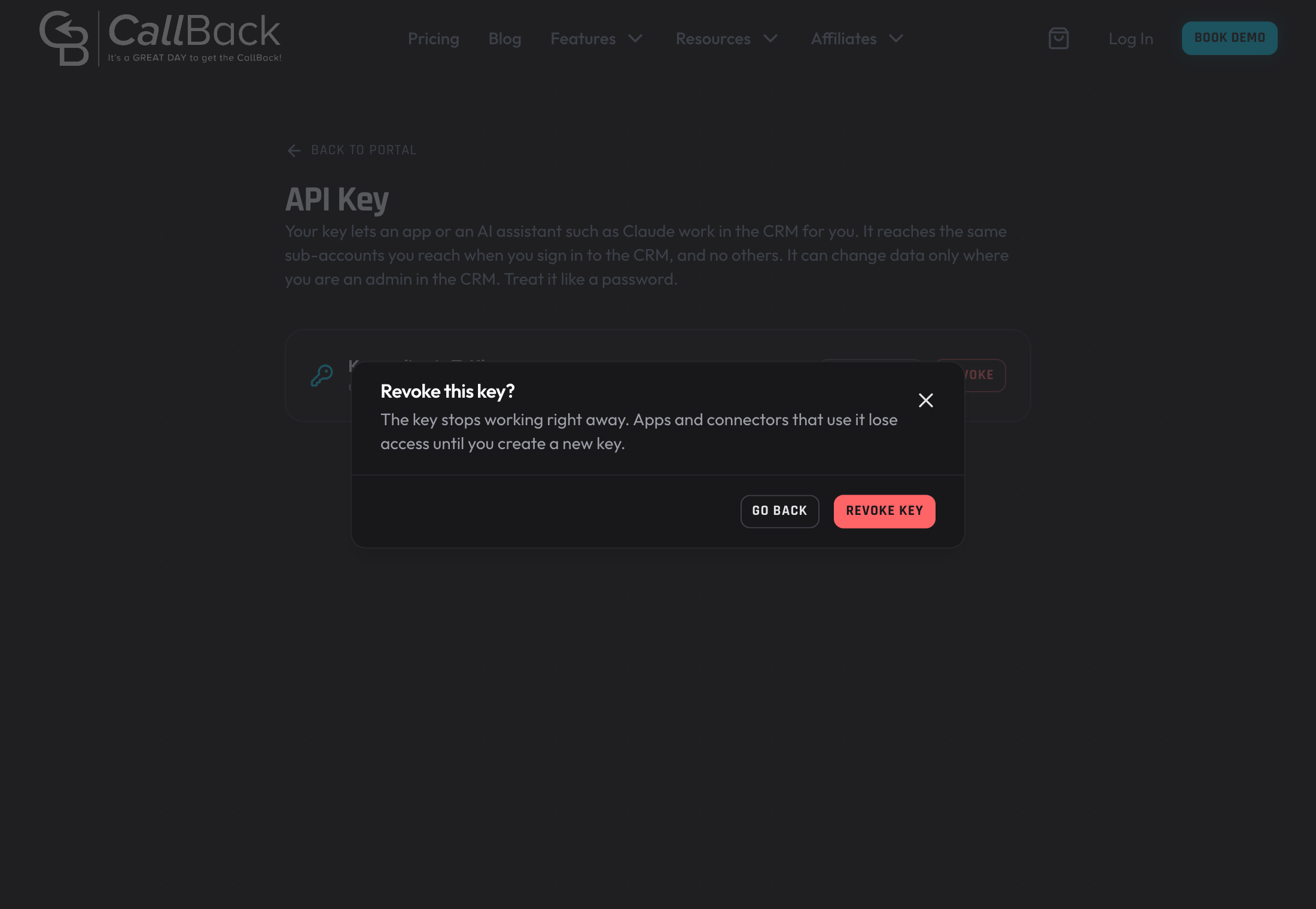
The key stops working right away. You can create a new one at any time.
Good to know
- Your key follows your CRM access. When someone adds you to a sub-account, removes you from one, or changes your role in the CRM, your key follows within two minutes.
- If the CRM cannot be reached, your key keeps reading what it could read at its last check, for up to 15 minutes after that check. It cannot change anything until the CRM answers again.
- A request for a sub-account you cannot reach is refused.
- Your key can change data only in the sub-accounts where you are an admin in the CRM. Everywhere else it can read and search, and a request to create, change or delete something is refused.
- If settings are turned off for you in the CRM, your key can read and search but cannot change anything.
- If the CRM shows you only the contacts and records assigned to you, your key reaches nothing. A key cannot hold to that limit, so it is refused until the limit is lifted.
- Agency level calls, such as listing every sub-account in the agency, work for agency admins only.
- Adding or changing CRM users, and installing or removing apps, are agency level calls too.