
Once your Blue Unlimited line is live, you get an email with your new number. This article shows you how to call and text from that number inside the CRM. You need Google Chrome on a computer and a CallBack login.
No CallBack account? You call and text from your line in its own web app instead, and we email you a separate invite to sign in to it.
Before you start
- Have the email with your new number open. It has the link to the extension.
- Sign in to app.callbackcrm.com in Chrome.
Add the extension to Chrome
The extension is the line provider's own, called Sendblue Call. You install it as it comes.
Open Sendblue Call in the Chrome Web Store. Click Add to Chrome, then Add extension.

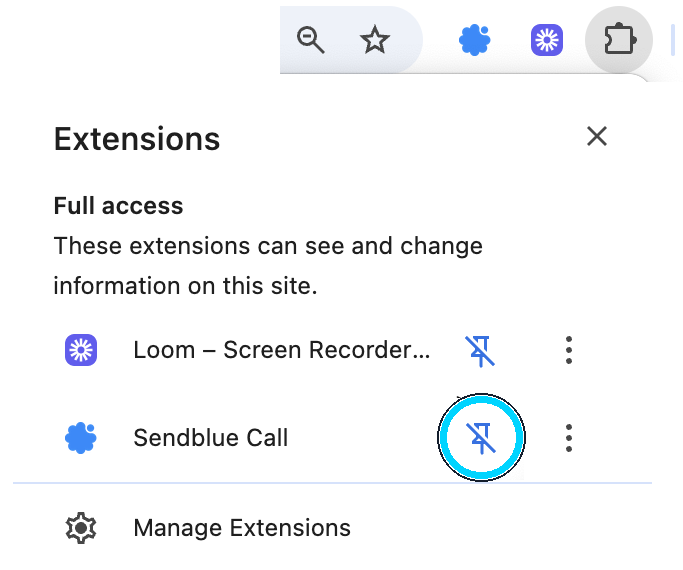
Click the puzzle piece icon beside the address bar and pin the extension so it stays in your toolbar.
Turn it on for CallBack
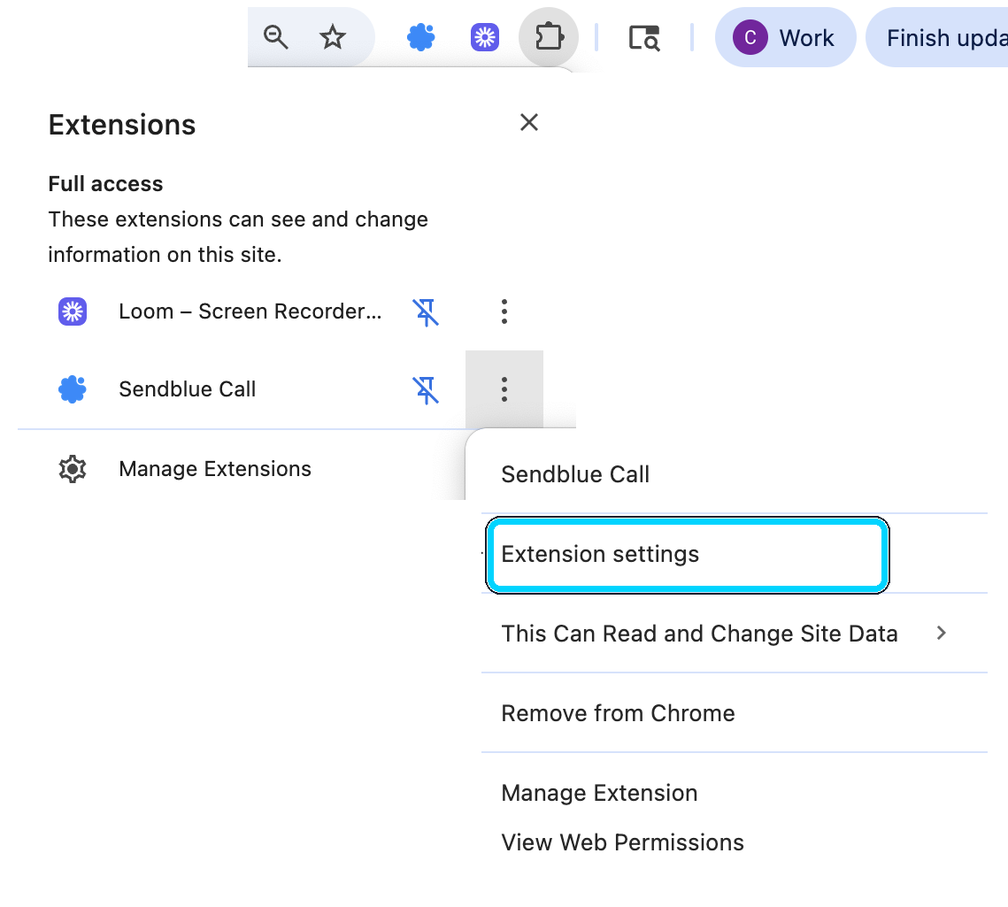
With app.callbackcrm.com open, right click the extension icon and choose Extension settings.
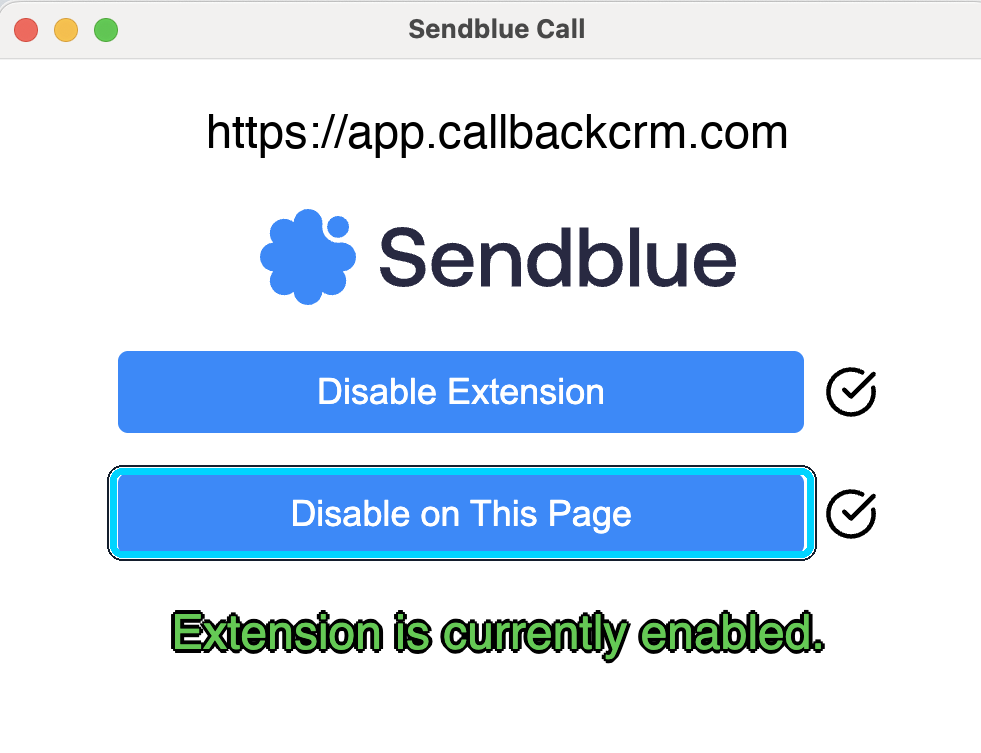
Click Enable on this page, then reload the page. The extension only works on pages where it is on. Once it is on, the same button reads Disable on this page.
Show phone numbers where you work
The call and text icons sit beside each phone number, so the number has to show on the page.
On your Contacts list, click the columns button beside Search contacts. Under Fields in table, check Phone and click Apply.
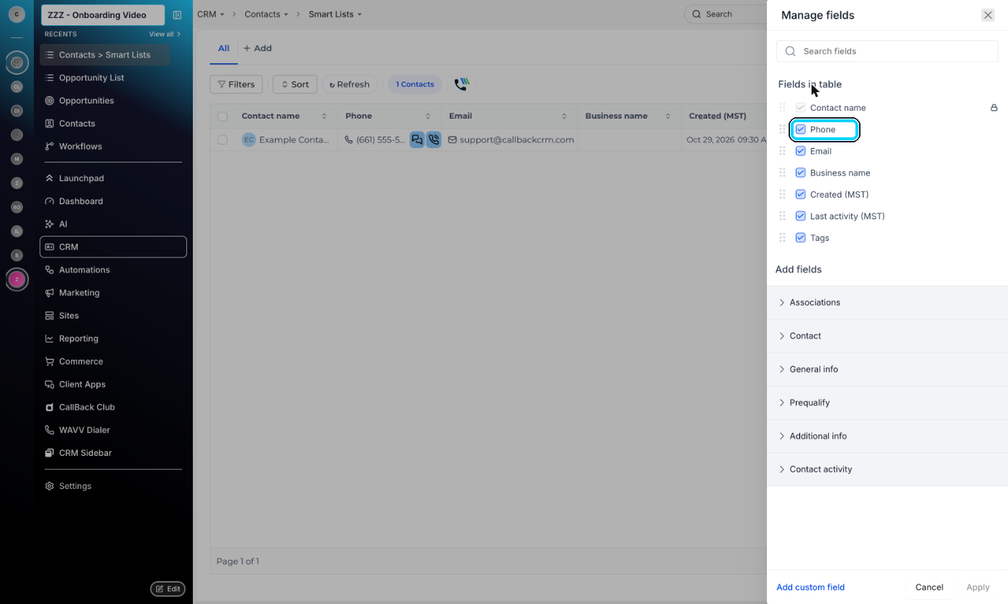
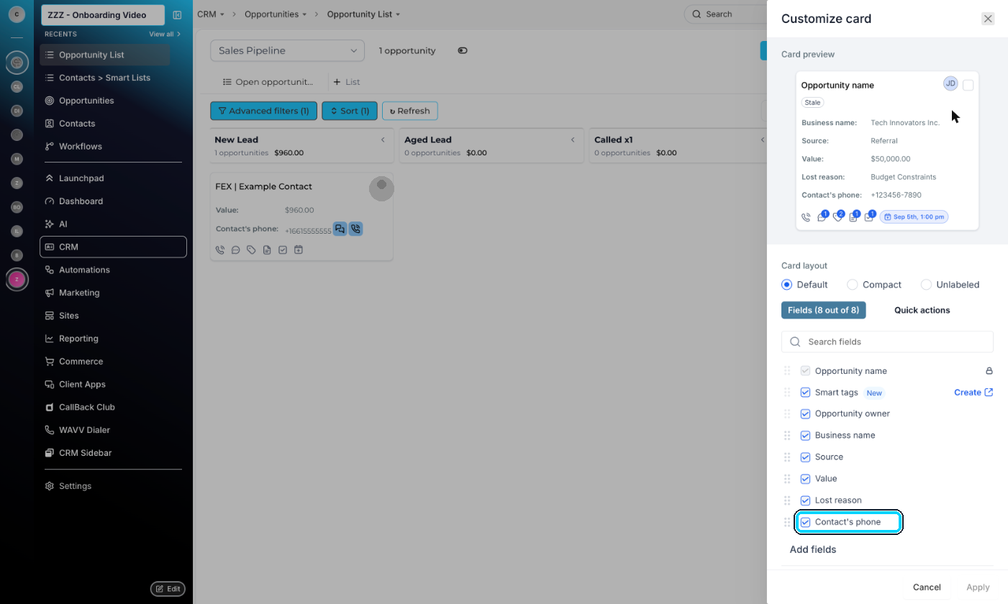
On your Opportunities board, click Manage fields. Check Contact's phone and click Apply, so it shows on every card.
A contact's own page always shows the phone number, so there is nothing to turn on there.
Call and text
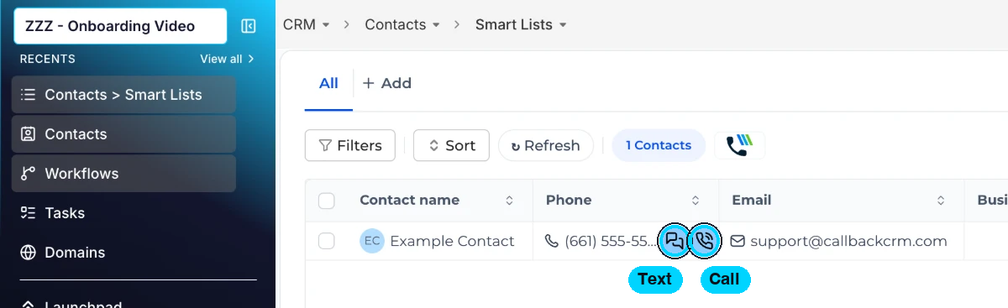
Click the call icon beside a number to call from your new line, or the text icon to text from it. On your Contacts list, the icons sit right beside the number.
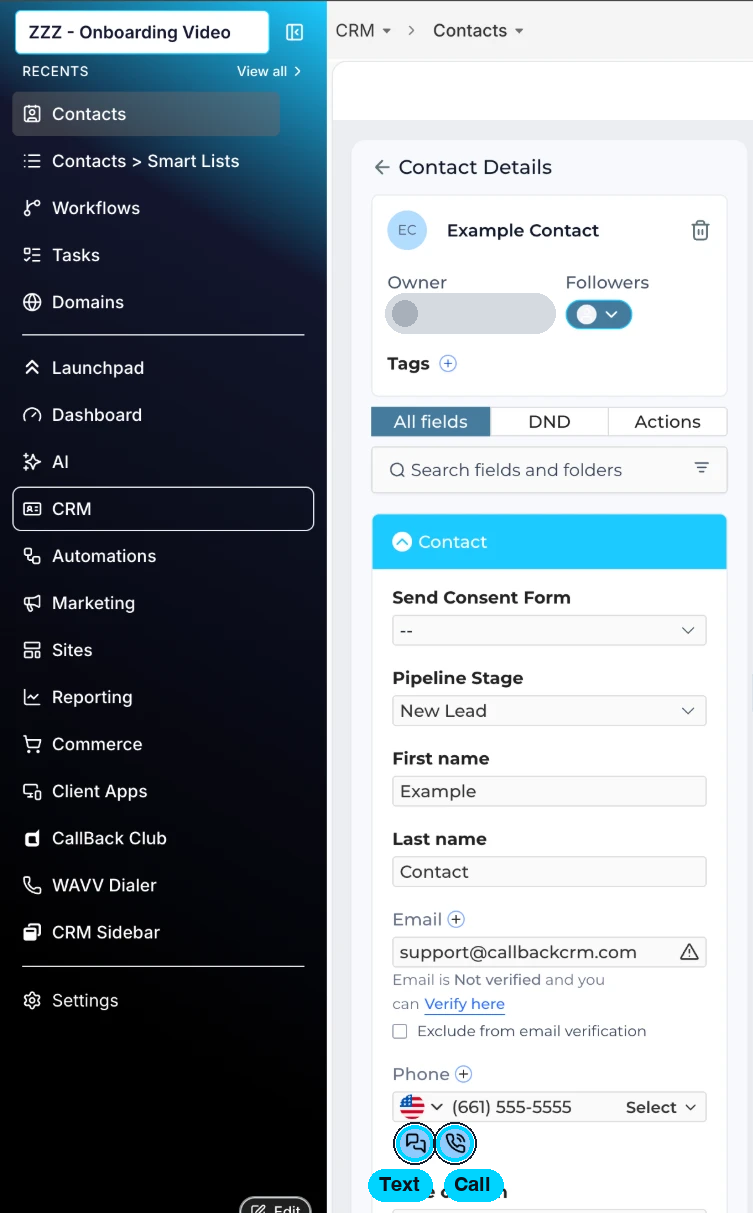
On a contact's page, the icons sit right below their phone number.
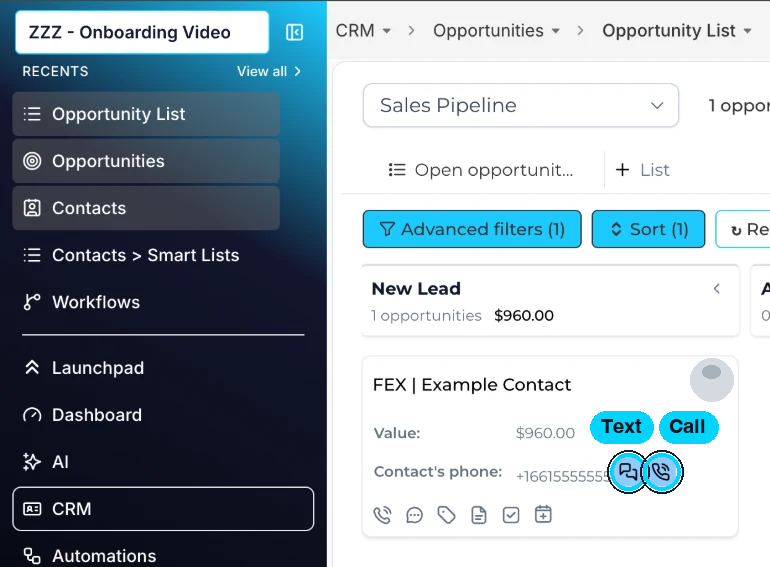
On an opportunity card, the icons sit beside the contact's phone.
Texts go out as iMessage to iPhones and as a regular text to everyone else, all from the same number.
Things worth knowing
- One number for everything. Calls, texts and iMessage all come from your Blue Unlimited number, so your leads see the same number every time.
- iPhone or not, you do nothing different. The line picks iMessage for iPhones and a regular text for everyone else.
- If your number ever changes, we email you the new one. Calls and texts go out from the new number from then on, so update it anywhere you list the old one.
- If the call and text icons do not show up, check steps 4 to 6. The extension has to be on for app.callbackcrm.com, the page needs a reload after you turn it on, and the phone number has to show on the page.
If something goes wrong
| What you see | What to do |
|---|---|
| No icons beside phone numbers | Reload the page. If they are still missing, open the extension settings and confirm it is enabled on app.callbackcrm.com. |
| The extension icon is missing from the toolbar | Click the puzzle piece icon and pin it again. |
| A call or text does not go through | Wait a minute and try again. If it keeps happening, reach out to support. |
Need help
Open support inside the CRM, or email support@callbackcrm.com.
Emergency calling and 911
Do not rely on a Blue Unlimited line to reach 911. The line runs over an internet connection rather than a traditional phone line, so emergency calling from it may be unavailable or limited compared with the home or business phone service you are used to. A call to 911 from the line may not connect at all, and if it does connect, the 911 center may not receive your location or a number it can use to call you back. The line cannot place any call, including a call to 911, during a power outage or an internet outage, or while the service is suspended. If the line's number has an area code from somewhere other than where you are, the call may be routed to the wrong 911 center. Even where location can be sent, there may be a delay before an updated location reaches the 911 center. Keep a traditional phone or a cell phone available wherever the line is used and use that to call 911. Tell everyone who uses the line to do the same.