
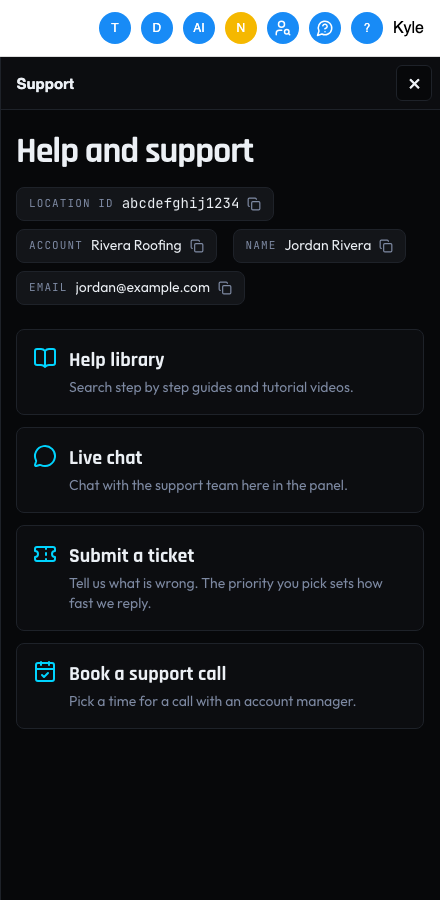
Open the Support panel from any page in the CallBack CRM to search the help library, chat with us, send a ticket or book a call. It already knows who you are and which account you are in, so you only describe the problem.
Open the Support panel
- In the CallBack CRM, look at the icons in the top bar, on the right.
- Click the icon with a chat bubble and a question mark. It sits just left of your profile picture.
- The Support panel opens on the right, below the header. The CRM page moves over to make room, so you can keep working beside it. Click the X at the top or press Esc to close it.

The top of the panel shows your location ID, account name, name and email. Click any of them to copy it, which is handy when someone asks for your location ID.
The home screen has four options. Each one opens inside the panel, and Back to help brings you back to the home screen.
Search the help library
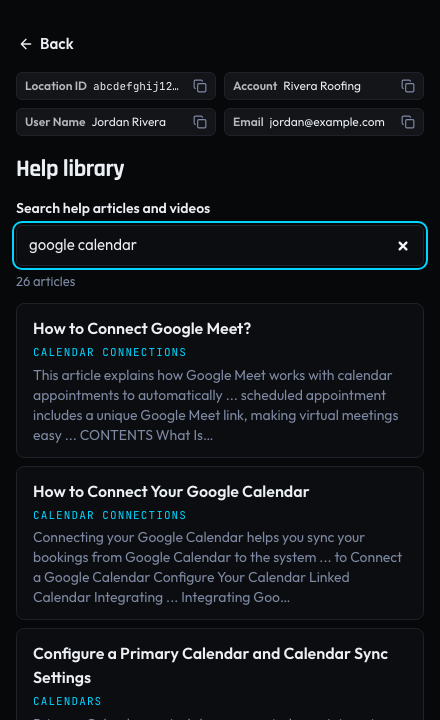
- Click Help library.
- Type what you need help with, for example google calendar. The results show as you type. Not sure what to search for? Click one of the Popular searches.
- Click a result to read the article right in the panel.
- Click Back to results to pick another article. To see the article in the full help center, click Open in the help center. It opens in a new tab. A link inside an article to another help article opens that article right in the panel.
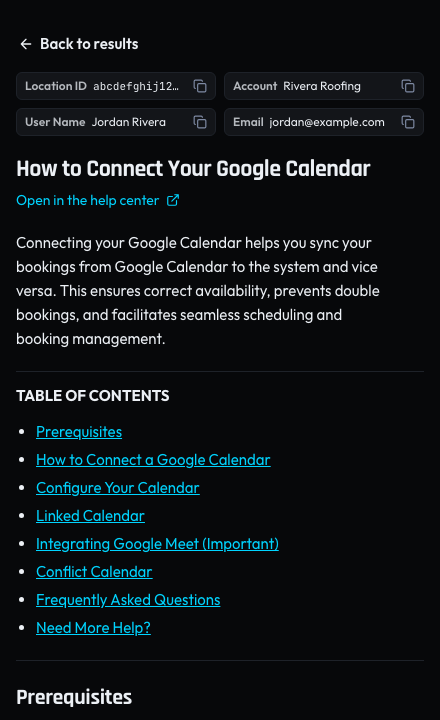
Links inside an article open in a new tab, so the panel stays where you left it.
Chat with support
- Click Live chat.
- The chat opens inside the panel and asks for your contact details. Your name, email and phone number are already filled in from your CRM user. Check them and change any that are wrong.
- Tick the box to agree to messages about your chat, then click Send.
- Type your question and click the send button.
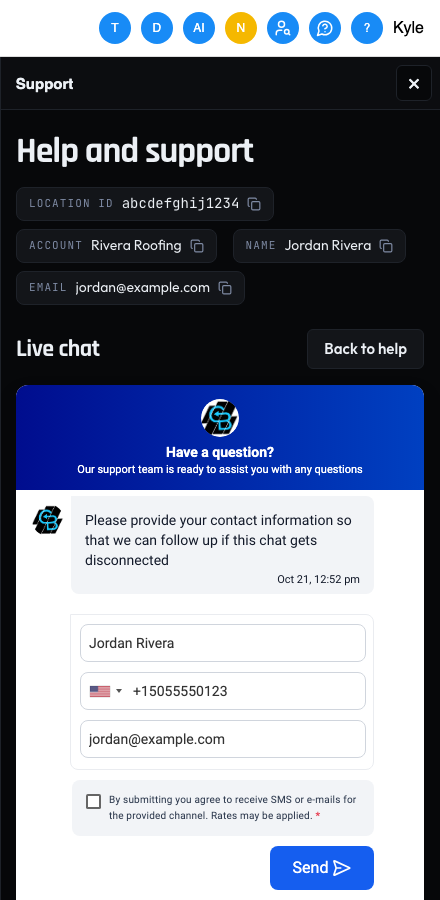
If the chat does not load, the panel says so. Click Submit a ticket there instead and we reply by email.
Book a support call
- Click Book a support call.
- Pick a Topic and a Length for the call.
- Pick a day, then a time. The times show in your own time zone. Change the time zone under the calendar if you need to.
- Your name, email and phone number are already filled in from your CRM user. Add the phone number if it is empty, and anything we should know.
- Tick I agree to the CallBack Terms of Service and Privacy Policy. The booking needs it.
- Optional. Tick the text message and marketing boxes if you want those messages from us.
- Click Confirm booking.
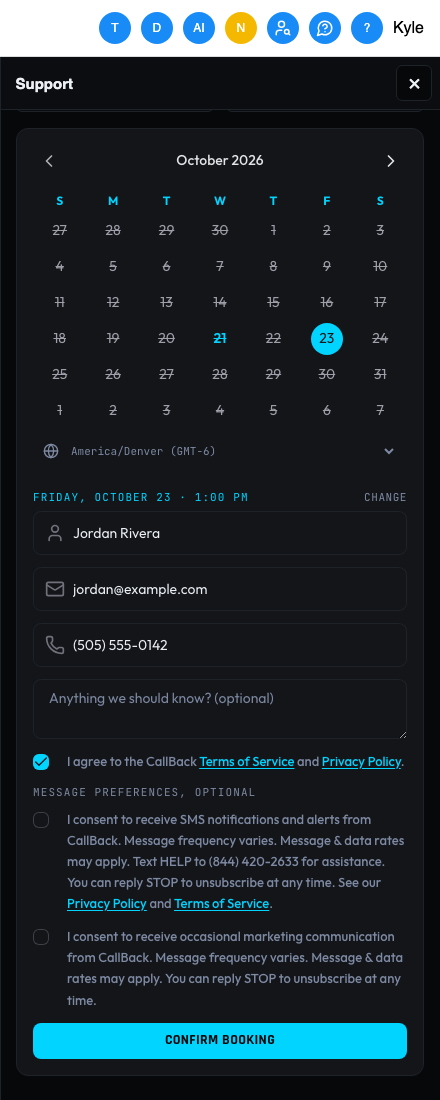
You get a confirmation email with the call details.
Send a ticket
- Click Submit a ticket.
- Give the ticket a short title, then say what happened. Say what you tried and what you expected.
- Pick a priority. Each one shows how quickly we aim to answer. These times are our best effort, not a guarantee. Our team may raise or lower the priority after reading the ticket.
- Optional. Pick a category, paste a screen recording link from Loom or Zoom, and add up to five screenshots (PNG, JPEG or WebP, 5 MB each).
- Click Send ticket.
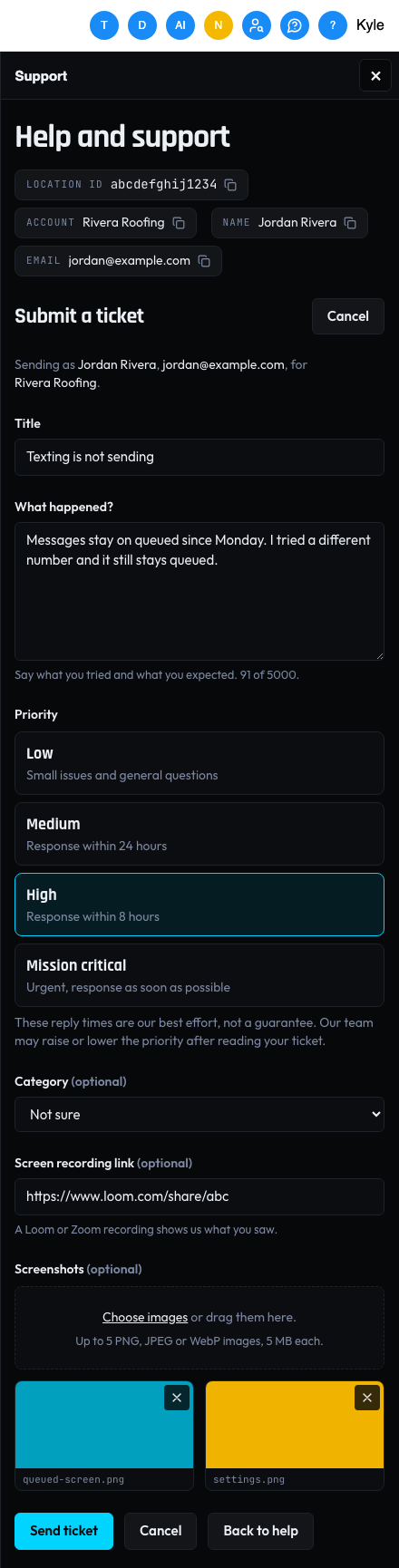
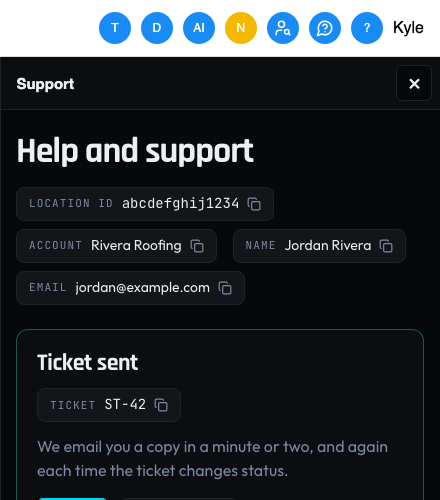
You see your ticket number, such as ST-42. Click it to copy it. We also email you a copy within a minute or two, and we email you again each time the ticket changes status.
For two hours after you send a ticket, the form opens on a short notice so the same problem is not sent twice. Click Open the form anyway if you have a different problem.
Your ticket is saved as you type
You can close the panel or reload the page and pick up where you left off. The title, description, priority, category, link and screenshots all come back. The saved ticket belongs to you and this account, so nobody else who signs in on the same computer sees it.
Stop and start over
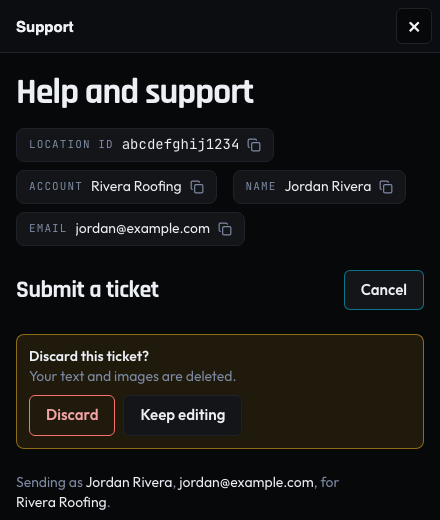
Click Cancel at the top of the ticket or next to Send ticket. If you have typed anything, the panel asks Discard this ticket? first. Click Discard to clear everything and go back to the home screen, or Keep editing to carry on.
What the statuses mean
| Status | What it means |
|---|---|
| New | We have your ticket. |
| Open | Someone is working on it. |
| Pending | We are waiting on something, often a reply from you. |
| Escalated | It has gone to the team that owns that part of the CRM. |
| Resolved | We believe it is fixed. Reply to the email if anything is still wrong. |
| Closed | The ticket is finished. Send a new one if the problem comes back. |
If something goes wrong
- "Reload the CRM and try again." Your CRM sign in has expired. Reload the page, open the panel and send again. Your ticket is still saved.
- A screenshot is not added. The panel names the file and says why, for example is over 5 MB or is not a PNG, JPEG or WebP image. Each screenshot must be a PNG, JPEG or WebP of 5 MB or less, and you can add five at most. If the panel says The images are too large. Remove one and try again., remove a screenshot and send again.
- "Too many requests. Wait a minute and try again." Wait a minute, then send or search again.
- "The help library did not answer." Wait a moment and search again, or click Browse the help center at the bottom of the help library.
- "The support desk did not answer. Try again in a moment." Nothing was lost. Wait a moment and click Send ticket again. You will not get a duplicate ticket.
- The Support button is not in the header. Reload the page. If it is still missing, a Support button shows in the bottom left corner instead.