
Skills Platform gives AI Agents access to supported capabilities for working with CRM information, conversations, knowledge sources, automations, and connected external tools. These capabilities help agents perform tasks rather than only generate responses. Available skills and actions vary depending on the AI Agent experience and its configuration. This guide explains the different capability types, how Managed Agents use Custom Skills, and how to configure and test supported actions safely.
TABLE OF CONTENTS
- What Is Skills Platform?
- Key Benefits
- Skills, AI Agents, and Managed Agents
- Skills Catalog and Capability Types
- Skills Governance and Safety
- Skills for CRM and External Operations
- Prerequisites and Limitations
- How to Configure Skills for AI Agents
- Frequently Asked Questions
- Related Articles
- Need Help?
What Is Skills Platform?
Skills Platform is the capability layer that allows supported AI Agents to work with business data, use tools, and perform actions. It helps agents accomplish defined tasks instead of only producing conversational responses.
Depending on the agent type and its enabled capabilities, an AI Agent can perform supported operations such as retrieving CRM information, updating records, booking appointments, sending messages, searching a Knowledge Base, or interacting with external tools.
Skills Platform does not require a separate installation. The available capabilities are configured within supported AI experiences, including Voice AI, Conversation AI, Agent Studio, and Managed Agents.
Important: Not every capability is available to every AI Agent. The actions and tools shown in an agent's configuration determine which operations it can use.
Key Benefits
Skills and supported tools help AI Agents carry out useful business tasks while keeping their responsibilities clearly defined. Using the capabilities relevant to each agent can improve consistency, reduce manual work, and make testing easier.
- Broader Task Automation: Enable supported agents to retrieve information and perform actions related to conversations, CRM records, appointments, and workflows.
- Reusable Instructions: Create Custom Skills for Managed Agents that need to follow repeatable processes, qualification criteria, or required output formats.
- More Focused Access: Enable only the actions, knowledge sources, and external tools required for each agent's responsibilities.
- Consistent Processes: Use shared Custom Skills to help multiple Managed Agents follow the same task-specific instructions.
- Knowledge-Based Responses: Connect approved reference information so supported agents can retrieve policies, procedures, FAQs, and other business knowledge.
- External Operations: Allow supported agents to use selected tools from authenticated external applications.
- Easier Troubleshooting: Test agent behavior and review Managed Agent activity to understand which skills or tools were used.
Skills, AI Agents, and Managed Agents
Understanding the relationship between an AI Agent, its capabilities, and reusable instructions helps you choose the appropriate configuration for each task.
AI Agent
An AI Agent is configured to perform a defined role. For example, a Voice AI agent can handle supported phone conversations, while a Conversation AI agent can assist with customer messaging.
Agent Studio provides tools for managing existing flow-based agents. Managed Agents support more flexible, task-oriented operations using instructions, available tools, and supported actions.
Built-In Capability
A built-in capability allows an AI Agent to perform a supported operation. Depending on the agent type, this could include looking up a contact, updating information, booking an appointment, sending a message, or triggering an available process.
Custom Skill
A Custom Skill is a reusable set of instructions for a Managed Agent. It describes how the agent should complete a particular task, including applicable steps, business rules, restrictions, and required output.
A Custom Skill does not automatically grant access to an action or external application. The Managed Agent also needs the appropriate supported capabilities and connected tools.
Managed Agent
A Managed Agent uses its instructions and enabled capabilities to complete supported tasks. It can combine approved information, available CRM actions, Custom Skills, and connected tools when the task requires them.
For example, a Managed Agent assigned to lead qualification could review the available lead information, apply a defined qualification process, and perform the supported follow-up actions configured for that agent.
Skills Catalog and Capability Types
AI Agents use different kinds of capabilities to work with business information and tools. The available options depend on the agent experience, so it is important to distinguish operational actions from reusable instructions and reference sources.
Built-In Capabilities
Built-in capabilities provide supported operations that an agent can use when completing a task.
Depending on the agent type, these can include:
- Reading or updating CRM information.
- Working with contacts, opportunities, or supported tasks.
- Sending messages through available communication channels.
- Applying tags or performing supported workflow actions.
- Booking appointments.
- Retrieving information from approved sources.
Custom Skills
Custom Skills provide reusable task instructions for Managed Agents. They are useful when more than one request or agent should follow a consistent procedure.
A Custom Skill can contain:
- Name: Identifies the skill in the skills library.
- Description: Explains the situations in which the skill should be used.
- Instructions: Defines the process the agent should follow.
- Business Rules: Describes conditions, criteria, or restrictions relevant to the task.
- Output Requirements: Specifies a format, structure, or information the agent must provide.
- Escalation Conditions: Explains when the agent should stop, request assistance, or follow another process.
For example, a lead-qualification skill could instruct an agent to collect specific information, compare the responses against approved criteria, and produce a structured qualification summary.
Knowledge Sources
Knowledge sources provide factual reference information that supported agents can retrieve when answering questions or performing tasks.
Common examples include:
- Frequently asked questions.
- Product and service information.
- Business policies.
- Approved procedures.
- Documentation and reference material.
Use the Knowledge Base for factual reference content and Custom Skills for reusable task instructions.
Communication Capabilities
Communication-related actions allow supported AI Agents to participate in customer interactions and perform follow-up tasks.
Depending on the configured product and available tools, these capabilities may include handling conversations, assisting with calls, sending supported messages, or initiating relevant follow-up actions.
Workflow and Automation Capabilities
Automation-related capabilities help supported agents perform actions in connection with CRM events or other configured processes.
These can include applying tags, updating supported records, triggering workflows, or performing other available actions.
External Tools and Connectors
External tools extend supported agents beyond built-in CRM operations. Managed Agents can use compatible integrations and Model Context Protocol (MCP) connectors to interact with selected external applications.
Connector availability, authentication requirements, and supported actions vary by application.
For Managed Agents, you can select which tools from a connected application are available to the agent.
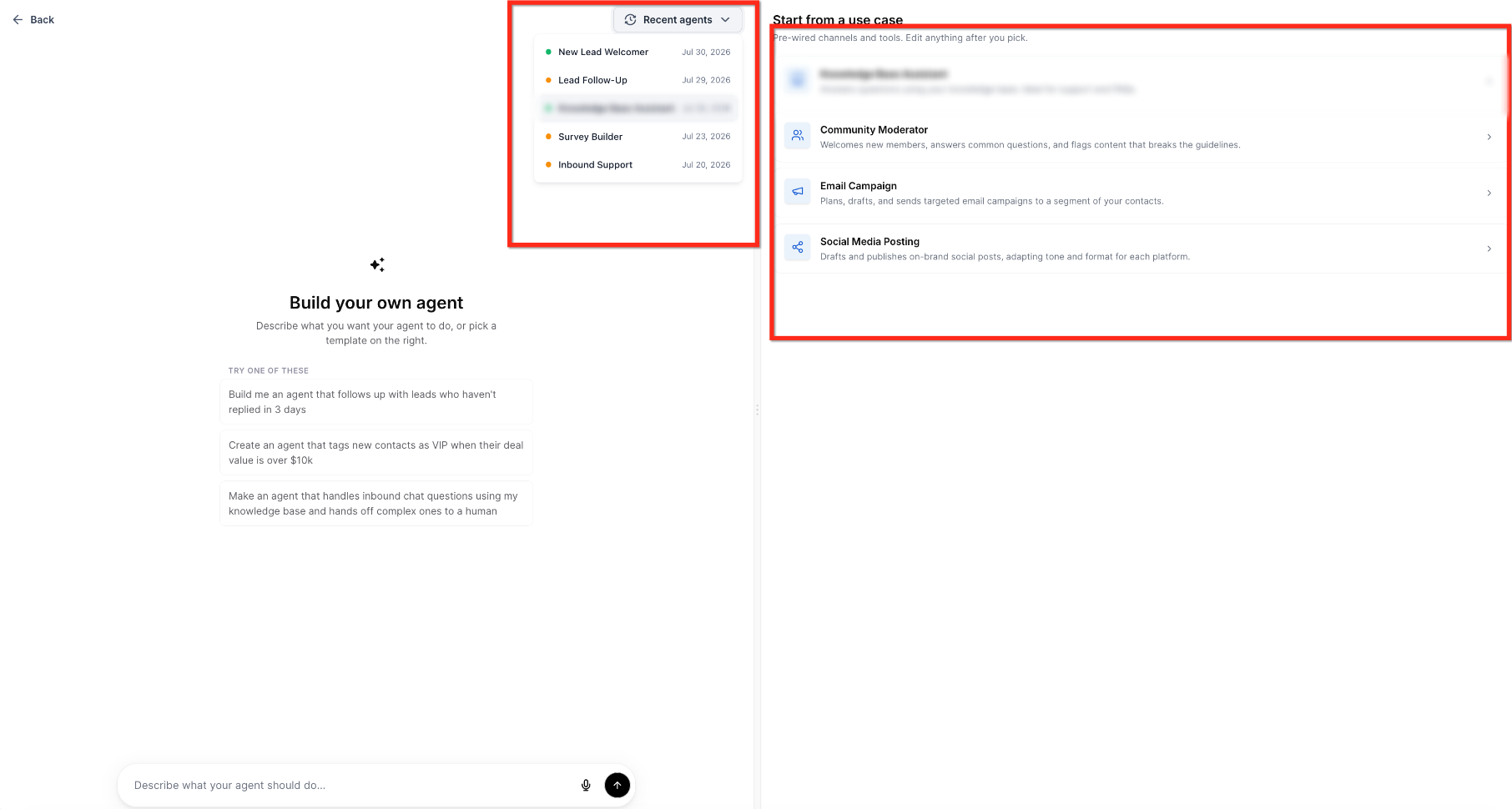
Example of AI capabilities available through an agent configuration.
Built-In Capabilities vs. Custom Skills
Although both are part of the broader skills experience, built-in capabilities and Custom Skills serve different purposes.
| Type | Purpose | Example |
|---|---|---|
| Built-In Capability | Allows a supported operation. | Update a CRM record using an available action. |
| Custom Skill | Provides reusable instructions for performing a task. | Follow a lead-qualification process and produce a standard summary. |
| Knowledge Source | Provides approved factual information. | Retrieve a business policy or product FAQ. |
| External Connector | Provides access to supported third-party tools. | Retrieve information from an authenticated external application. |
Skills Governance and Safety
AI Agents may be able to retrieve information or perform actions that change business records. Review the available controls carefully and give each agent only the capabilities required for its assigned tasks.
Use Minimum Necessary Access
Enable the actions and tools the AI Agent needs to complete its defined responsibilities. Avoid enabling unrelated capabilities, particularly those that can modify records or communicate with customers.
Review Sensitive Actions
Consider the impact of each available action before enabling it. Tasks that update information, send messages, or interact with external applications should be tested with realistic scenarios.
Use Approved Knowledge
Connect the Knowledge Base sources needed for the agent's responsibilities. Review the material for accuracy and keep the agent's instructions clear about when to use each source.
Control External Tool Access
For supported MCP connectors, authenticate the external application through its connection process and enable only the individual tools the Managed Agent needs.
Review the permissions requested during authentication. Avoid placing passwords, access tokens, or other confidential credentials directly in agent instructions.
Monitor Agent Activity
Test the agent after changing its instructions, enabled actions, Custom Skills, or connected tools.
For Managed Agents, use the Activity tab to review executions. Execution details can help you identify which skills or tools were used and investigate unexpected results.
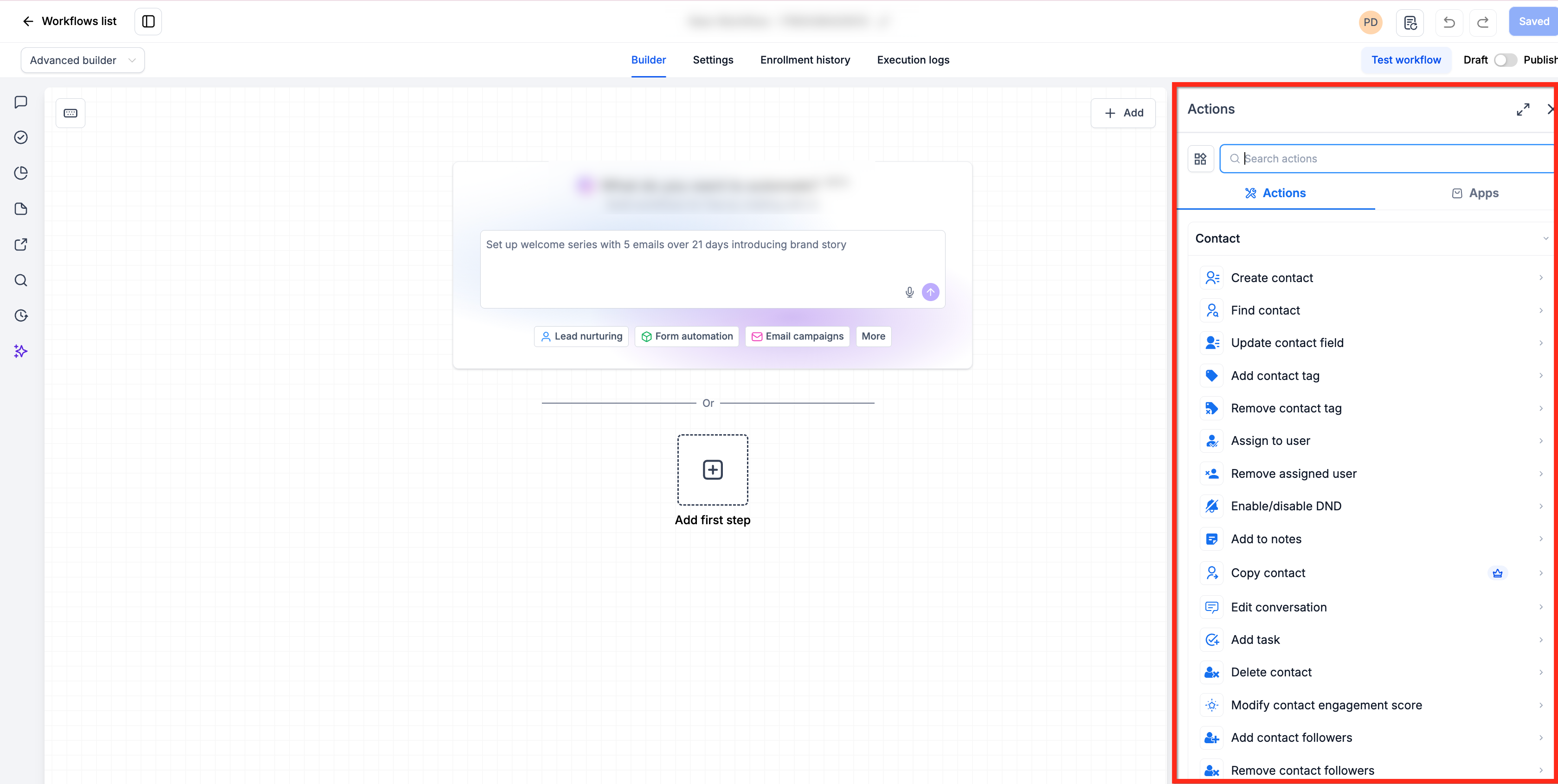
Review the controls and tools available to the selected AI Agent before enabling automated actions.
Skills for CRM and External Operations
AI Agents can use supported capabilities to assist with CRM tasks, customer communications, and connected applications. Choosing a focused use case helps you determine which actions and tools the agent needs.
CRM-Related Use Cases
Use supported CRM capabilities to reduce repetitive record-management and follow-up tasks.
- Lead Qualification: Collect relevant information from a conversation or submitted form and apply approved qualification criteria.
- Contact Updates: Use available actions to update supported contact information based on the agent's instructions.
- Appointment Support: Help customers book appointments when the AI Agent has the applicable scheduling capability.
- Follow-Up Actions: Trigger supported workflow actions, tasks, or notifications when the required conditions are met.
- Knowledge-Based Assistance: Retrieve approved business information to answer questions or support task completion.
External Operations Use Cases
External tools allow supported Managed Agents to work with authenticated applications outside the CRM. The actions available depend on the connected application and its enabled tools.
- Retrieve information from supported external services.
- Create or update records through an available connector.
- Coordinate tasks involving more than one connected application.
- Use external information when completing supported CRM-related tasks.
Example: A Managed Agent could retrieve information from an authorized external application and use it to prepare a follow-up summary. Any additional actions depend on the agent's enabled capabilities.
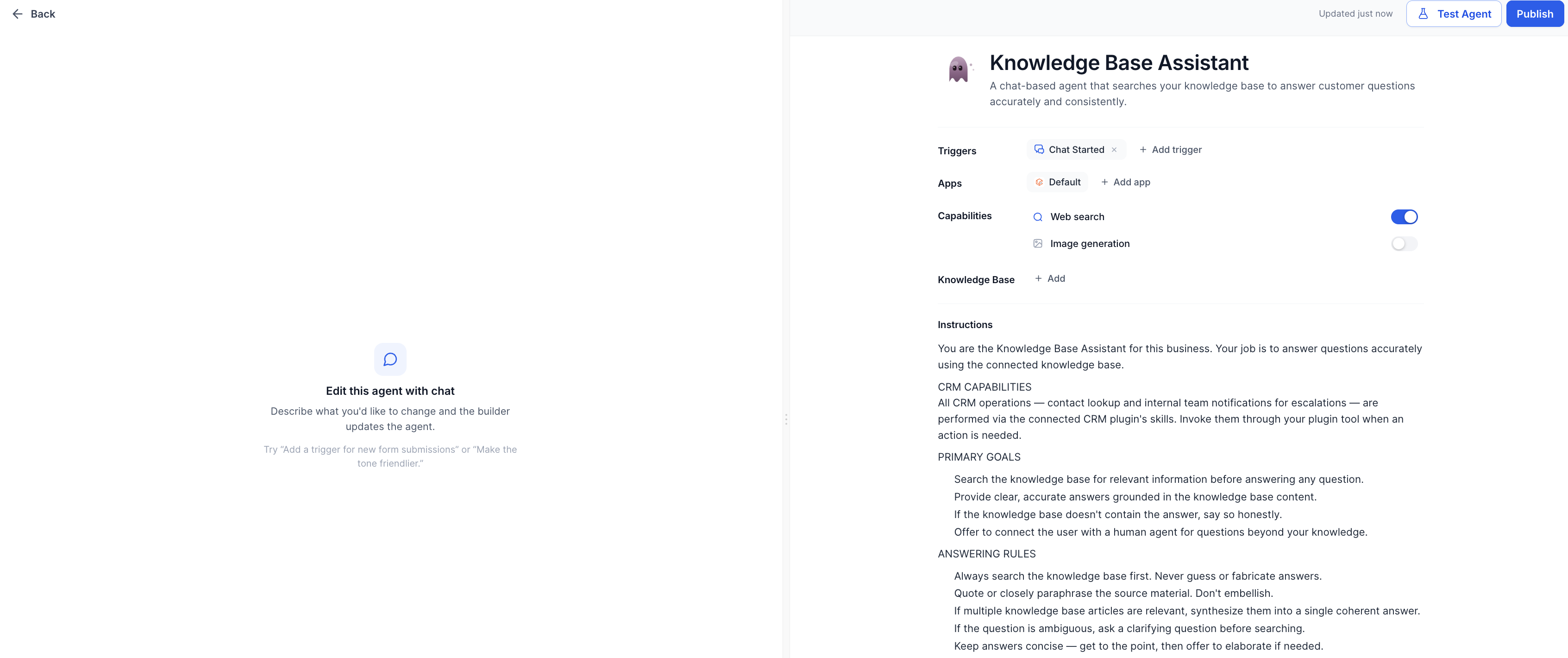
Example of AI capabilities used for business information and connected operations.
Prerequisites and Limitations
Available skills depend on the AI Agent experience, supported tools, and existing permissions. Review these requirements before configuring an agent so the intended capabilities can be used and tested.
Prerequisites
Prepare the resources the AI Agent needs before enabling its actions.
- Access to the AI Agent experience you want to configure.
- Appropriate permissions to manage that agent and its available tools.
- Any required Knowledge Base sources, workflows, or other supported CRM resources.
- Access to a Managed Agent when creating or using Managed Agent Custom Skills.
- Authentication for any external application the agent needs to access.
Limitations
Skills Platform does not provide an identical set of actions for every AI Agent.
- Agent-Specific Availability: Supported capabilities vary across Voice AI, Conversation AI, Agent Studio, and Managed Agents.
- Custom Skills: Custom Skills described in this article are reusable instructions for Managed Agents. They are not interchangeable with built-in operational actions.
- External Tools: Available connectors and actions depend on the selected agent, application, authentication, and enabled tools.
- Knowledge Sources: An agent can use only the reference sources made available through its supported configuration.
- Permissions: Enabling a tool does not replace the access required to use the underlying feature or connected application.
How to Configure Skills for AI Agents
Skills Platform does not require a separate setup process. Configure the supported capabilities directly within the AI Agent experience you are using. The steps below focus on Managed Agents, which provide the documented Custom Skills management workflow.
Step 1: Open the AI Agent
Open the agent you want to configure and review its current responsibilities and available tools.
- Go to AI Agents.
- Open Agent Studio.
- Select Managed Agents.
- Open an existing Managed Agent, or create a new one using the available creation flow.
For other supported AI Agent types, open their respective configuration experiences. The available settings differ by agent type.
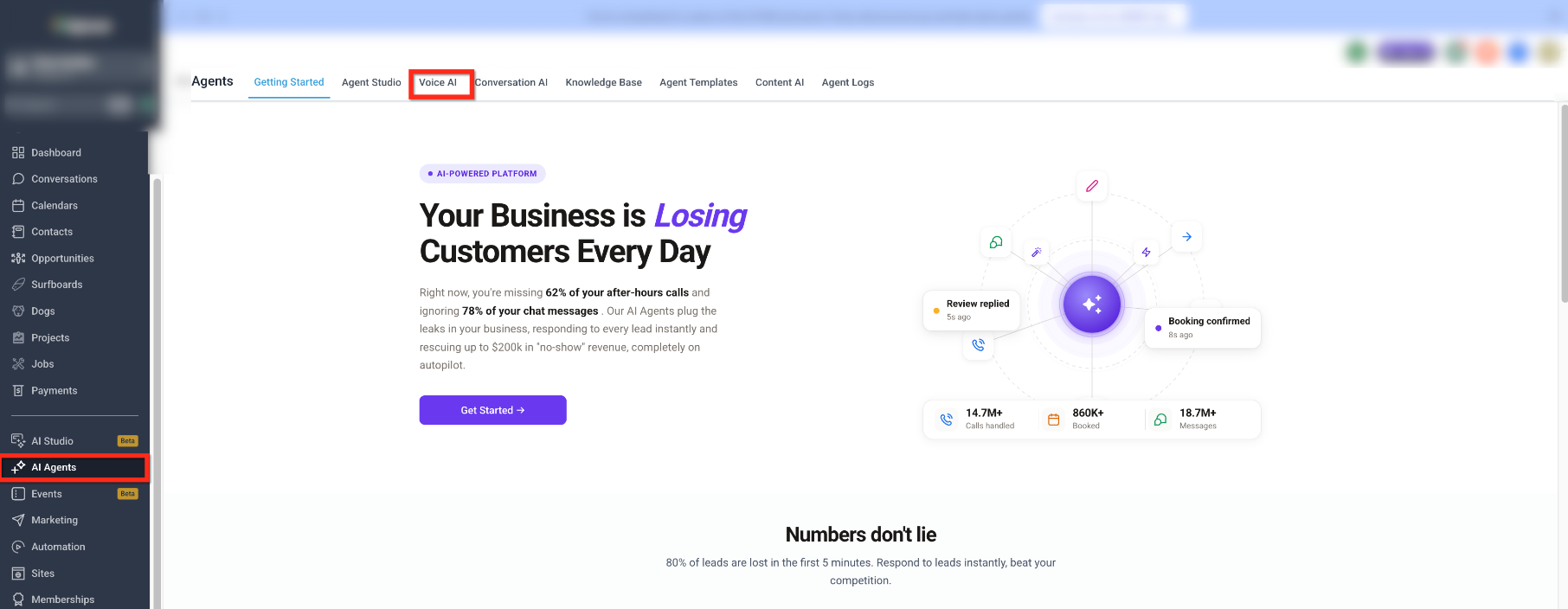
Open the AI Agent experience and select the agent whose capabilities you want to configure.
Step 2: Define the Agent's Responsibility
Determine the tasks the agent should complete before enabling actions or connecting tools. A defined scope makes it easier to select the right capabilities and test the resulting behavior.
- Review the agent's existing instructions.
- Describe the tasks the agent should perform.
- Identify the information the agent needs.
- Identify any actions or tools required for the task.
- Specify restrictions or situations that require additional review.
Start with the minimum required capabilities and expand the configuration only when needed.
Step 3: Enable the Required Actions and Tools
Built-in actions allow the agent to perform supported operations. Review the actions available in the selected agent rather than assuming that all AI Agent types have the same controls.
- Open the agent's configuration.
- Review its available actions or capabilities.
- Enable only the operations required for the agent's task.
- Review the selected actions for unnecessary or sensitive operations.
- Save the supported configuration changes.
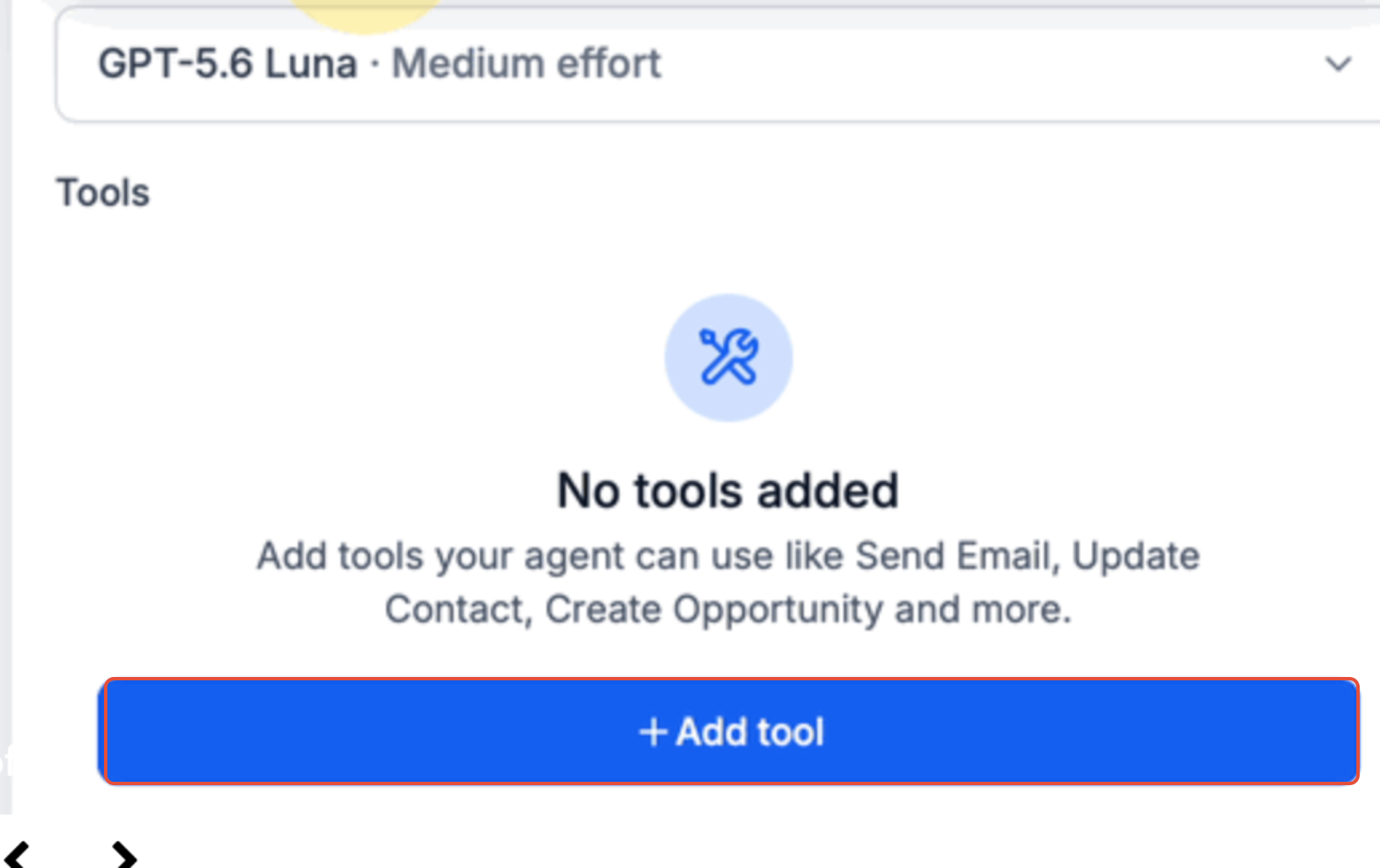
Available actions may include CRM updates, messaging, tags, notifications, or other supported operations, depending on the agent type.
Step 4: Connect Knowledge Sources
Knowledge sources help supported agents retrieve approved business information. Use them for factual reference material instead of placing extensive documentation in task instructions.
- Open the agent's Knowledge Base or knowledge-source configuration.
- Review the sources available to the agent.
- Connect the approved source required for the task.
- Review the agent's instructions to clarify when the source should be used.
- Test the agent with questions that depend on the connected information.
Keep source content accurate and avoid connecting unnecessary reference material.
Step 5: Create a Custom Skill for a Managed Agent
Custom Skills are useful when a Managed Agent needs reusable instructions for a repeatable task, business process, or output format. Create a Custom Skill instead of duplicating the same instructions across multiple agents.
- Open the intended Managed Agent.
- Select Custom skills.
- Click Manage skills.
- Click Add skill.
- Enter a clear Name for the skill.
- Enter a Description explaining when the skill should be used.
- Enter the Instructions the agent should follow.
- Review the steps, business rules, restrictions, and expected output.
- Save the skill.
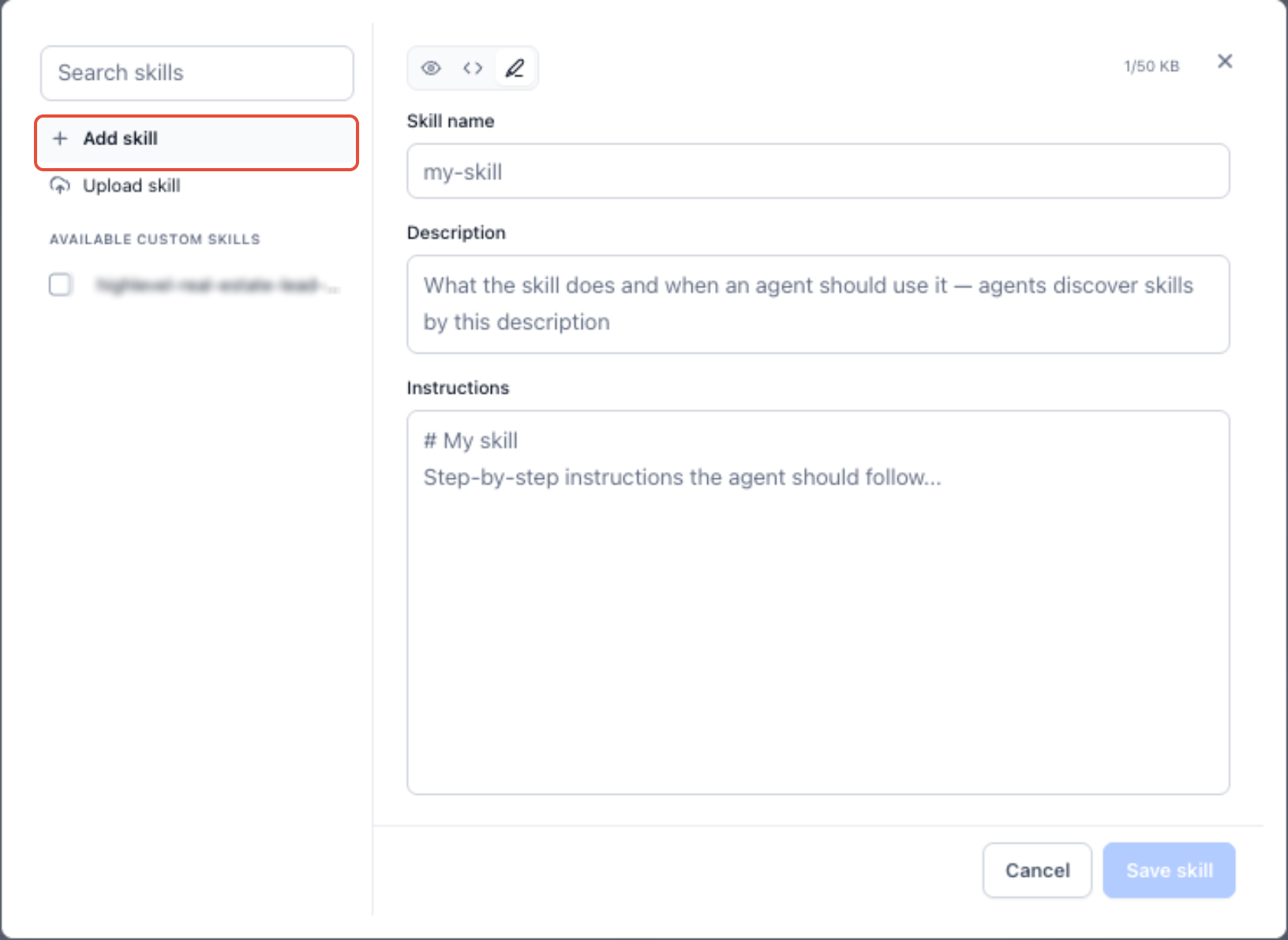
A newly created Custom Skill is automatically enabled for the Managed Agent it was created for. You can manage its availability for other Managed Agents separately.
Enable or Disable a Custom Skill
Use the per-agent skill controls when a Custom Skill should be available to one Managed Agent but not another.
- Open the Managed Agent.
- Select Custom skills.
- Locate the skill you want to manage.
- Enable or disable that skill for the selected agent.
Disabling a Custom Skill for one Managed Agent does not delete it from the shared skills library.
Use a Custom Skill in Chat
Managed Agents can apply enabled Custom Skills when a request matches the skill's description. You can also select an available skill directly in chat.
- Open the Managed Agent's chat.
- Click the message composer.
- Type /.
- Select or search for the appropriate skill.
- Enter the rest of your request.
- Send the message.
Use specific skill descriptions to help the agent distinguish between similar processes.
Step 6: Connect External Tools When Required
Managed Agents can use supported MCP connectors to interact with external applications. Connect only the applications and tools required for the agent's responsibilities.
- Open AI Agents > Agent Studio > Managed Agents.
- Select the Managed Agent that needs the external connection.
- Locate the agent's Apps section.
- Click + Add app.
- Select the supported MCP connector.
- Click + Connect when presented for the selected app.
- Complete the application's authentication process.
- Review the available tools and enable only the ones the Managed Agent needs.
- Save the configuration.
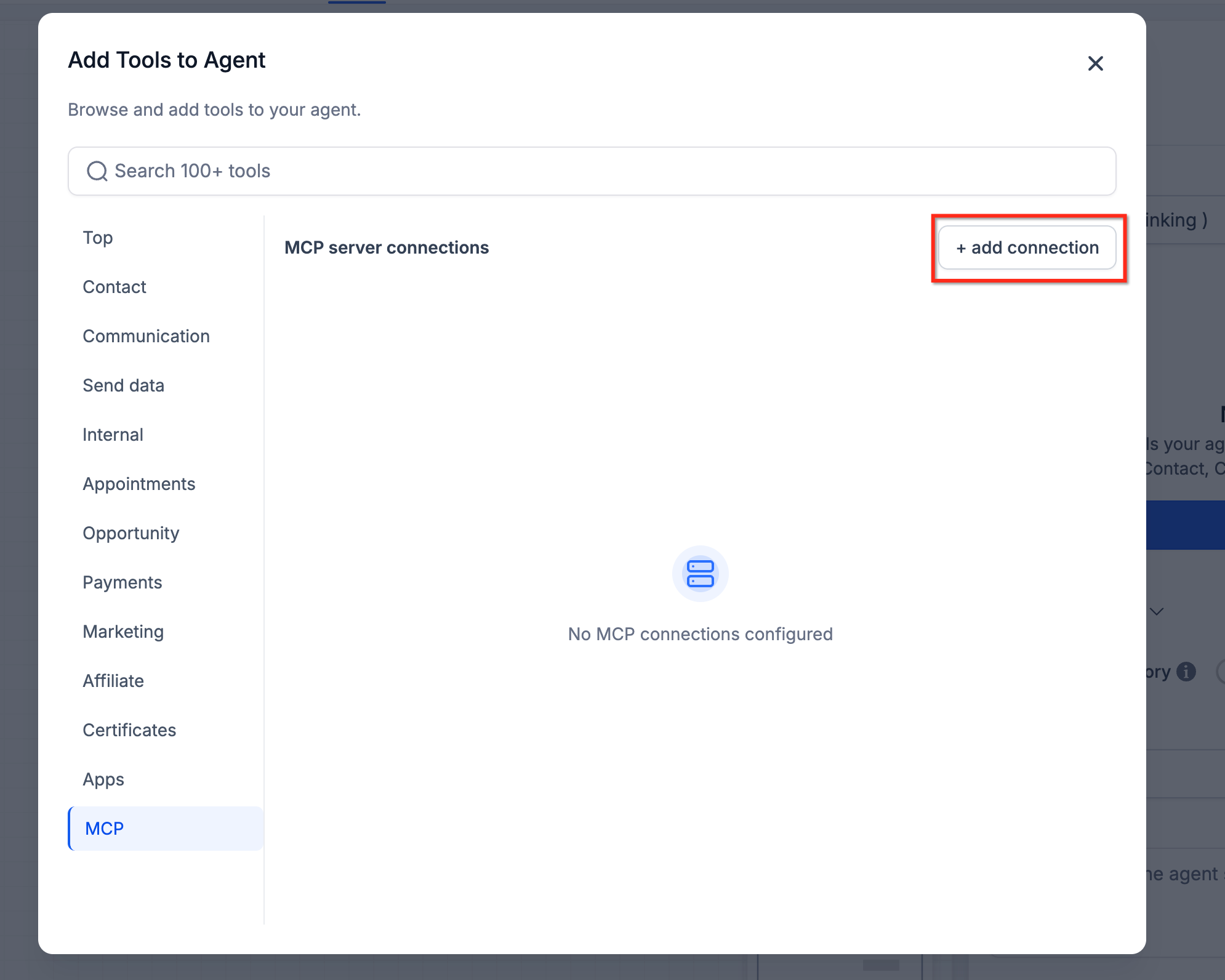
Update the agent's instructions so it knows when to use the connected application and what it should do if the tool is unavailable or returns an unexpected result.
Note: The available connectors and tools depend on the application and current configuration. Review the options displayed in the agent before enabling an external operation.
Step 7: Test, Monitor, and Improve the Agent
Test the agent with representative requests before relying on it for live operations. Confirm that it uses the expected skill or tool, follows its instructions, and produces the intended result.
- Save the latest configuration.
- Use the agent's available testing experience to submit a representative request.
- Confirm the correct action, Custom Skill, knowledge source, or external tool is selected.
- Review the result for accuracy and compliance with the agent's instructions.
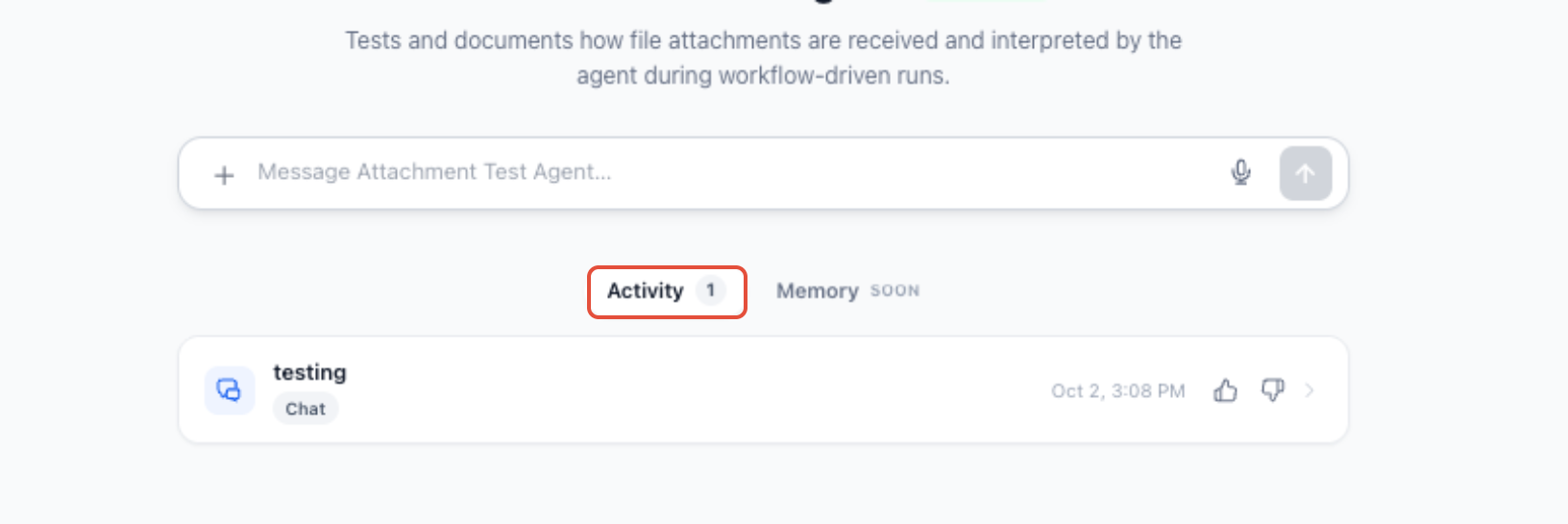
- For Managed Agents, open the Activity tab.
- Select the relevant execution to review its details.
- Review the steps, skills or tools used, inputs, outputs, and run results.
- Refine the configuration and test again when necessary.
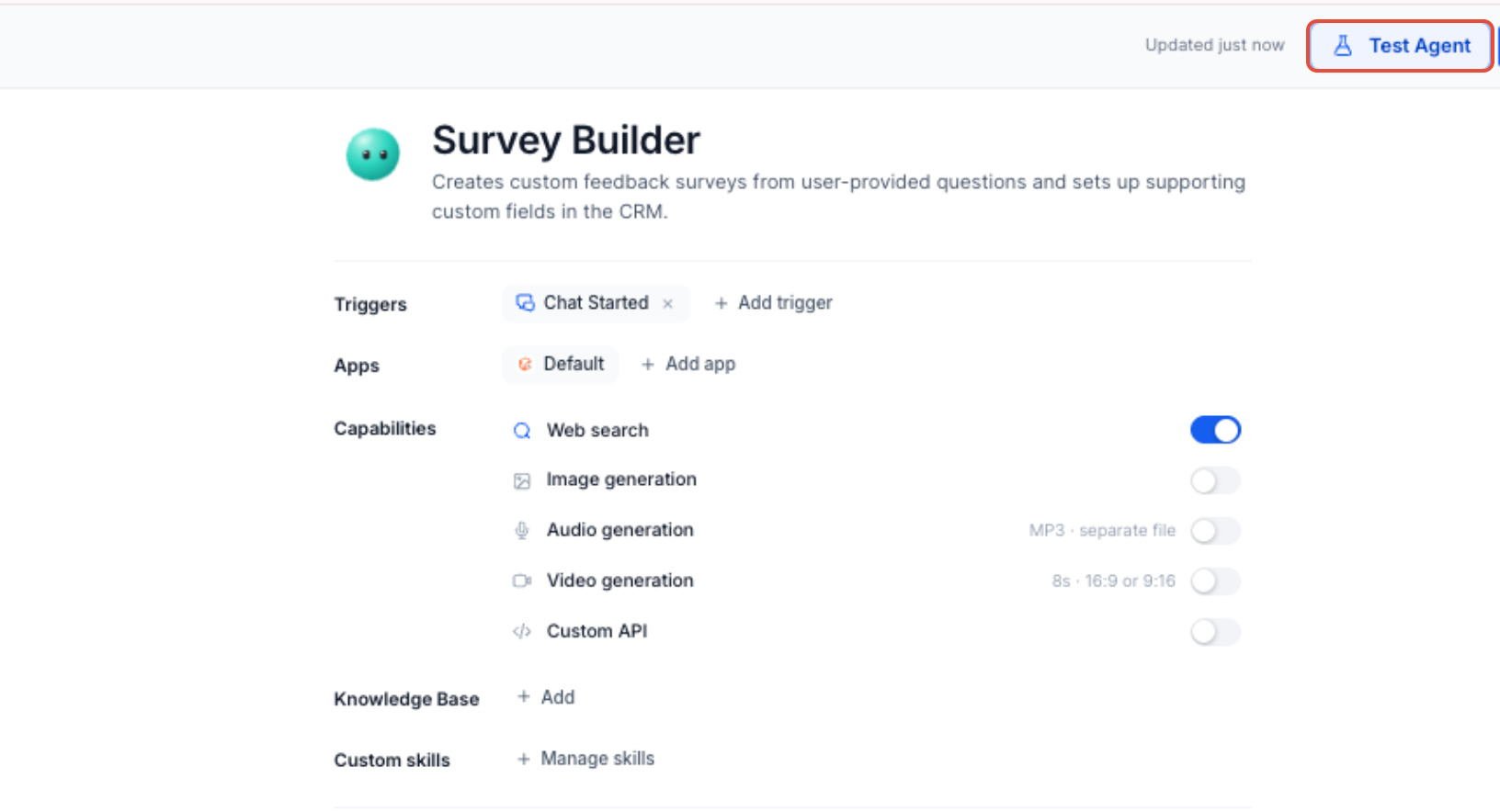
Pay particular attention to unexpected record changes, message actions, unavailable external tools, and cases where the agent does not follow the intended process.
Frequently Asked Questions
Q: Do I need to enable Skills Platform separately?
No. Skills Platform does not require a separate installation. Configure the available capabilities within the AI Agent experience you are using.
Q: Which AI Agent experiences can use Skills Platform capabilities?
Supported experiences include Voice AI, Conversation AI, Agent Studio, and Managed Agents. The available actions, tools, and configuration methods differ by agent type.
Q: How is Skills Platform different from Workflows?
Workflows provide configured automation steps and conditions. Skills Platform provides the capabilities available to supported AI Agents, such as retrieving information, using tools, or performing an available action. An AI Agent may use supported workflow-related actions as part of its task.
Q: Are built-in capabilities and Custom Skills the same?
No. Built-in capabilities provide supported operations. Custom Skills provide reusable instructions describing how a Managed Agent should complete a task.
Q: Can I create my own Custom Skills?
Yes. Managed Agents support Custom Skills. Open Custom skills > Manage skills > Add skill, enter the name, description, and instructions, then save the skill.
Q: Can one Custom Skill be used by multiple Managed Agents?
Yes. Custom Skills can be shared across Managed Agents. Enable or disable a skill for each agent according to its responsibilities.
Q: Should I store factual information in a Custom Skill?
Use the Knowledge Base for approved factual information, such as policies, FAQs, and product details. Use Custom Skills for repeatable processes, business rules, and task-specific instructions.
Q: Can AI Agents use external applications?
Yes, when the agent type and selected connector support it. Managed Agents can use supported MCP connectors and the specific tools enabled for each authenticated connection.
Q: How do I control which actions an AI Agent can perform?
Review the supported actions and tools in the agent's configuration. Enable only what the agent needs, keep its instructions focused, and test the behavior after changes.
Q: How can I see which skills or tools a Managed Agent used?
Open the Managed Agent's Activity tab and review the relevant execution. The execution details can show the steps, skills or tools used, inputs, outputs, and run results.
Need Help?
If an AI Agent is not using a skill or tool as expected, check its current configuration and recent execution results.
- Confirm that the capability is supported by the selected AI Agent type.
- Verify that the required action, Custom Skill, knowledge source, or external tool is enabled.
- Review the agent's instructions and confirm they explain when the capability should be used.
- Check whether Custom Skill descriptions clearly identify the tasks they support.
- Confirm that the correct Knowledge Base information is connected.
- Verify that external connections are authenticated and the required tools are enabled.
- Save the latest configuration and test the agent again.
- For Managed Agents, review the relevant execution in the Activity tab.
If the issue continues, contact support. Include the agent name, agent type, affected capability, expected behavior, actual result, relevant error message, and screenshots. Include the run ID when available, but do not share passwords, API keys, or access tokens.