
Number Pools help you track which website visits, landing pages, and advertising sources lead to incoming phone calls. A number pool uses tracking numbers that can replace a phone number displayed on your website based on visitor activity. You can configure call routing, add tracking code to your website, and review the recorded source information in call reports. This guide explains how to create a number pool, route calls, install the tracking snippet, test number swapping, and troubleshoot common issues.
TABLE OF CONTENTS
- What Are Number Pools for Call Tracking?
- Key Benefits
- Prerequisites and Limitations
- How to Set Up a Number Pool for Call Tracking
- Ring Number Pool Calls to Multiple Users
- Integrate the Tracking Snippet on Your Website
- How to Test Number Swapping
- How to Set Up Keyword Tracking
- How to Swap Numbers in a Button
- How to Use Group ID
- Frequently Asked Questions
- Need Help?
What Are Number Pools for Call Tracking?
A number pool is a collection of tracking phone numbers used to identify the website activity associated with incoming calls. Number pools are also used for dynamic number insertion and call-source tracking.
When a visitor opens a page with the number-pool tracking script, the system can display a tracking number according to the visitor's source and the pool's configuration. If the visitor calls that number, the system can associate the call with available website-source information.
Number pools are useful for understanding which advertising campaigns, landing pages, and other website traffic sources generate phone calls.
The system uses the available tracking information to associate a call with its source. The source information recorded depends on the visitor's activity and the data available from the browser or tracking link.
Key Benefits
Number pools help you connect phone calls with website activity so you can evaluate marketing performance. They also provide configurable call routing and reporting options.
- Call-Source Attribution: Identify available traffic sources associated with calls from website visitors.
- Dynamic Number Swapping: Display tracking numbers according to selected visitor activity and traffic sources.
- Advertising Insights: Review calls associated with paid campaigns and supported advertising platforms.
- Keyword Tracking: Capture available keyword information from appropriately configured advertising URLs.
- Multiple Call Recipients: Route number-pool calls to selected team members through supported receiving channels.
- Call Reporting: Review recorded source information, keywords, and related contact activity.
- Flexible Website Installation: Install tracking code across a funnel or website, or on an individual page.
- Group ID Support: Use grouping to control number swapping when multiple number pools are involved.
Prerequisites and Limitations
Before configuring call tracking, identify the website phone number you want to replace and the destination where calls should be received. You also need access to the phone settings and the website or funnel where the tracking code will be installed.
Before You Begin
- Phone System Access: Open Settings > Phone System > Phone numbers to configure number pools.
- Website or Funnel Access: Make sure you can edit the tracking-code settings of the site or page you want to track.
- Forwarding Destination: Have an external phone number available if you want calls forwarded to a business phone number.
- Swapping Number: Identify the number already displayed on your website that should be dynamically replaced.
- Visitor Tracking Selection: Decide whether to track all visitors or a specific category of website traffic.
Important Limitations
- Minimum Pool Size: A number pool requires at least four tracking numbers.
- Forwarding Loops: Do not use a phone number managed by the same phone system as the external forwarding destination. Use a separate external number to avoid call-routing loops.
- Source Availability: Attribution depends on available browser and tracking-link information. Some visits may appear as Direct when the originating source cannot be identified.
- Number Matching: The displayed phone number, configured swapping number, and clickable phone link should use consistent formatting.
- Google Ads Tracking: A manually added
gclidparameter does not reproduce the tracking information from an actual Google Ads click. - Historical Reporting: Improvements to source attribution apply to new calls. Existing call records retain their previously recorded source values.
How to Set Up a Number Pool for Call Tracking
To create a number pool, configure the visitors you want to track, choose the tracking numbers, and set the receiving and call-handling options. After activation, install the tracking snippet on your website.
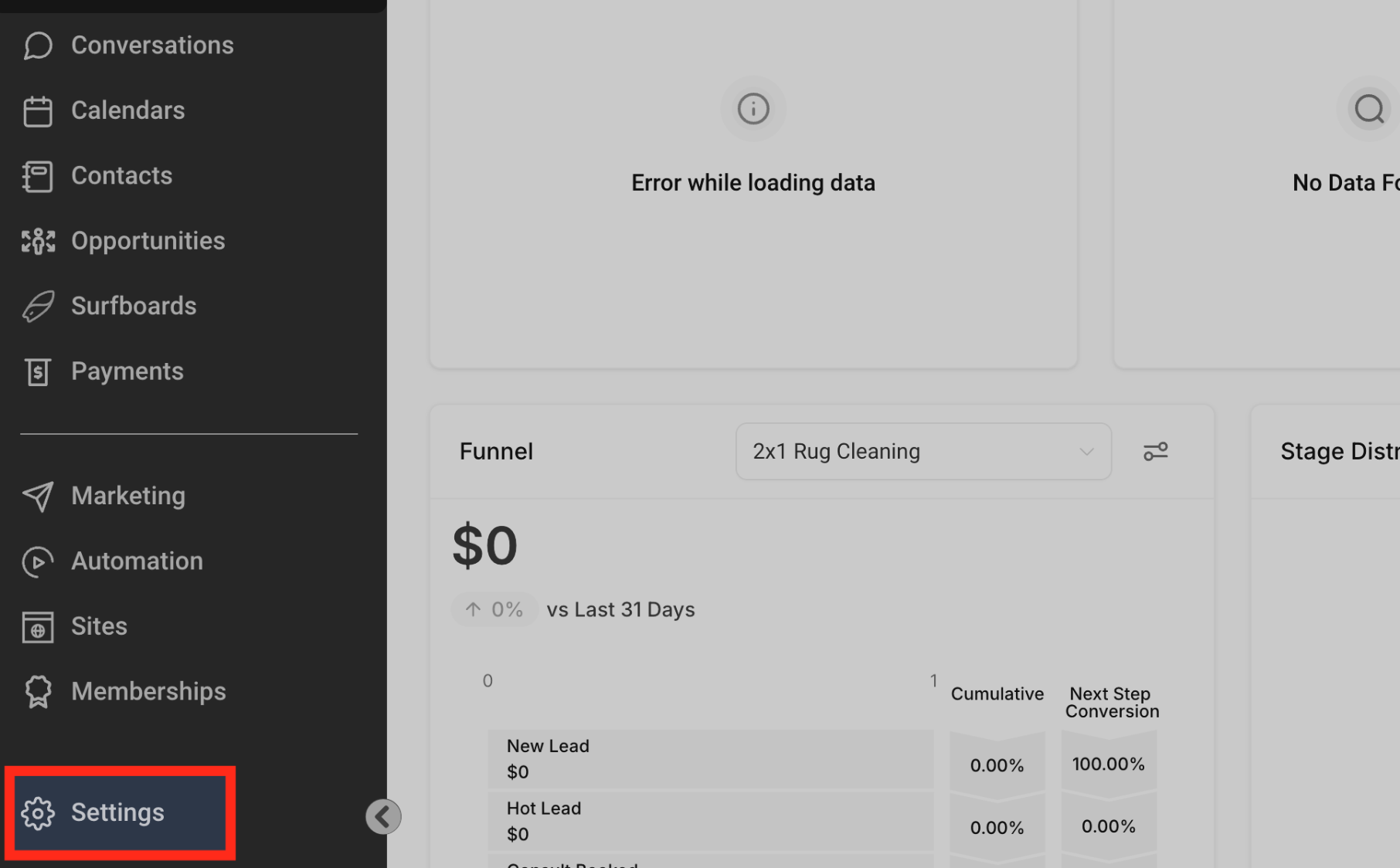
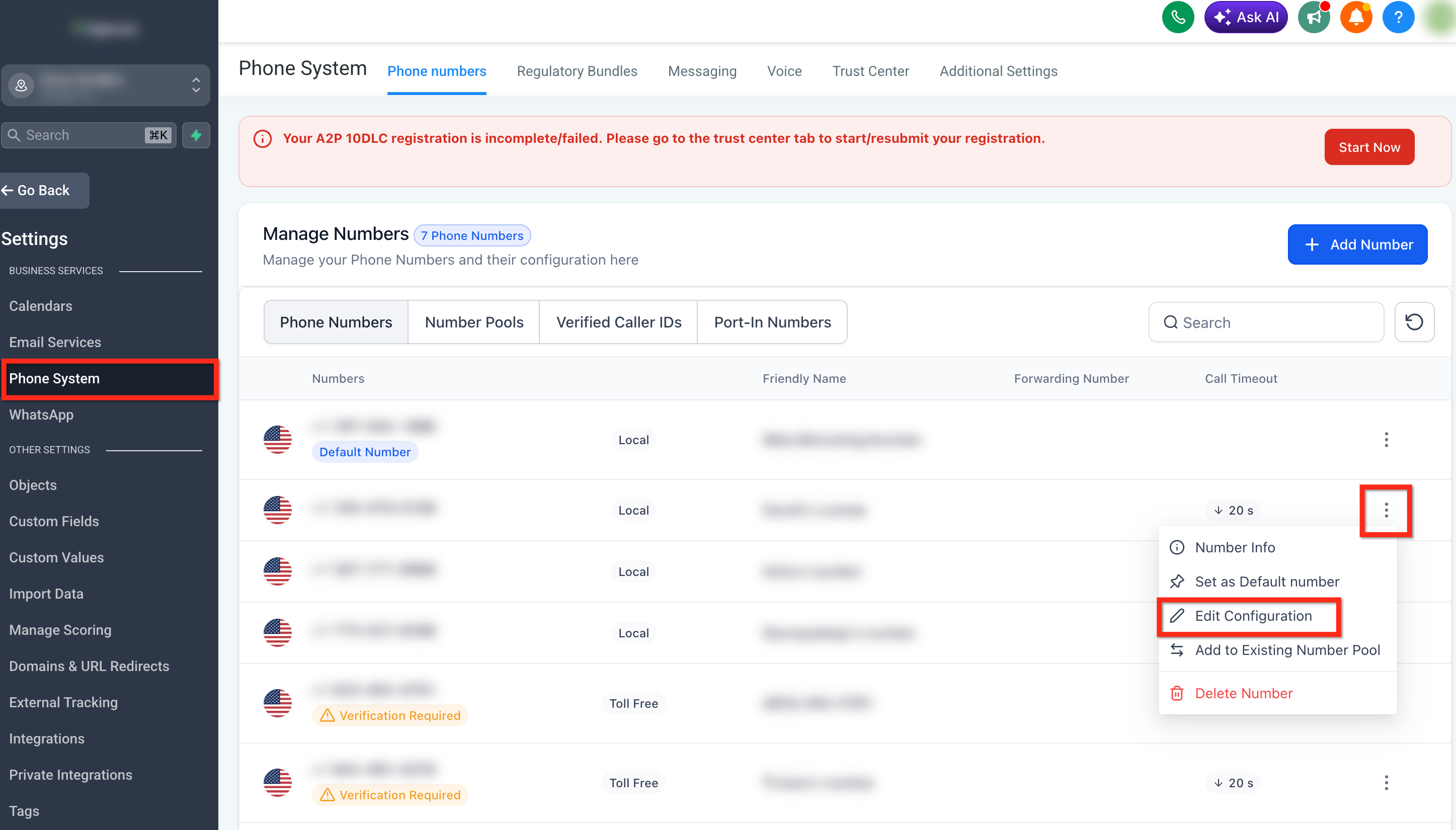
Step 1: Open Phone Number Settings
Start from the phone settings to locate the Number Pools configuration.
- Click Settings.
- Select Phone System.
- Open the Phone numbers tab.
- Under Manage Numbers, locate Number Pools.
Step 2: Add a Number Pool
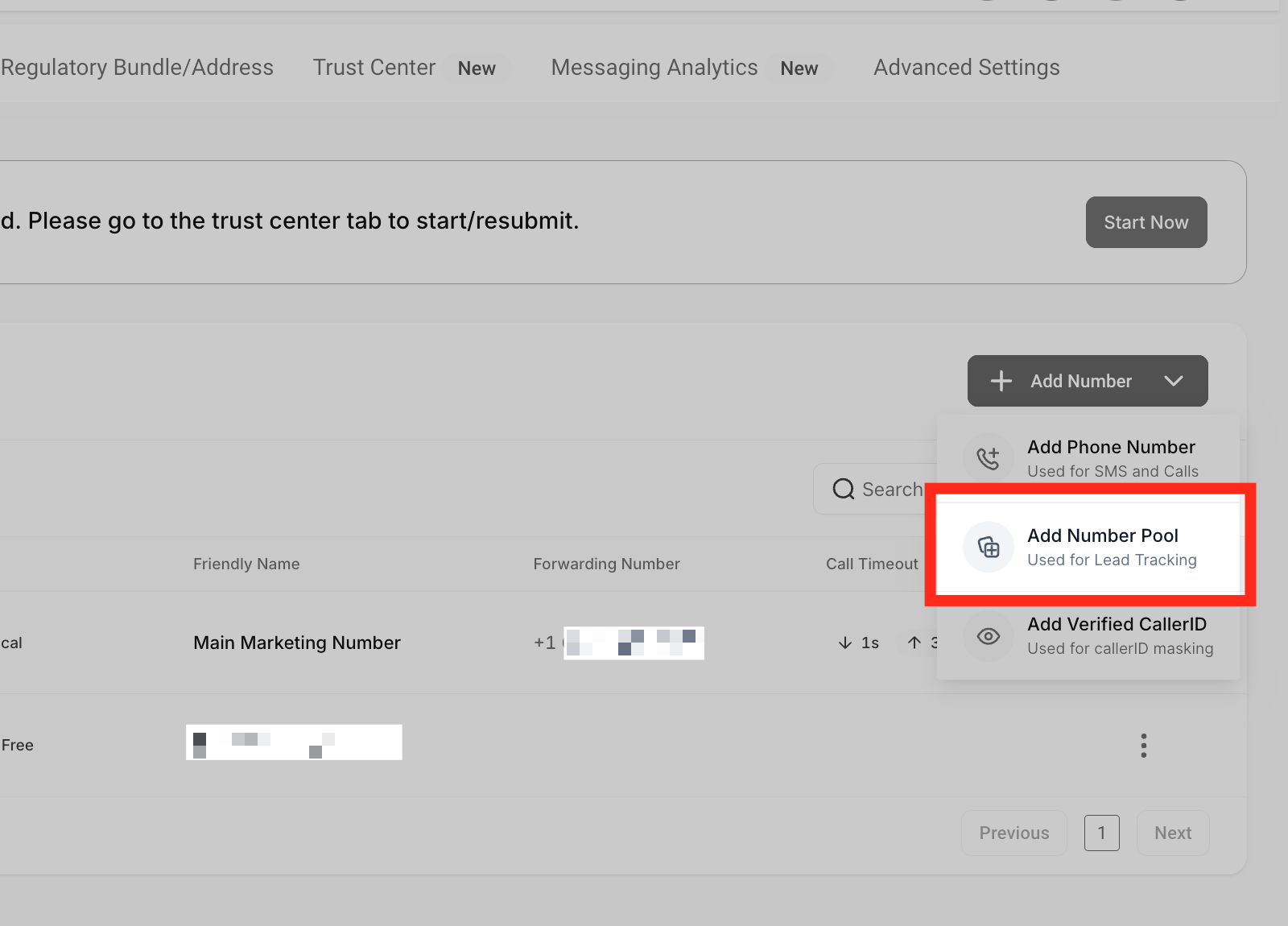
Create a new number pool using the available phone-number controls.
- Open the + Add Number dropdown on the right side of the page.
- Select Add Number Pool.
Step 3: Choose Visitor Activity
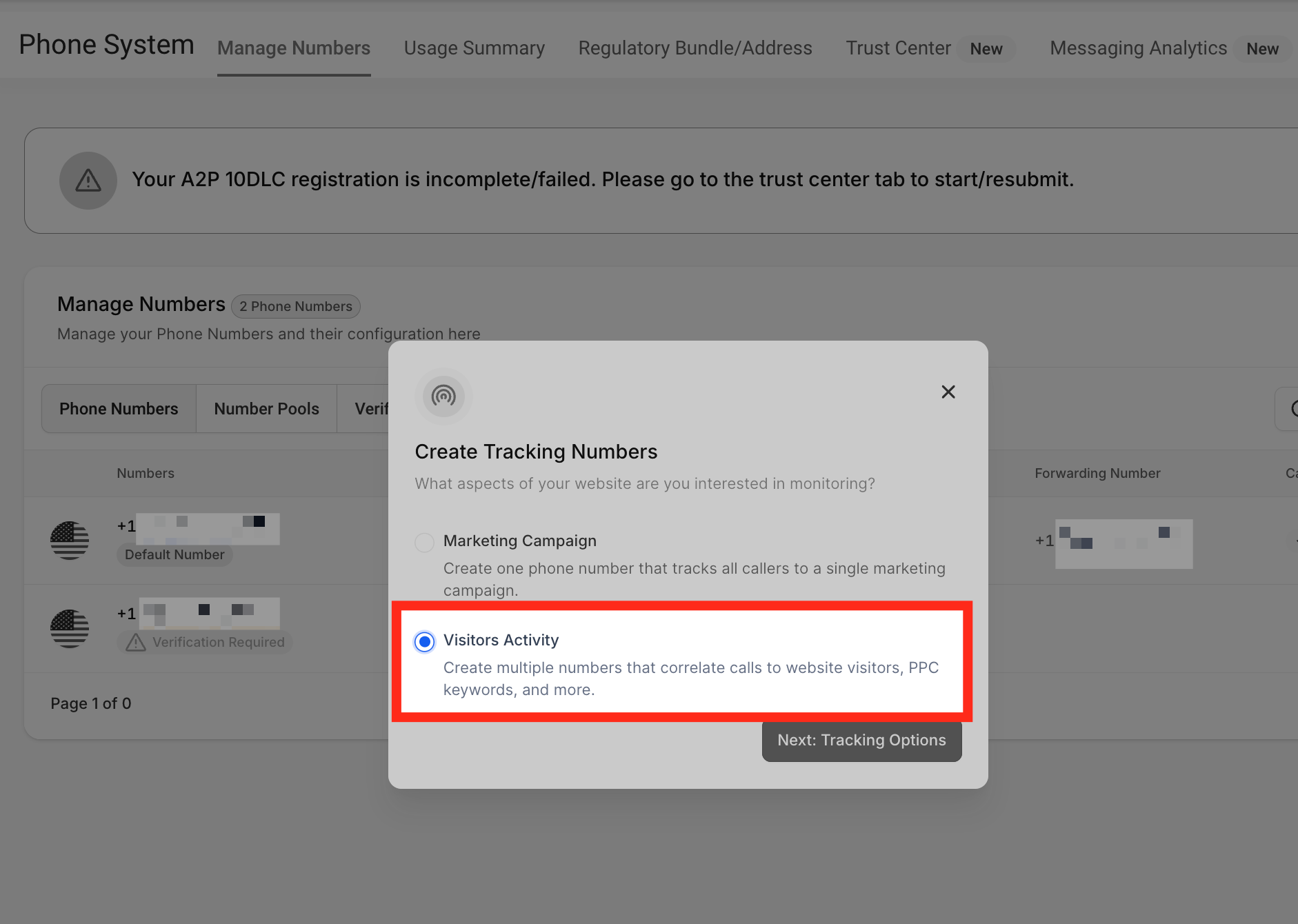
Select which visitor activity should determine when the number pool is used. The tracking selection affects which visits receive swapped phone numbers.
- Select Visitors Activity.
- Choose the visitors you want to track.
- For broader call tracking, select All visitors.
- Click Next: Create Pool.
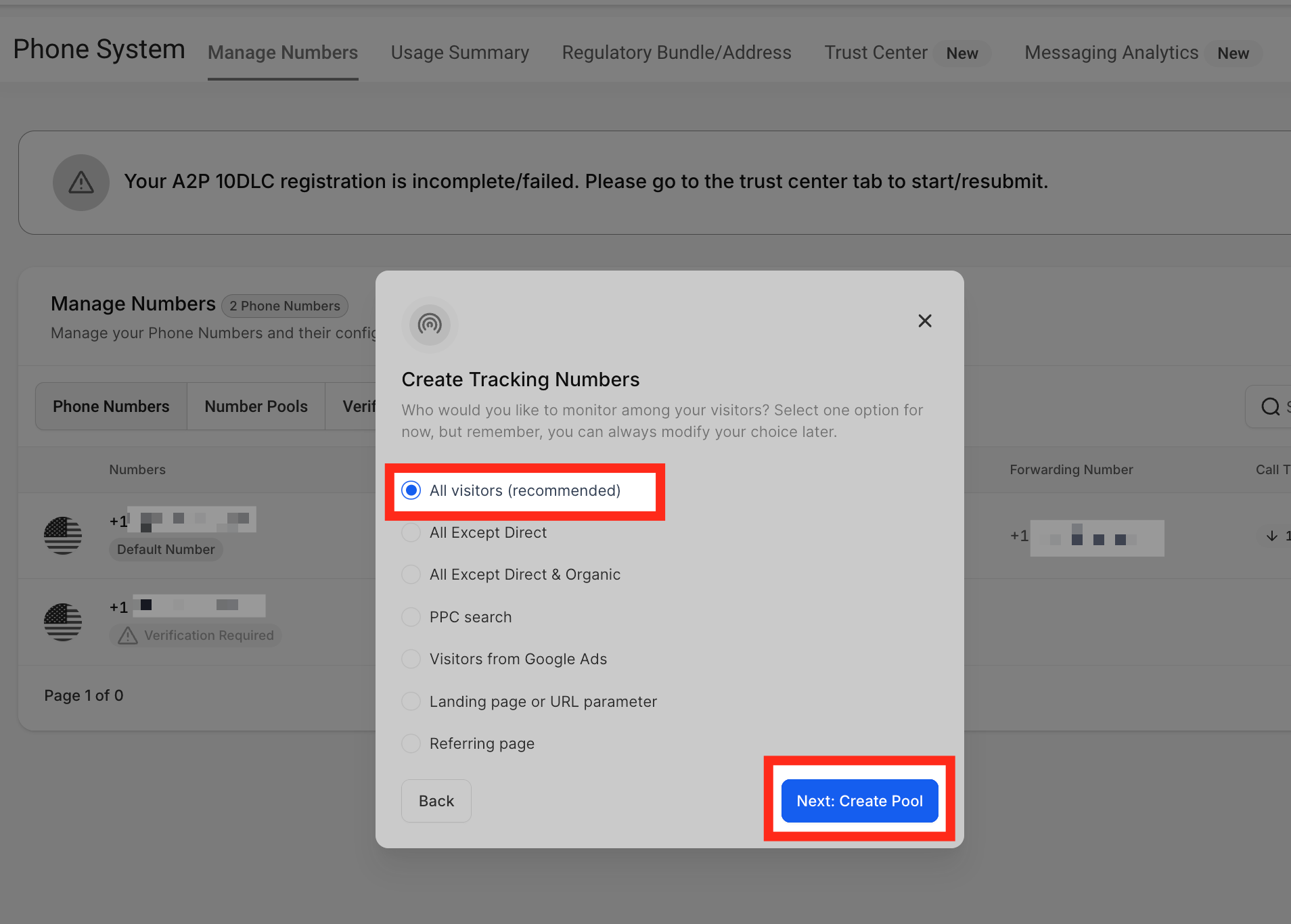
Note: If you select PPC search, number swapping occurs for visits that match the selected paid-search activity rather than all website visitors.
Step 4: Name the Pool and Set Its Size
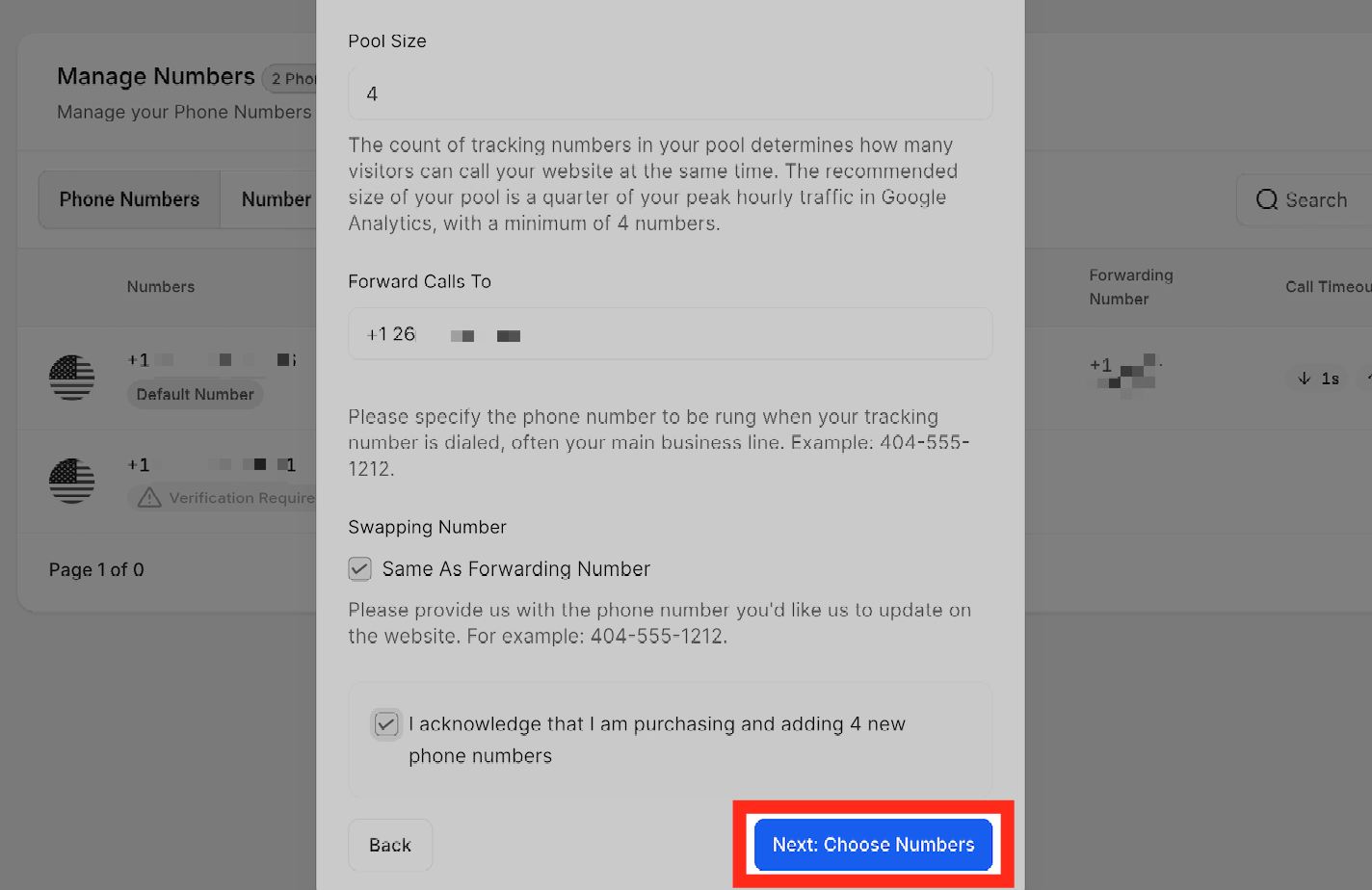
Give the number pool a recognizable name and select how many tracking numbers it will contain.
- Find the Number Name field.
- Enter a descriptive name for the tracking number or pool.
- Find the Pool Size field.
- Choose the number of tracking numbers to include.
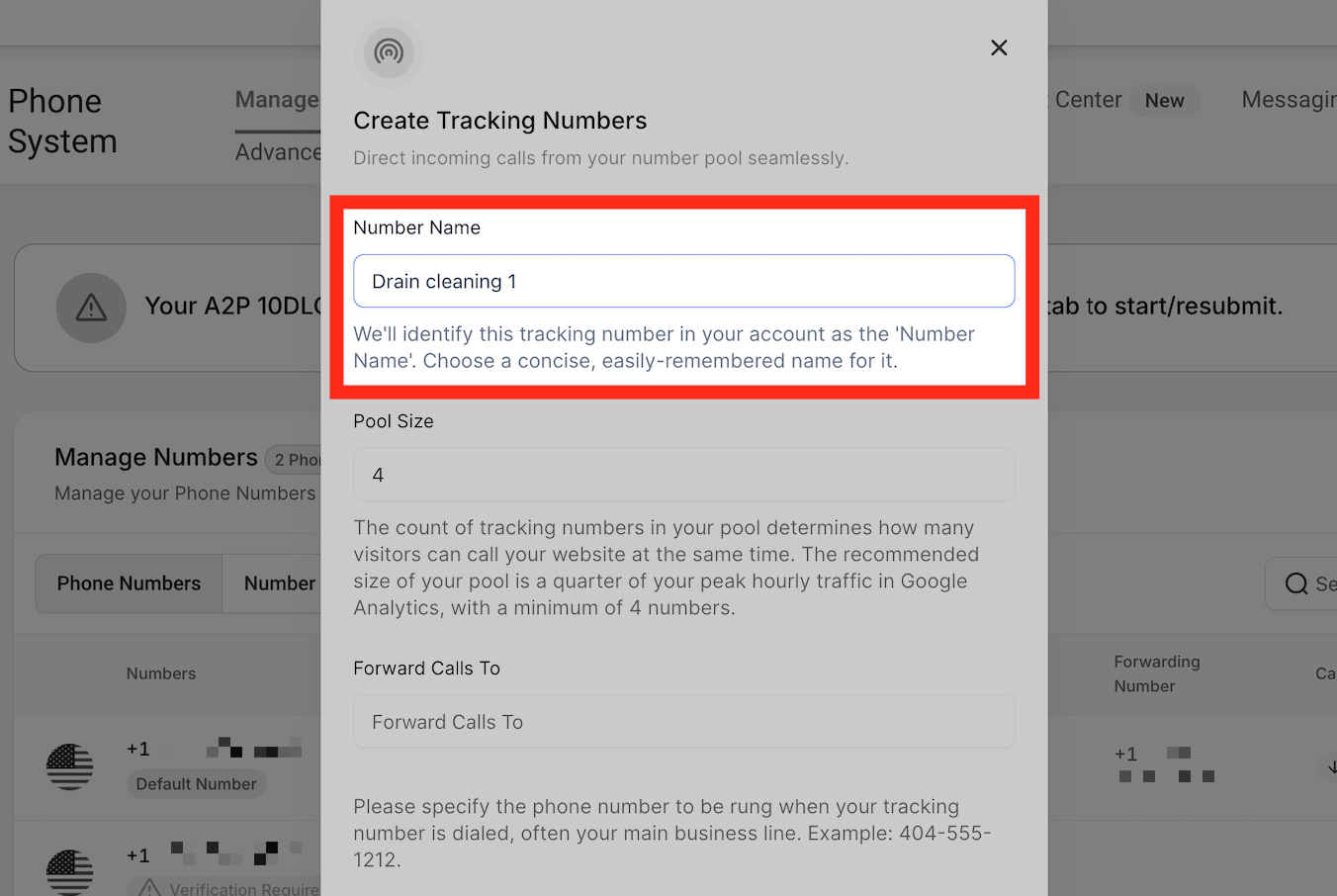
A pool requires at least four tracking numbers. Select the pool size according to the website traffic and call-tracking activity you expect.
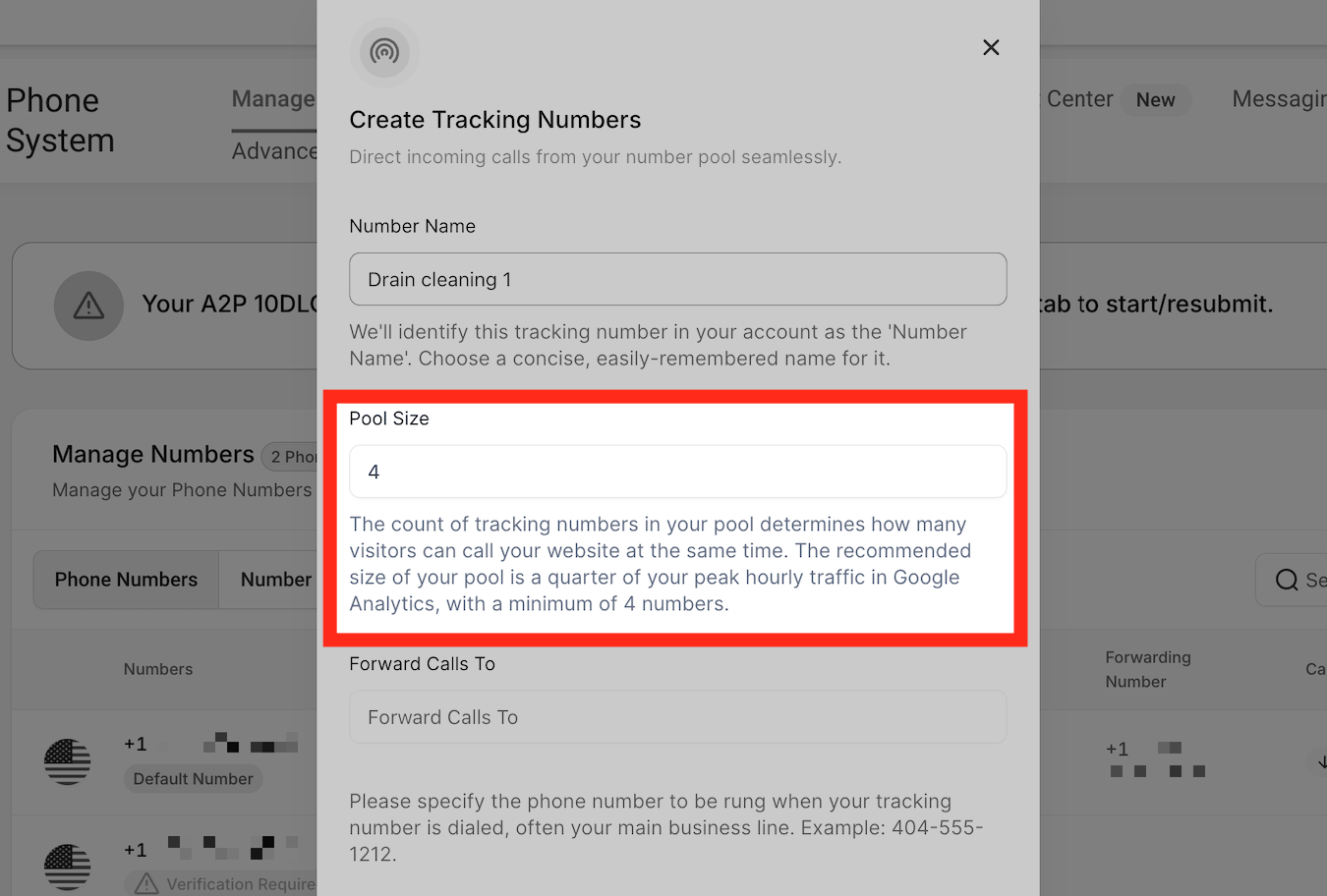
Step 5: Configure Forwarding, Swapping, and Caller ID
Configure how incoming calls reach their destination and which number visitors see on the website.
Forwarding Number
The Forwarding Number is the external business phone number where calls should arrive when visitors dial a number-pool tracking number.
- Find the Forwarding Number field.
- Enter the external number that should receive the calls.
- Review the number to avoid incorrect call routing.
Important: Use a separate external number for forwarding. Forwarding calls to a number managed by the same phone system can cause a routing loop.
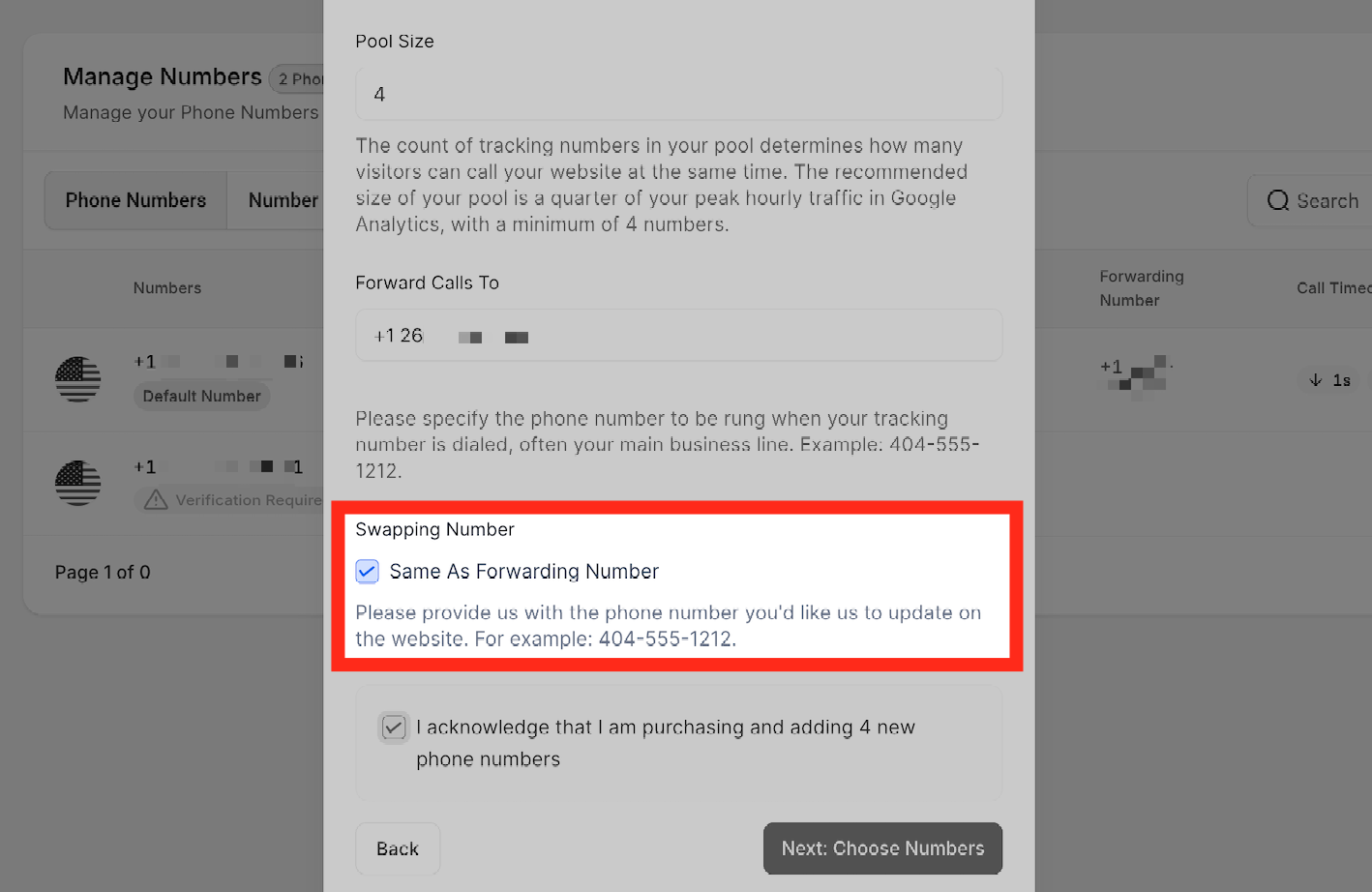
Swapping Number
The Swapping Number is the phone number on your website that the tracking script should replace.
- Find the Swapping Number field.
- Use the forwarding number as the swapping number if it is also displayed on your website.
- To use a different website number, clear the option that keeps the swapping and forwarding numbers the same.
- Enter the number that should be replaced on the website.
Pass Call Number as Caller ID
The Pass Call Number as Caller ID setting determines which number appears on the recipient's phone when an incoming call is forwarded through the number pool.
- Enabled: The recipient sees the number-pool tracking number as caller ID instead of the original caller's number.
- Disabled: The recipient sees the original caller's phone number as caller ID instead of the tracking number.
 Complete the required configuration fields and follow the on-screen prompts. Then click Next: Choose Numbers.
Step 6: Choose Your Tracking Numbers
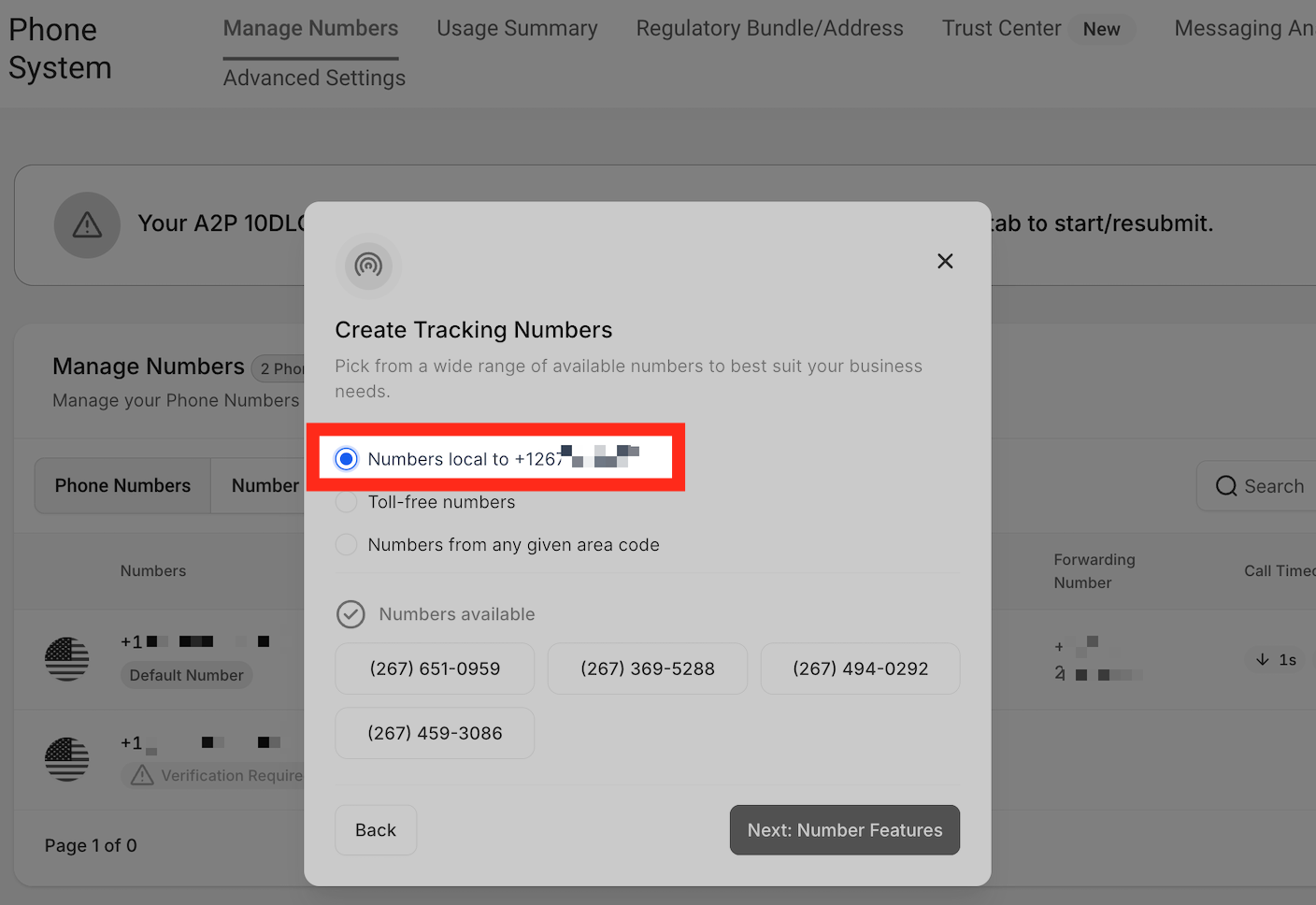
Select the available phone numbers to include in the pool. The setup offers options based on location, number type, and area code.
Local Numbers
Choose Local Number to see numbers associated with the area of the forwarding number.
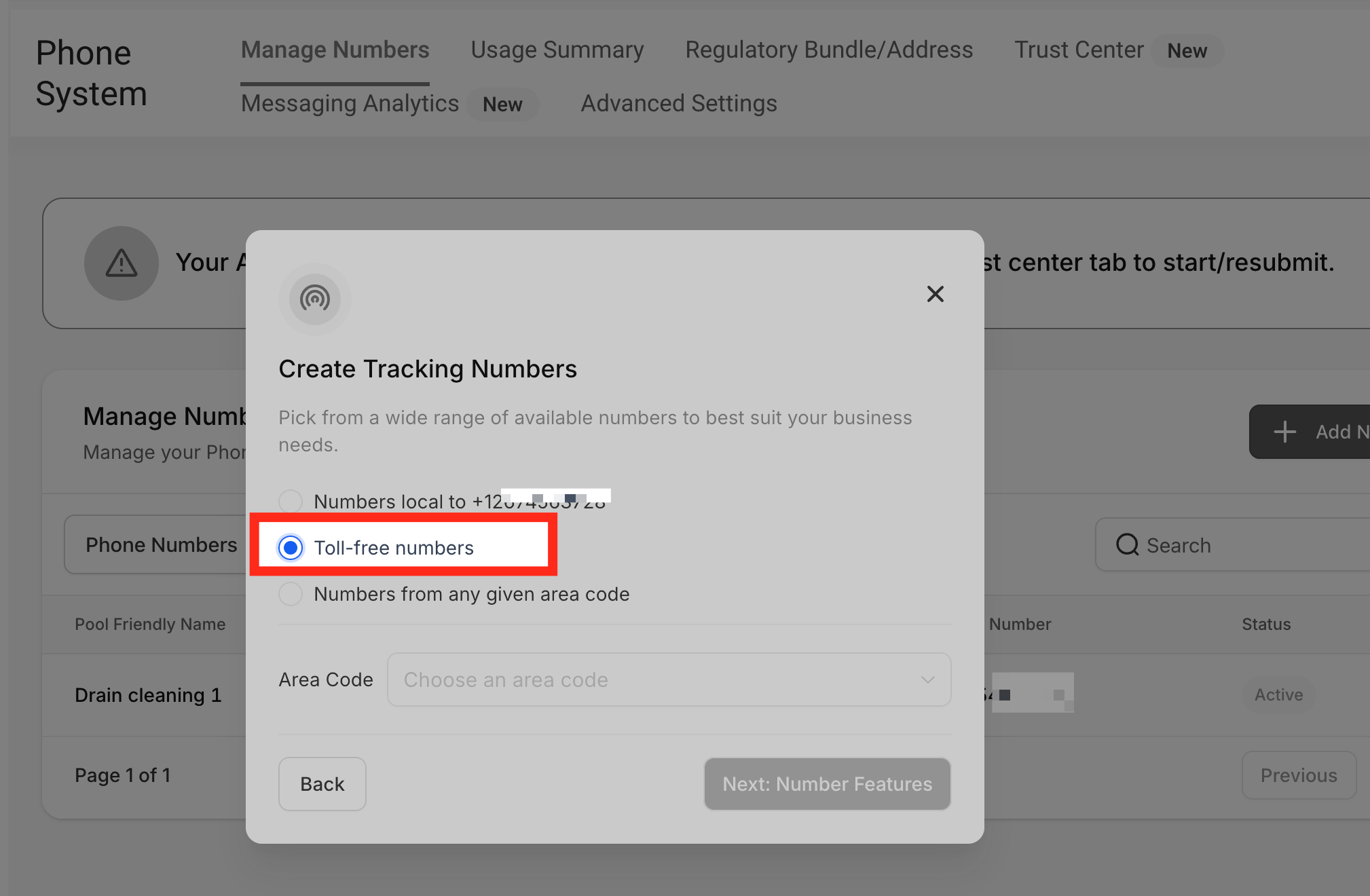
Toll-Free Numbers
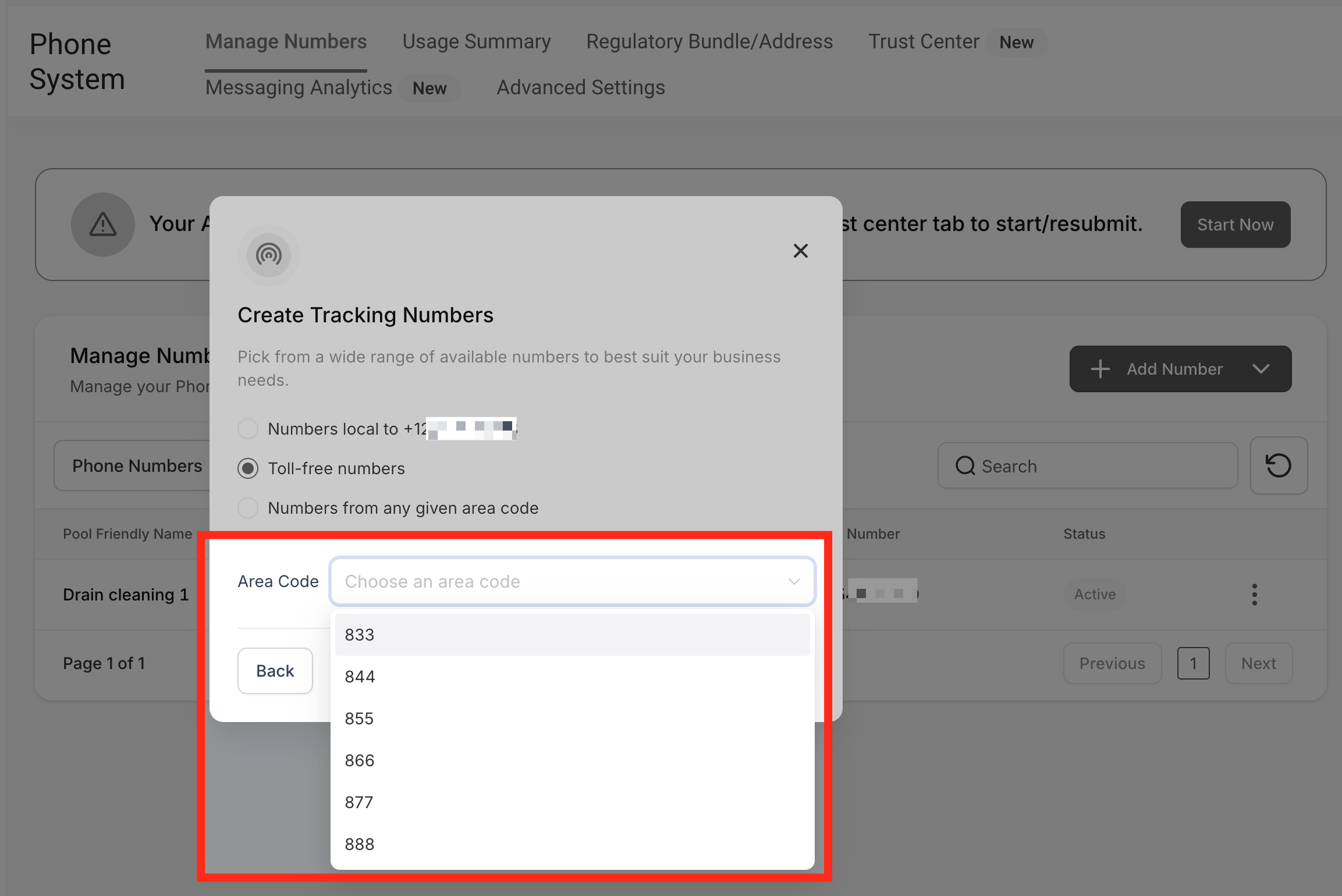
Choose Toll-free numbers if you want toll-free tracking numbers or cannot find numbers in the preferred area code.
Use the available dropdown to review toll-free number choices.
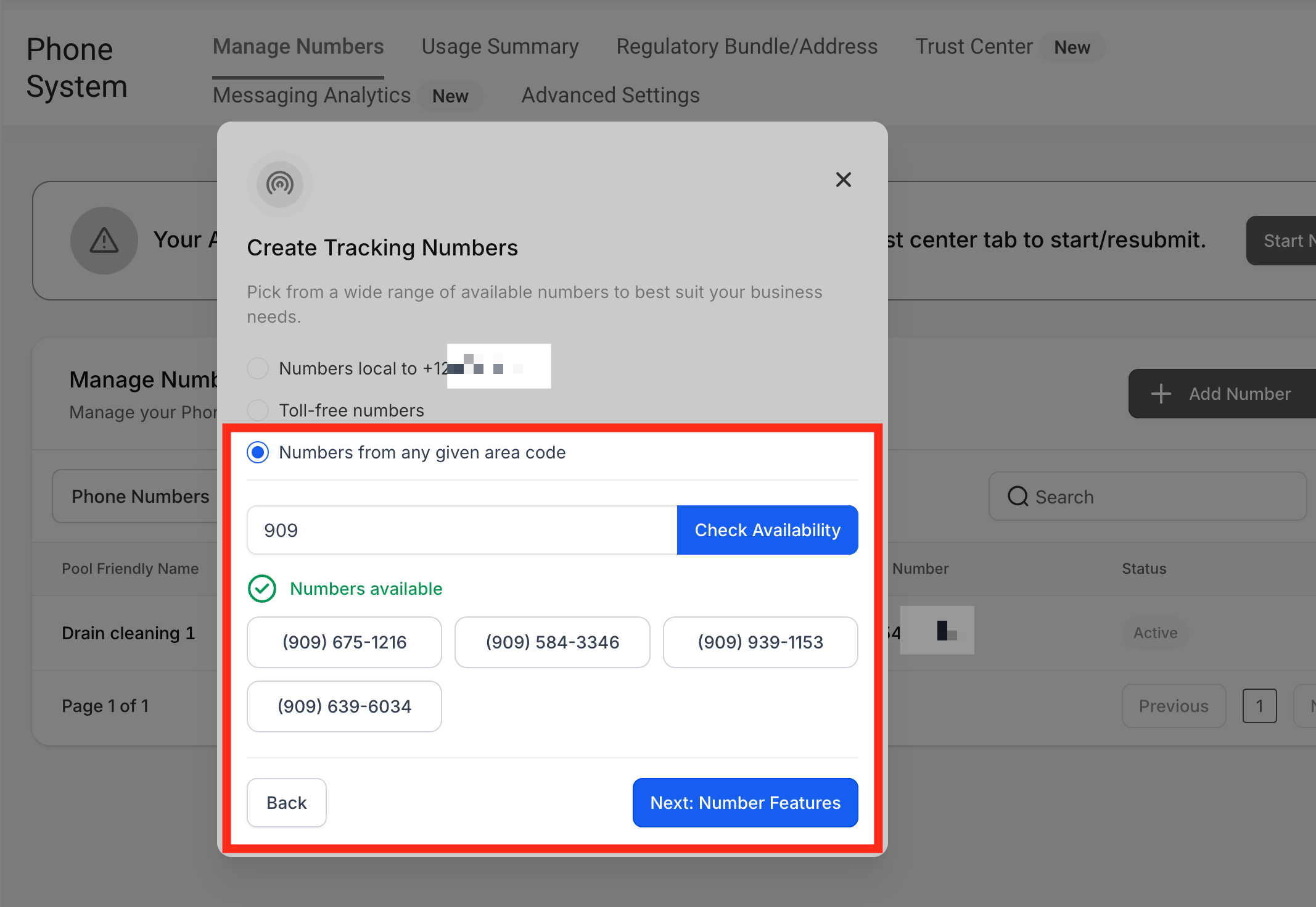
Numbers From Another Area Code
To select numbers from a different region, enter the preferred area code and check the available options.
- Enter the desired area code.
- Click Check Availability.
- Review the available phone numbers.
- Select the numbers you want for the pool.
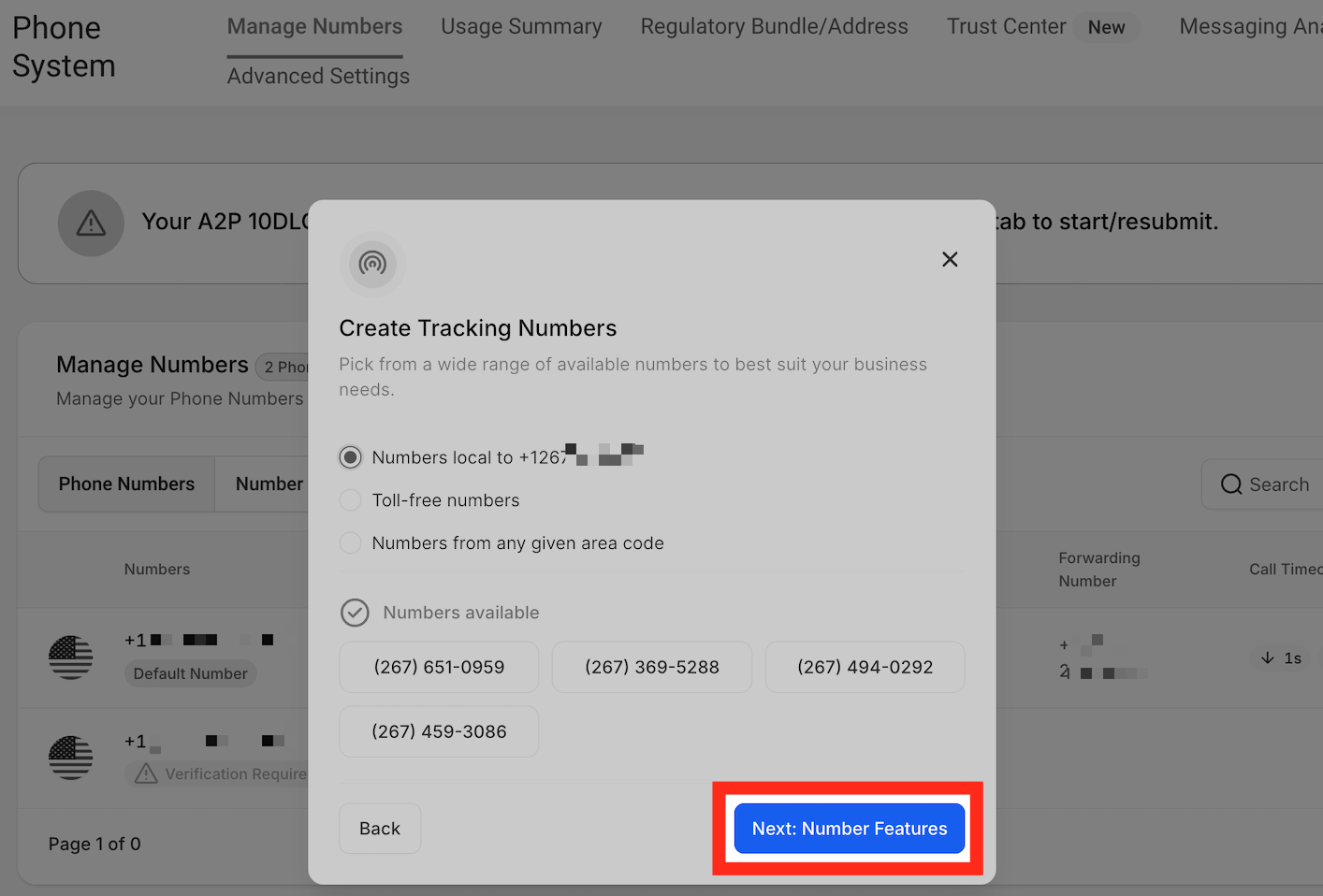
After selecting your tracking numbers, click Next: Number Features.
Step 7: Configure the Whisper Message and Call Recording
Configure optional call-handling features to provide information to the call recipient or play a recording notice to callers.
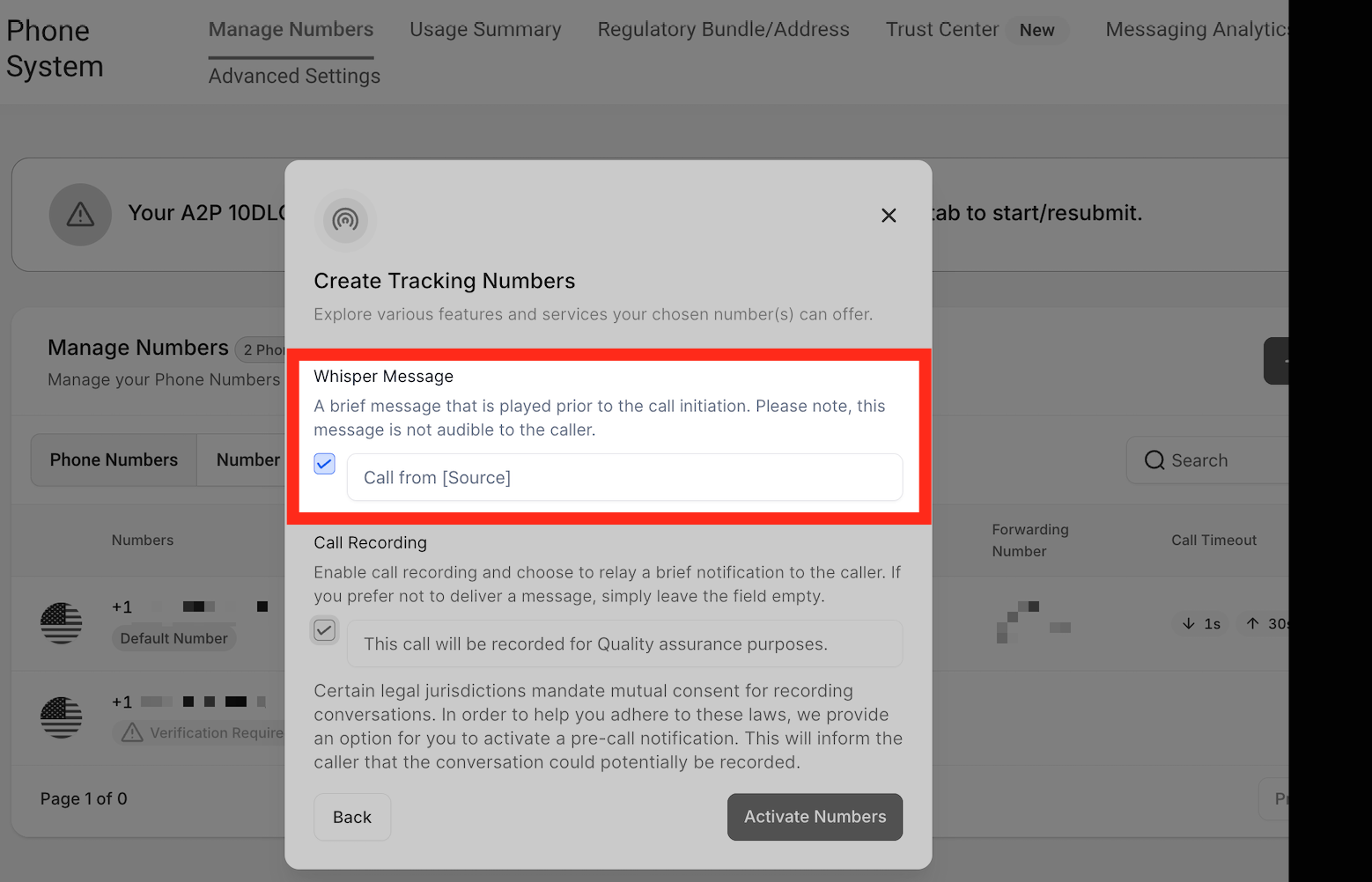
Whisper Message
The Whisper Message plays to the person receiving the call. It can identify the source of the call before the conversation begins.
For example, a whisper message of "Call from [Source]" may play a message such as "Call from an ad campaign."
The caller does not hear the whisper message.
Call Recording
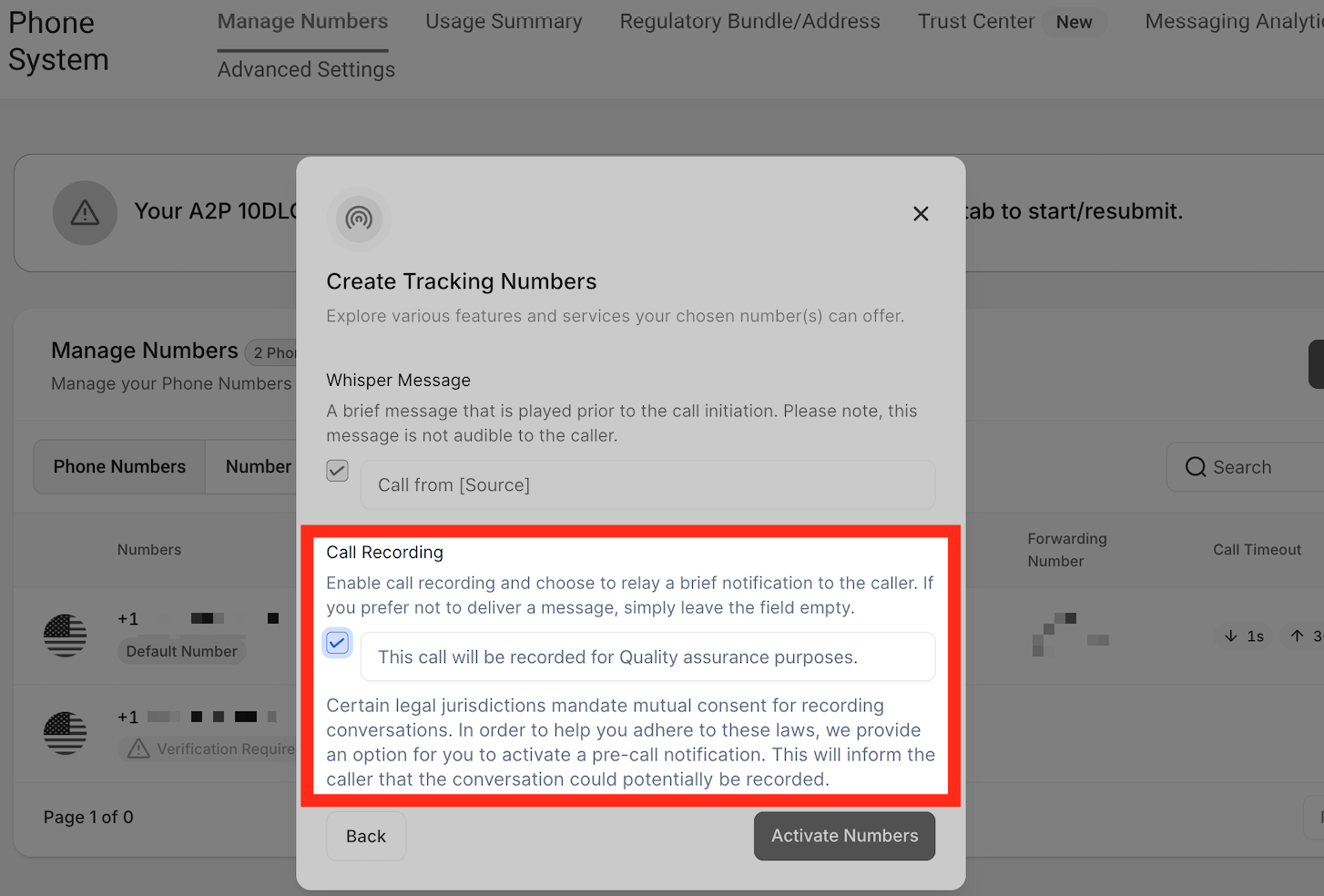
Use Call Recording to configure whether calls are recorded. The setting also allows you to customize the message callers hear.
For example, the message may say, "This call will be recorded for quality assurance purposes."
Step 8: Activate the Number Pool
Complete the number-pool setup by activating the selected configuration.
- Review the selected numbers and call-handling settings.
- Click Activate Number.
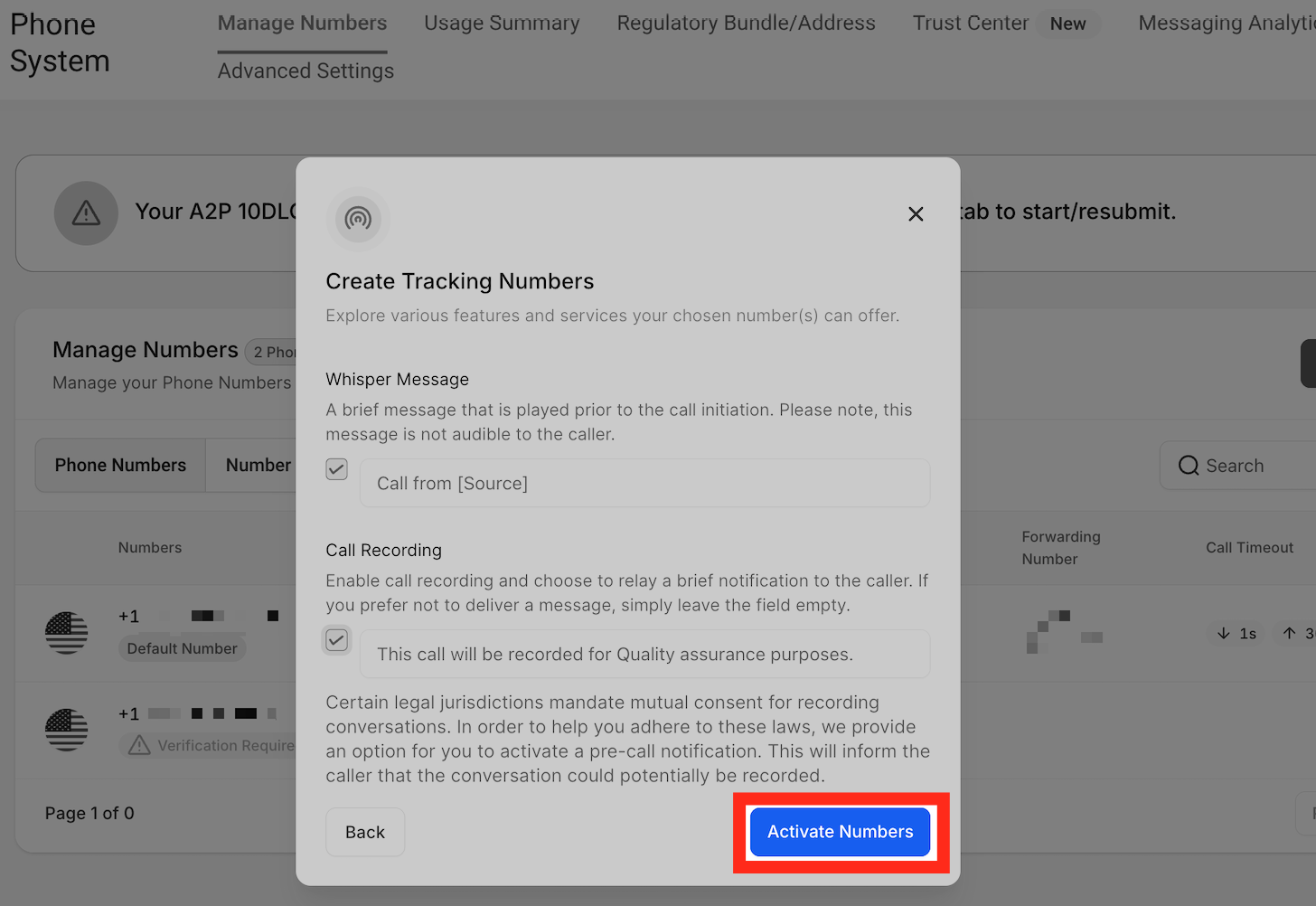
After activation, continue with the call-routing settings if necessary, then install the tracking snippet on your website.
Ring Number Pool Calls to Multiple Users
A number pool can ring up to six selected team members simultaneously. Each recipient receives calls through their configured channel, which can be the web app, mobile app, personal phone number, or SIP deskphone.
Choose Each User's Receiving Channel
Set the preferred receiving channel for each team member who should receive number-pool calls. Different recipients can use different channels.
- Click Settings.
- Select Users or My Staff, as labeled in your interface.
- Find the team member and click Edit.
- Open Call & voicemail, or expand Call & Voicemail Settings.
- Find Default Channel for Ring All.
- Choose Web App, Mobile App, My Phone Number, or Deskphone (SIP).
- Click Save.
- Repeat for the remaining recipients.
Select the Number Pool's Recipients
Enable ringing for selected users in the number-pool configuration. The pool uses each selected recipient's saved receiving channel.
- Open Settings > Phone System.
- Select the Phone numbers tab.
- Under Manage Numbers, click Number Pools.
- Find the number pool you want to configure.
- Click the pool's three-dot menu.
- Select Edit Configuration.
- In Configure Number Pool, enable Ring Incoming Call to selected Users.
- Open the user selector.
- Choose up to six team members.
- Click Save.
The recipient selections remain saved when you reopen the number pool. Calls ring through each selected user's configured Default Channel for Ring All.
Integrate the Tracking Snippet on Your Website
After activating the number pool, add its tracking script to the site or funnel where you want dynamic number swapping. You can apply the script across a site or to an individual page.
Step 1: Copy the Tracking Snippet
The number pool provides a Normal Snippet Code that can be added to the website or funnel's tracking settings.
- Open Settings > Phone System > Phone numbers.
- Under Manage Numbers, select Number Pools.
- Find the number pool you want to use.
- Click the pool's three-dot menu.
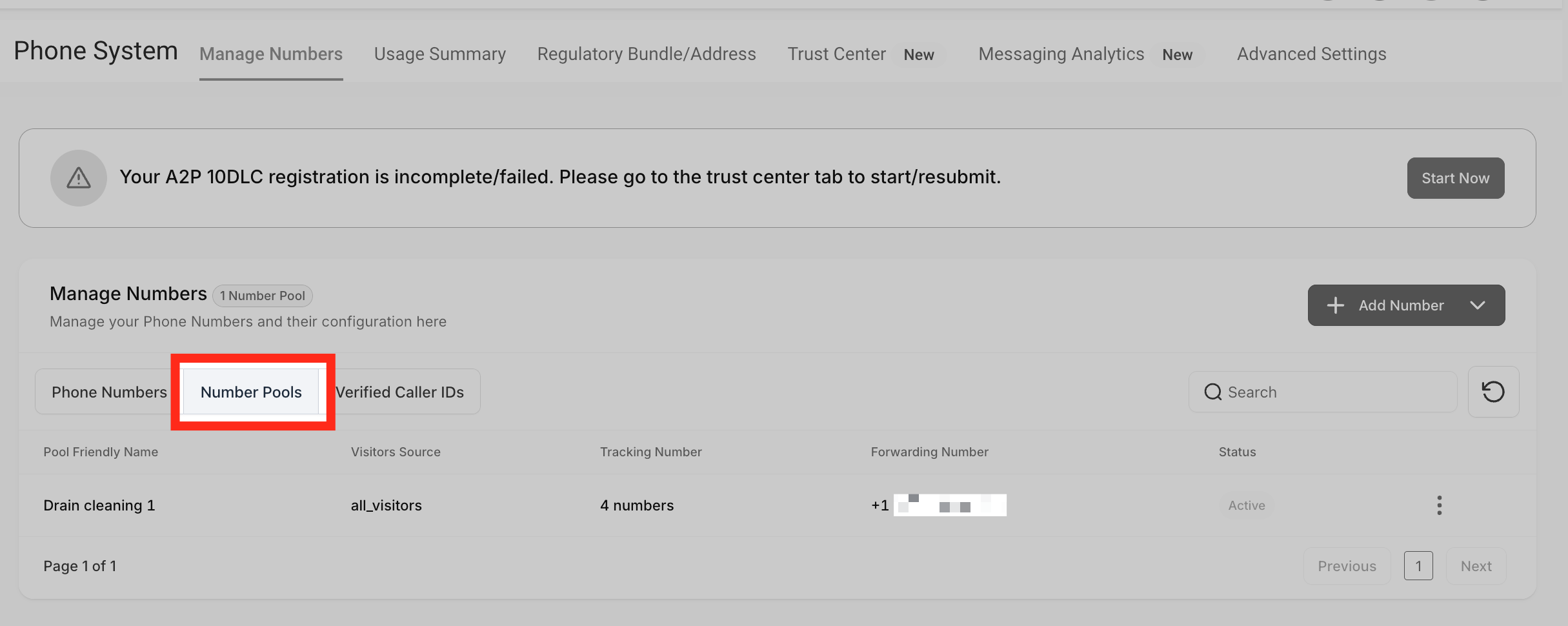
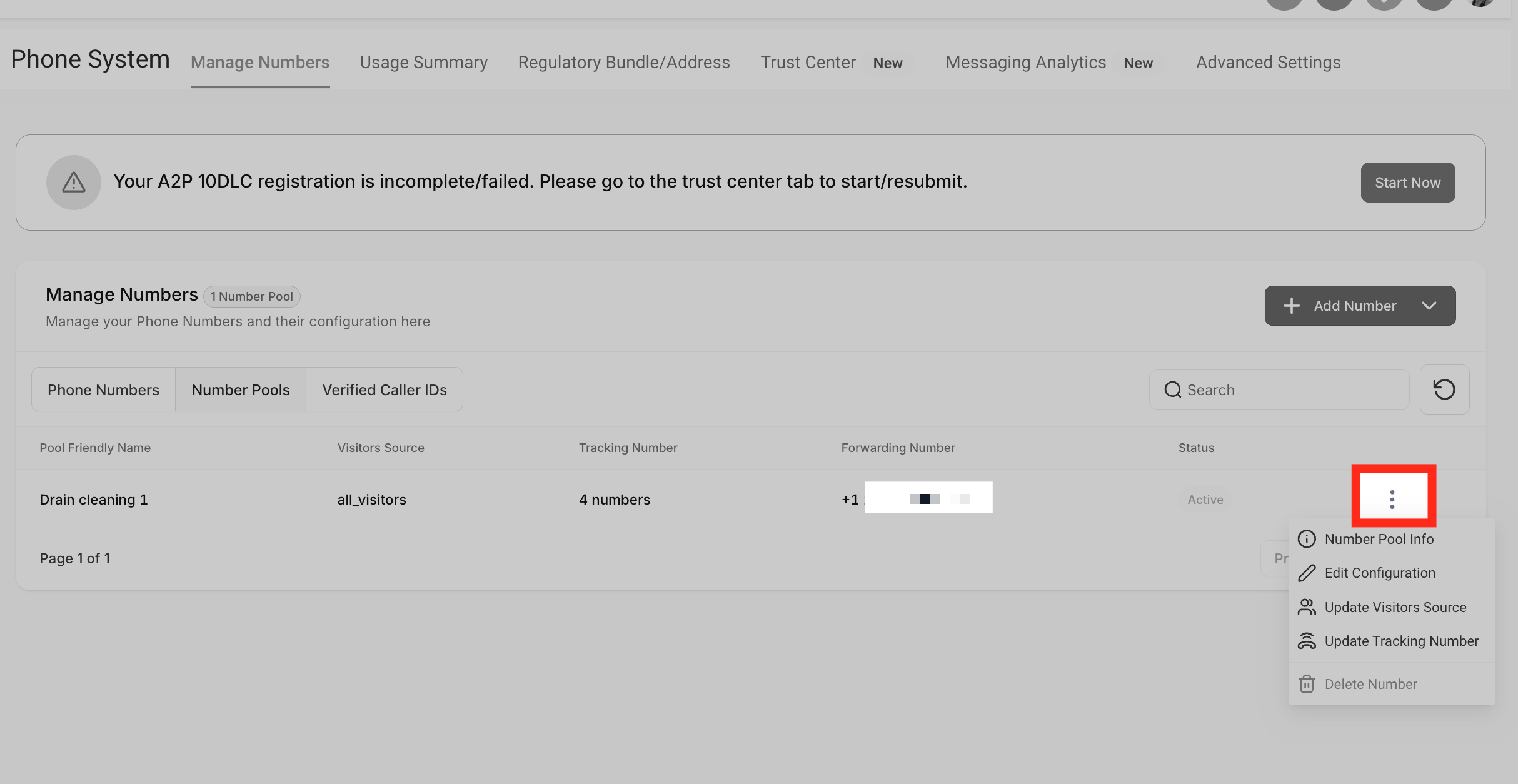
- Click Number Pool Info.
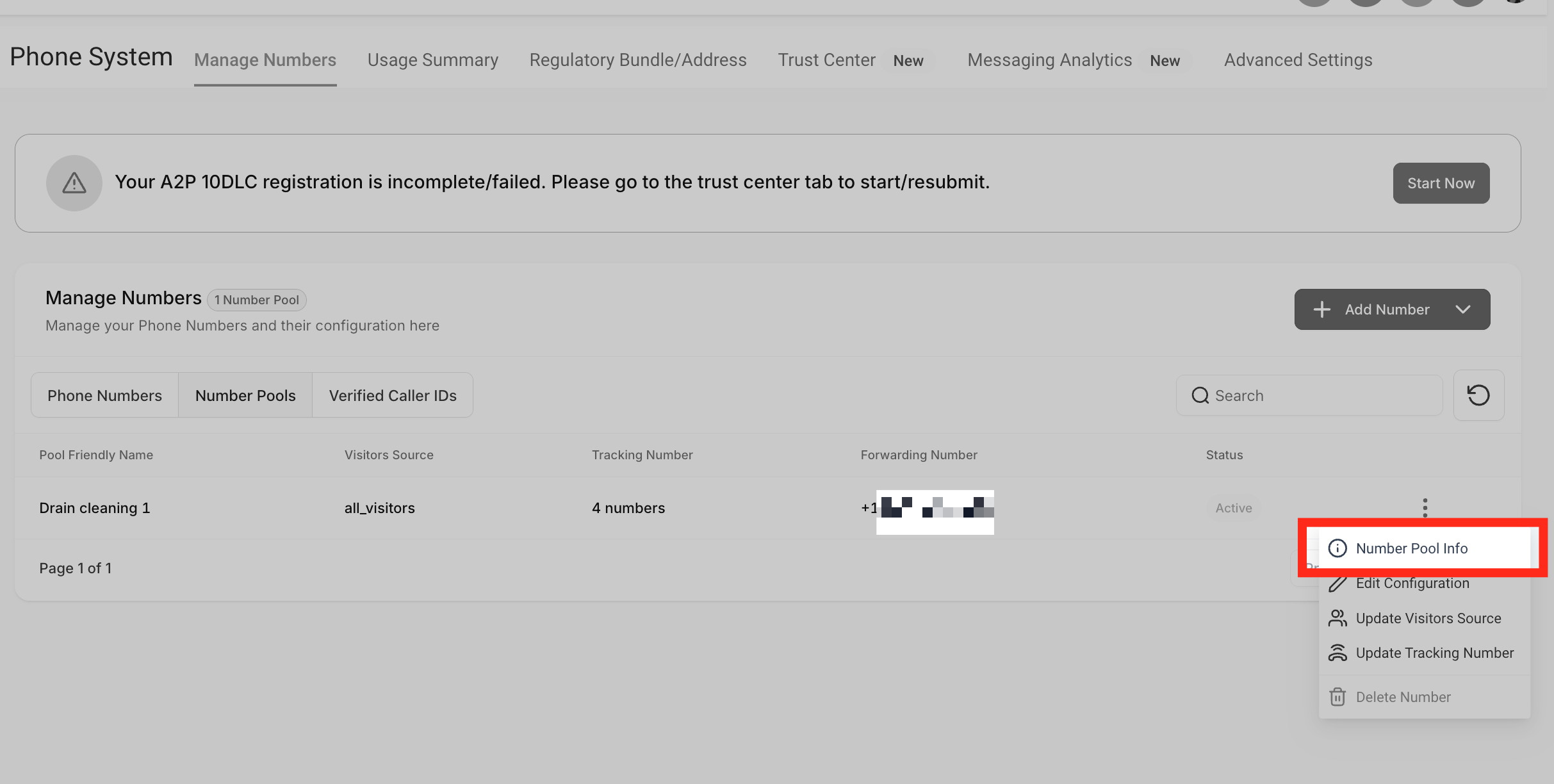
- Locate Normal Snippet Code.
- Copy the snippet.
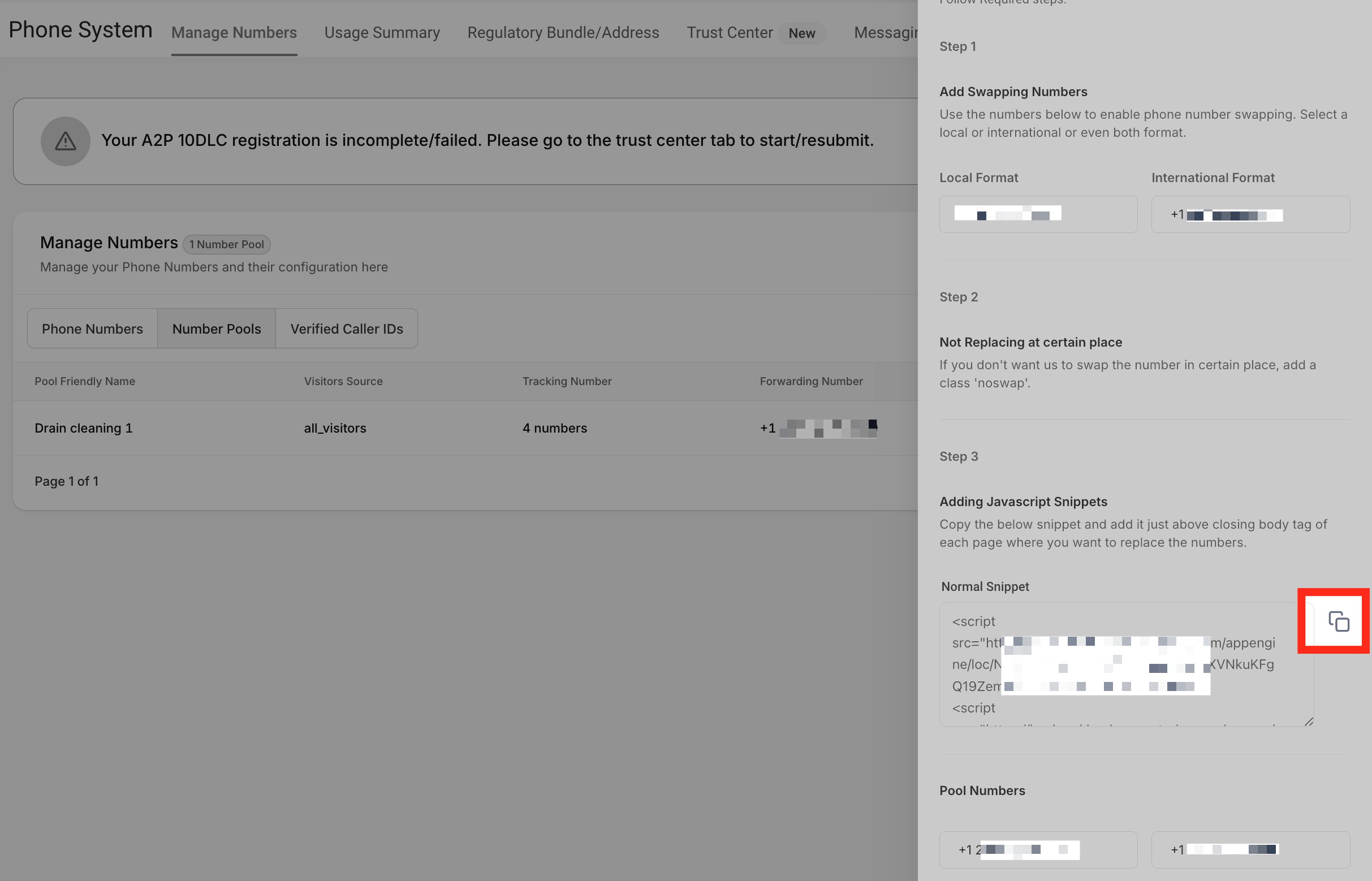
Next, open Sites and choose Funnels or Websites, depending on where you want to add the tracking code.
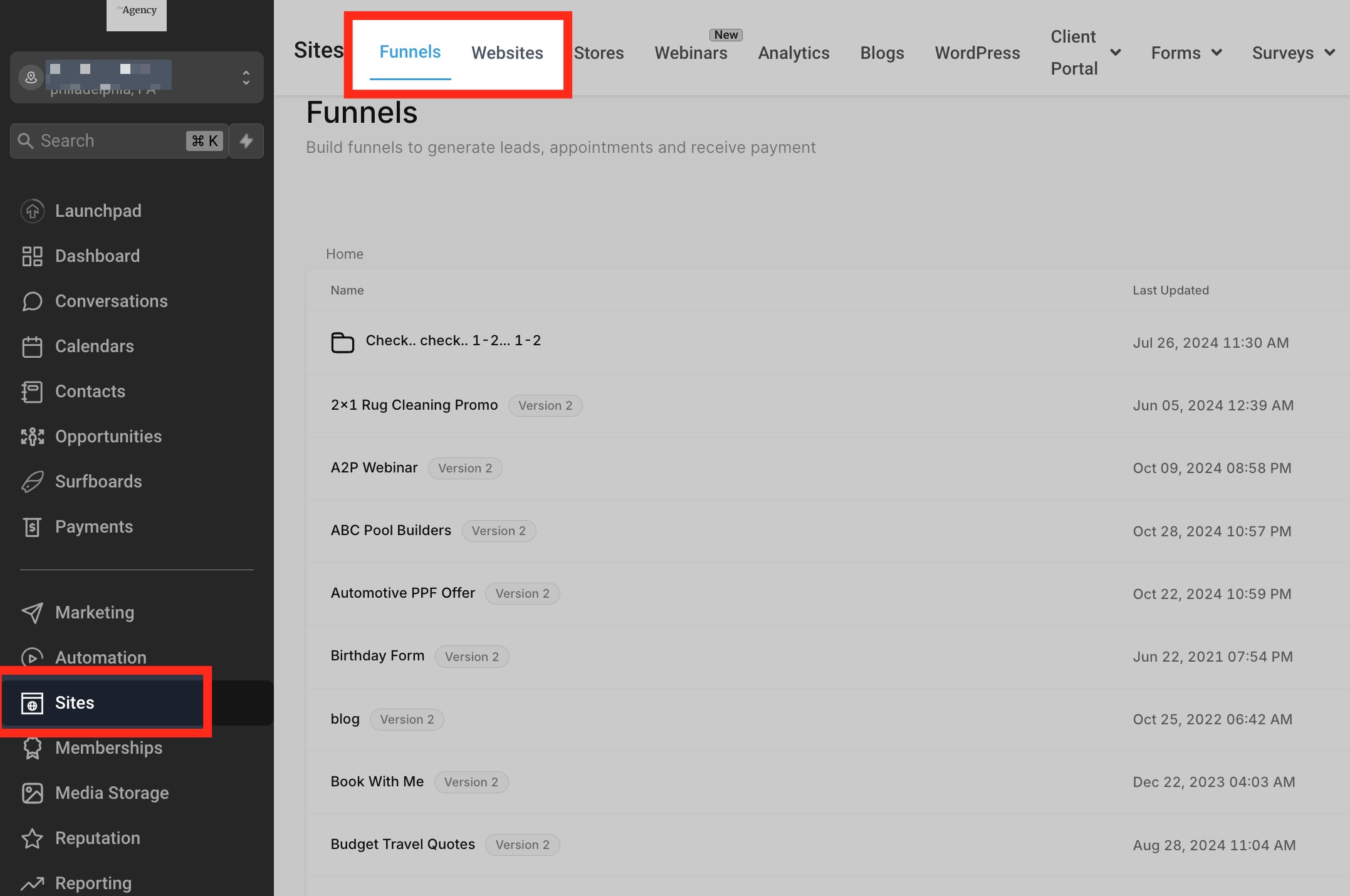
Step 2: Paste the Snippet into Your Site or Funnel
Use the site or funnel settings to apply number-pool tracking across the relevant pages.
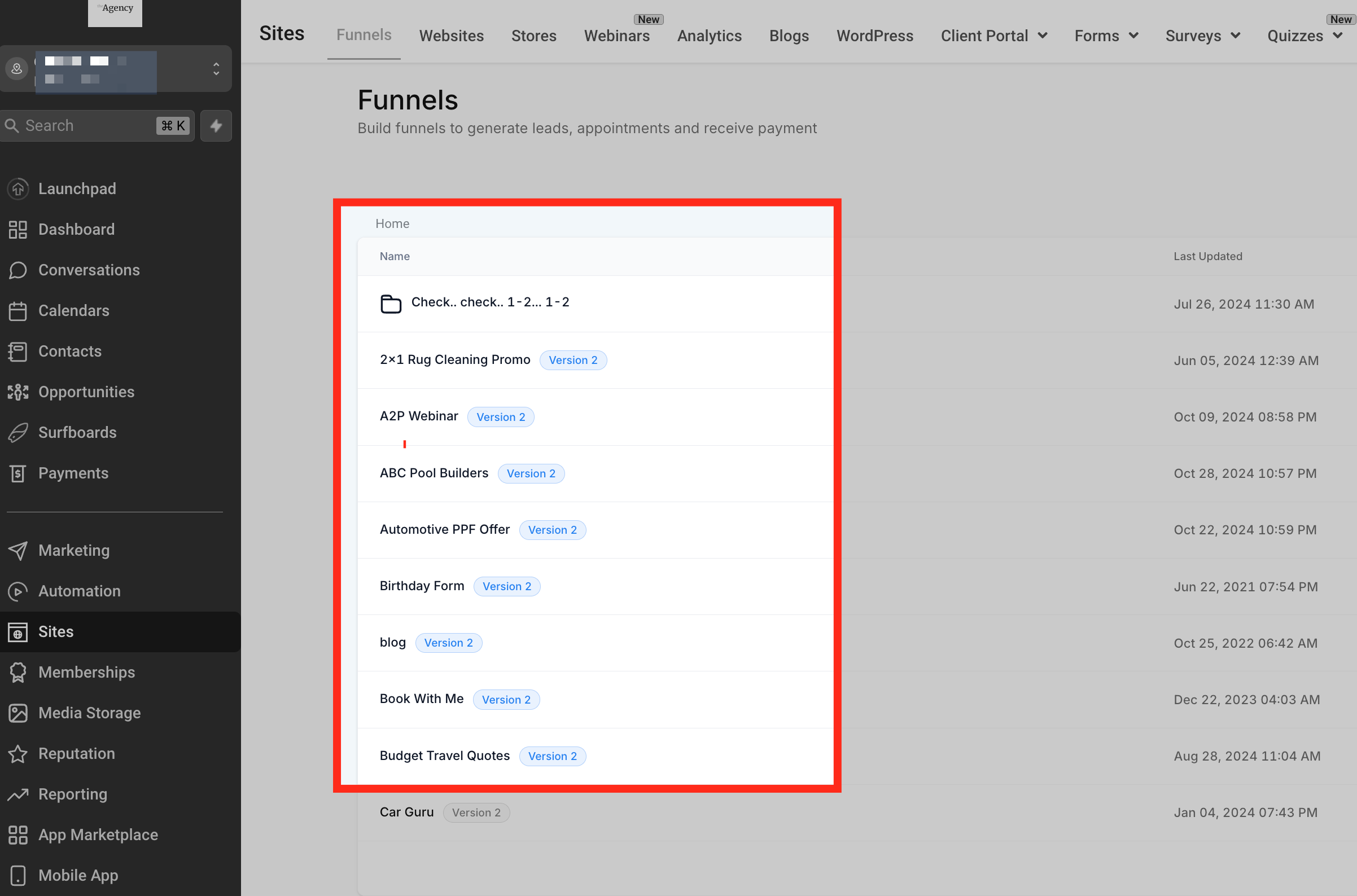
- Open Sites.
- Select Funnels or Websites.
- Choose the funnel or website where the tracking number should appear.
- Open the funnel or website's Settings tab.
- Find the Body Tracking code field.
- Paste the copied Normal Snippet Code into the field.
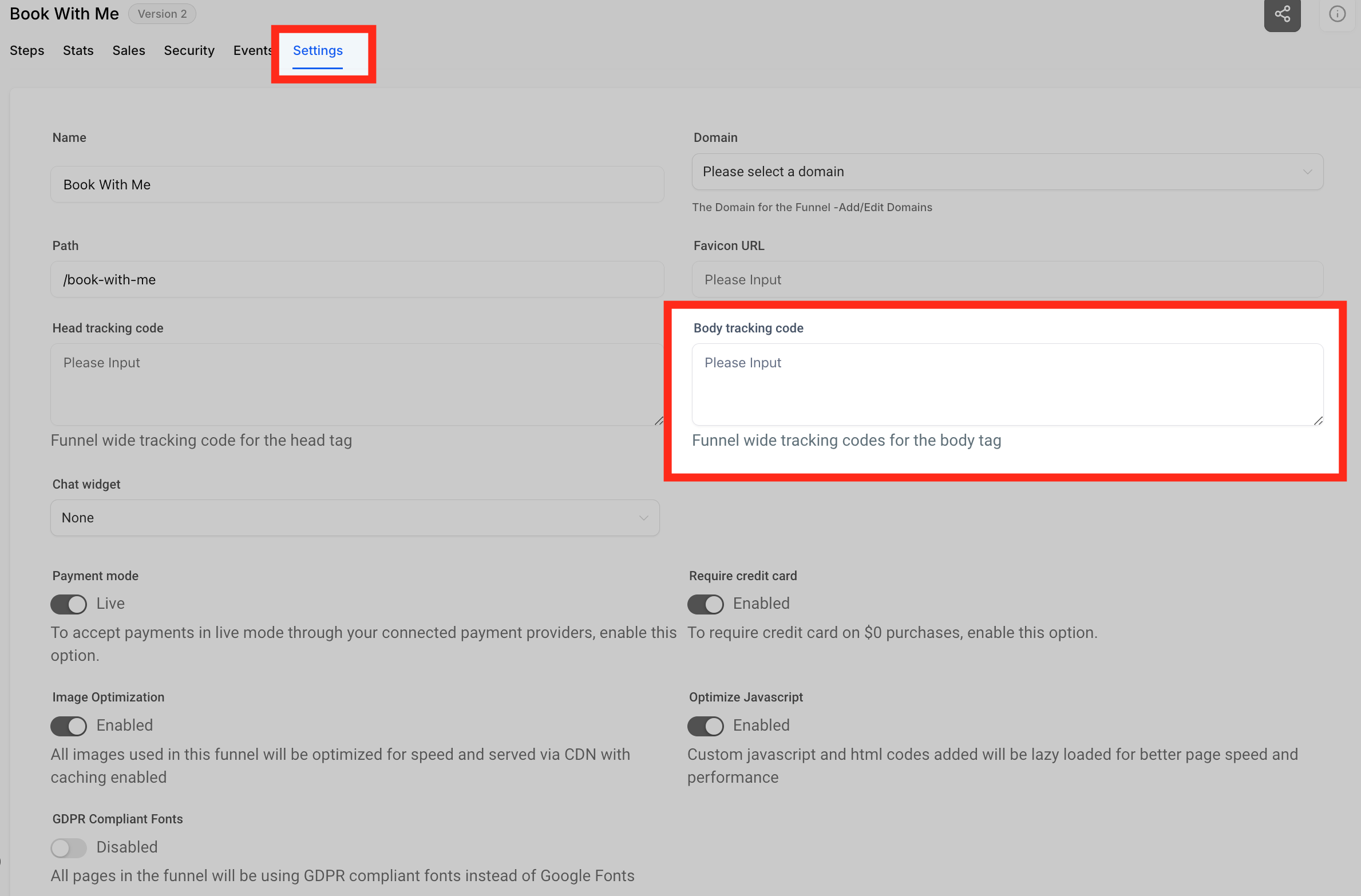
- Click Save.
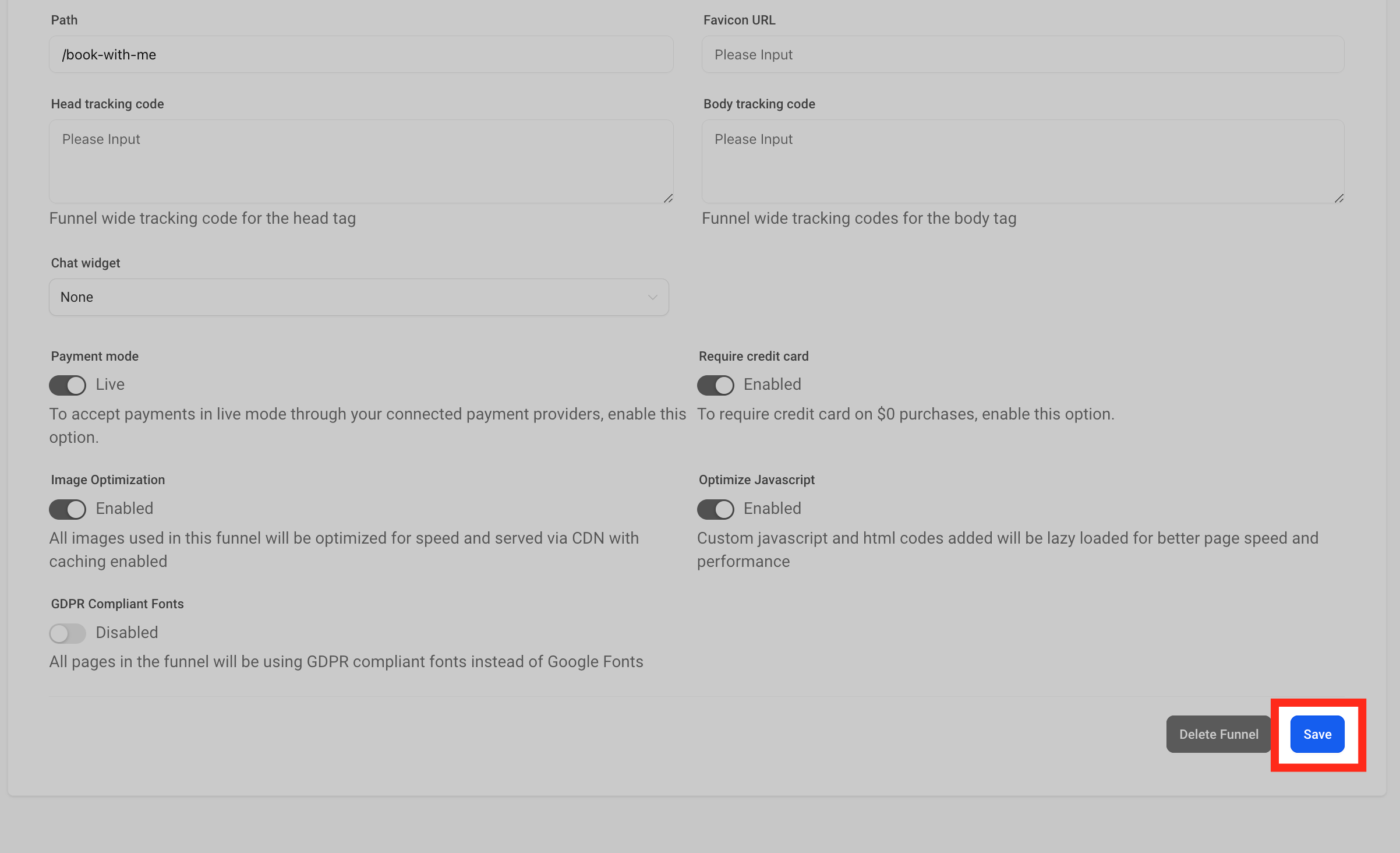
With the snippet applied through the site or funnel settings, the number-pool script can replace matching phone numbers within the configured pages.
Step 3:
If you only want number swapping on one page, add the tracking code to that page's tracking settings instead of applying it across the complete site or funnel.
- Open the specific page in the site or funnel editor.
- Click the Tracking Code icon in the upper-left area.
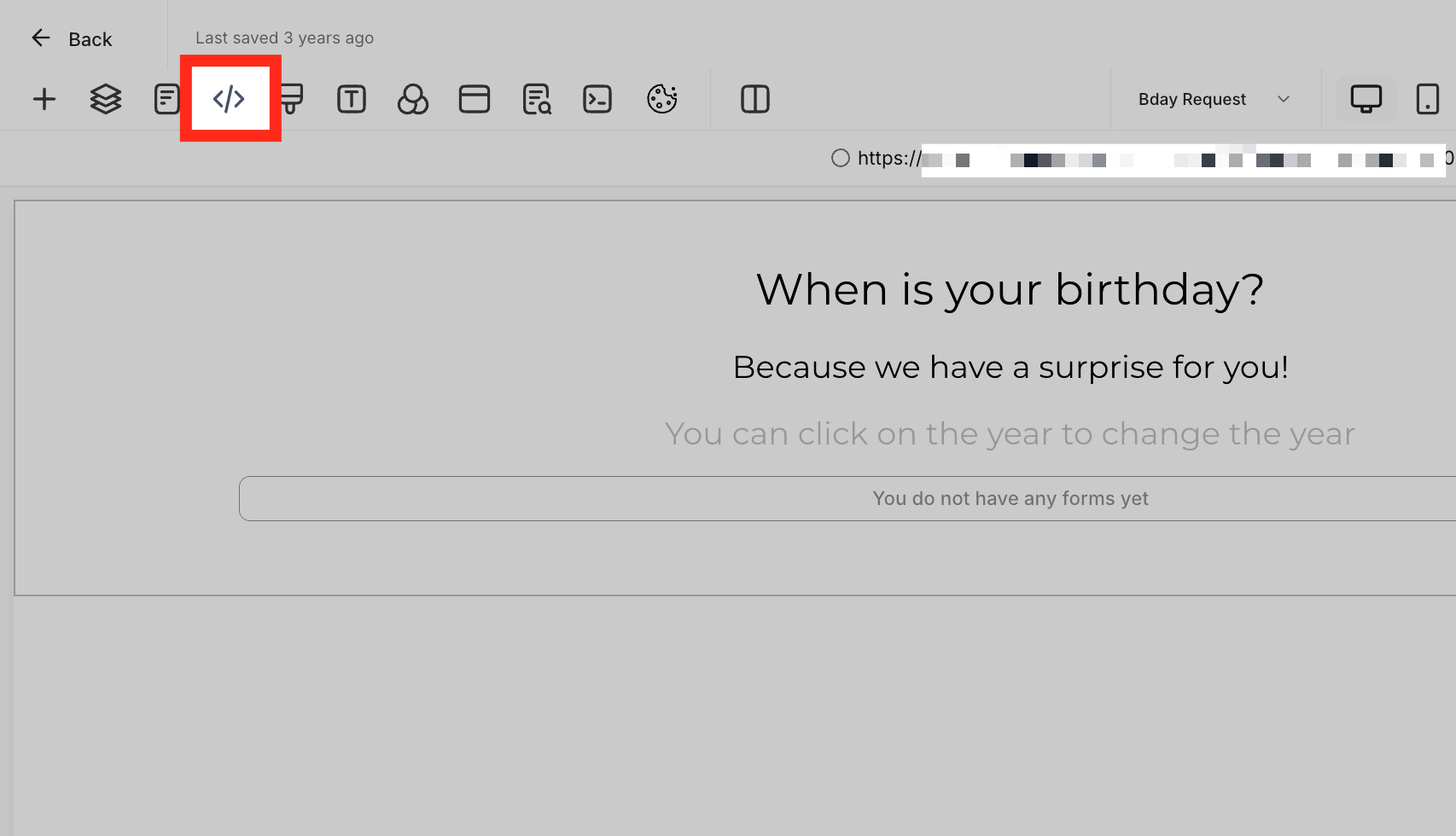
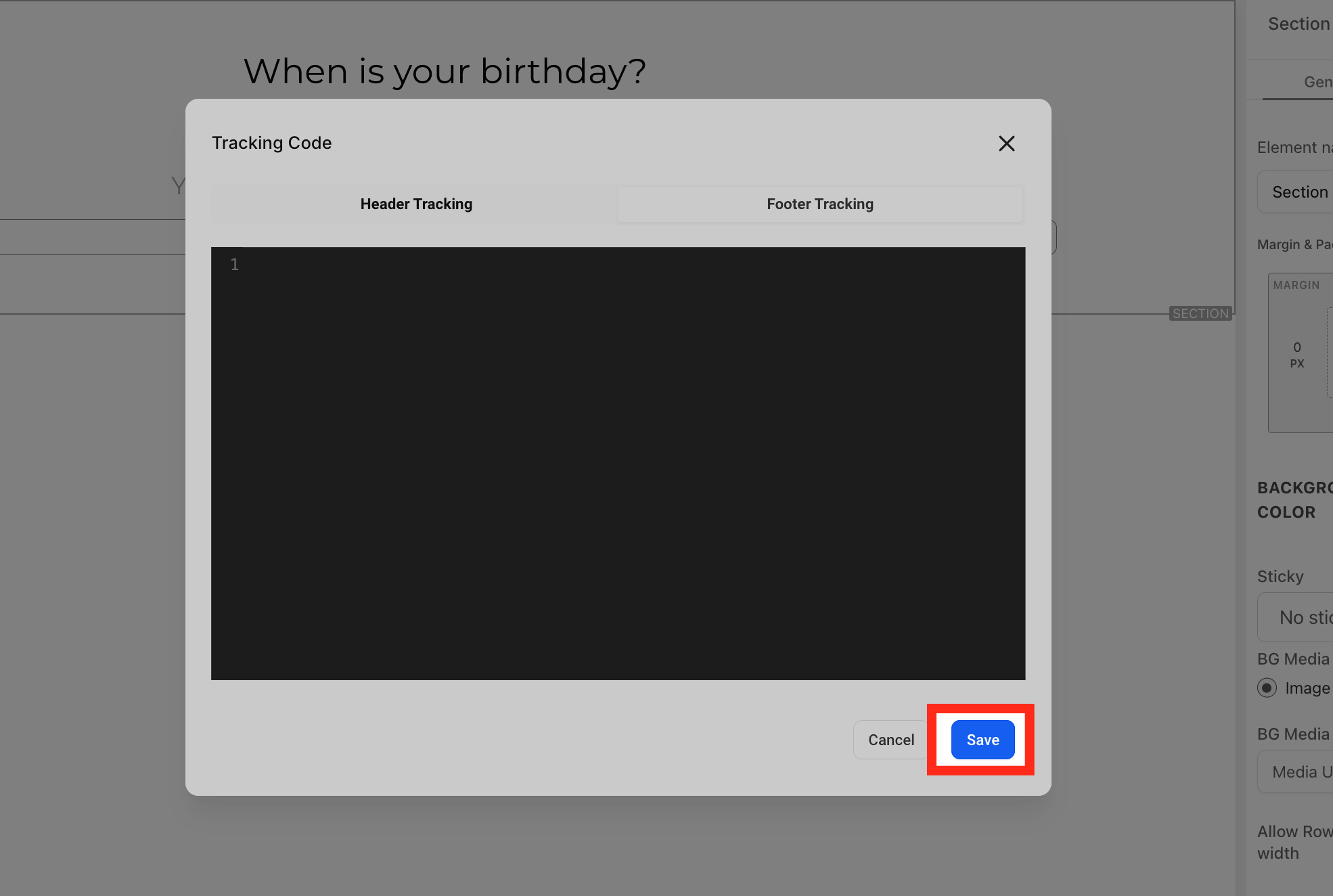
- Select Footer Tracking.
- Paste the number-pool snippet into the code editor.


- Click Save.
Step 4: Update the Swapping Number Later, If Needed
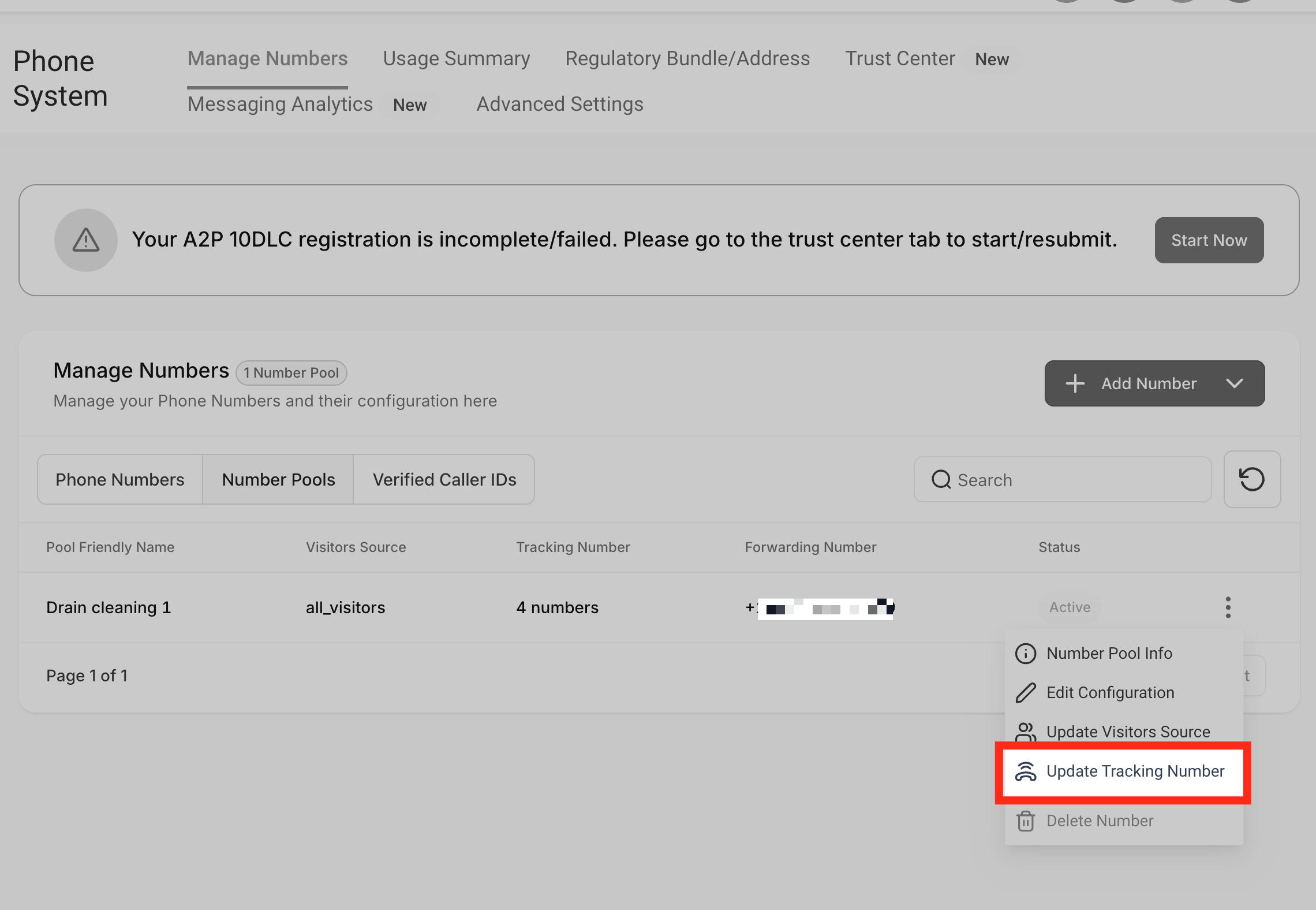
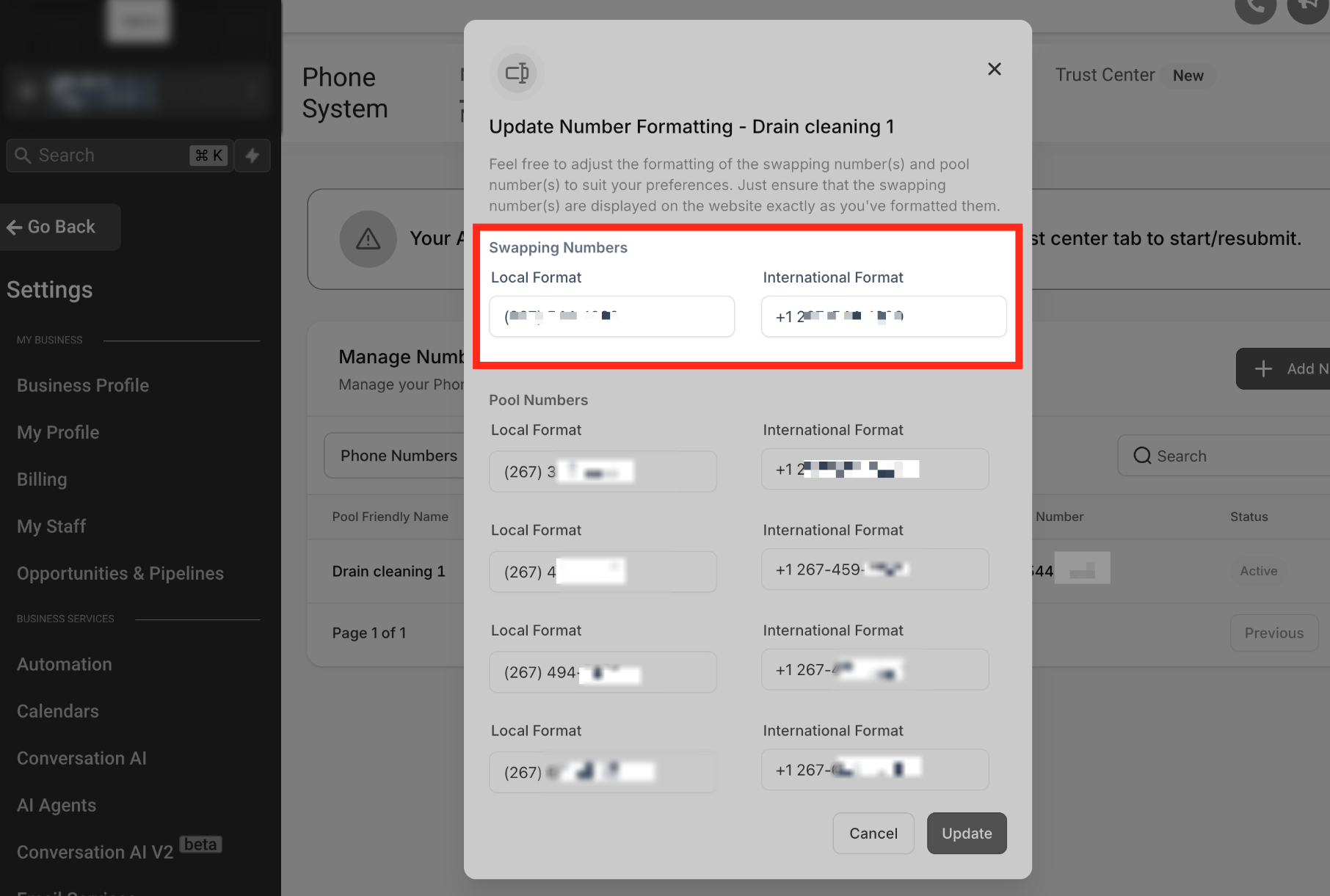
You can change the website number associated with an existing number pool. Update the pool configuration and use the revised number consistently wherever the website displays it.
Review the Tracking Number
- Open Settings > Phone System > Phone numbers.
- Under Manage Numbers, click Number Pools.
- Find the pool you want to update.
- Open its three-dot menu.
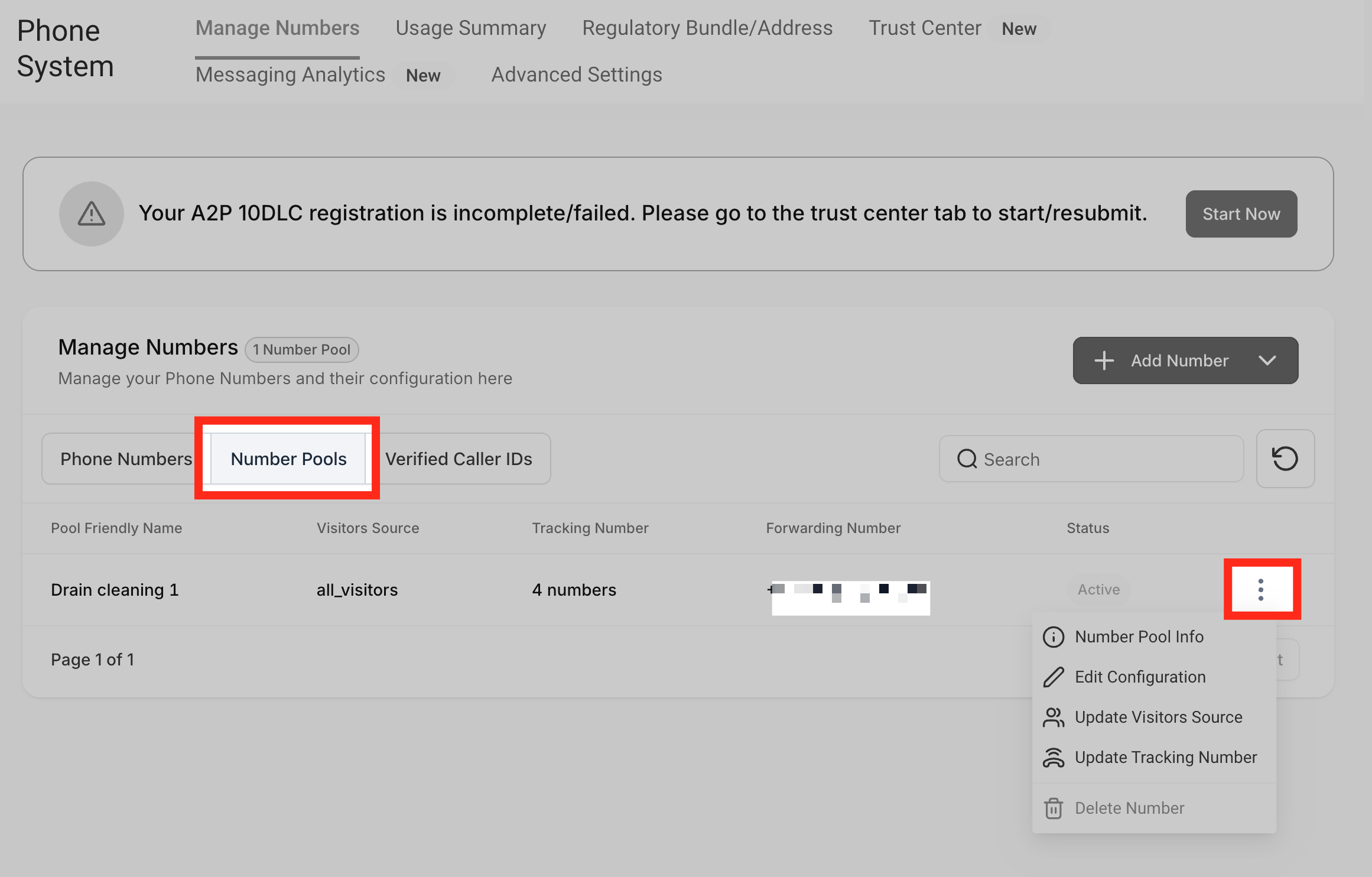
- Select Update Tracking Number.
- Review or copy the swapping number used on the website.
Edit the Swapping Number
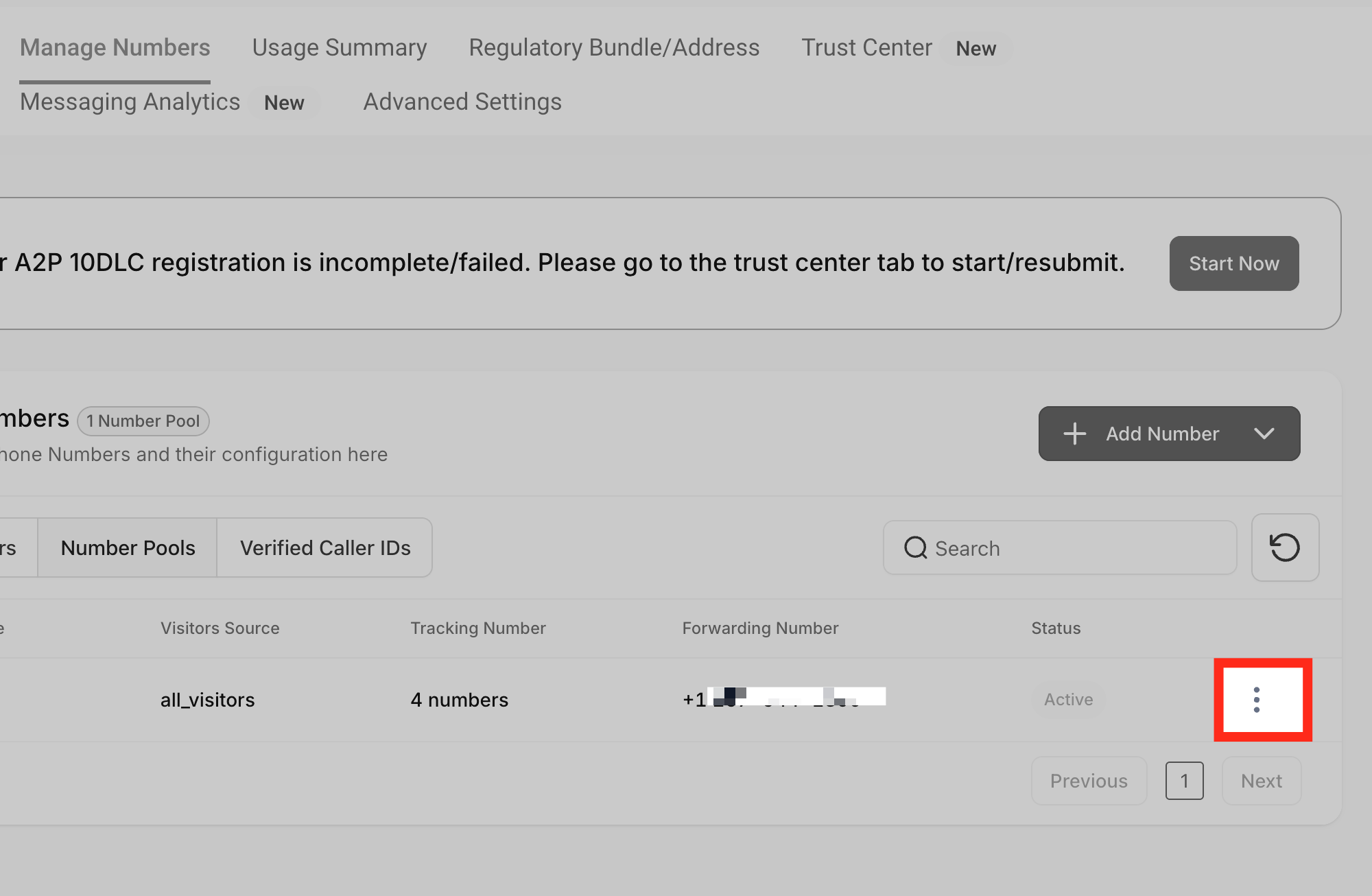
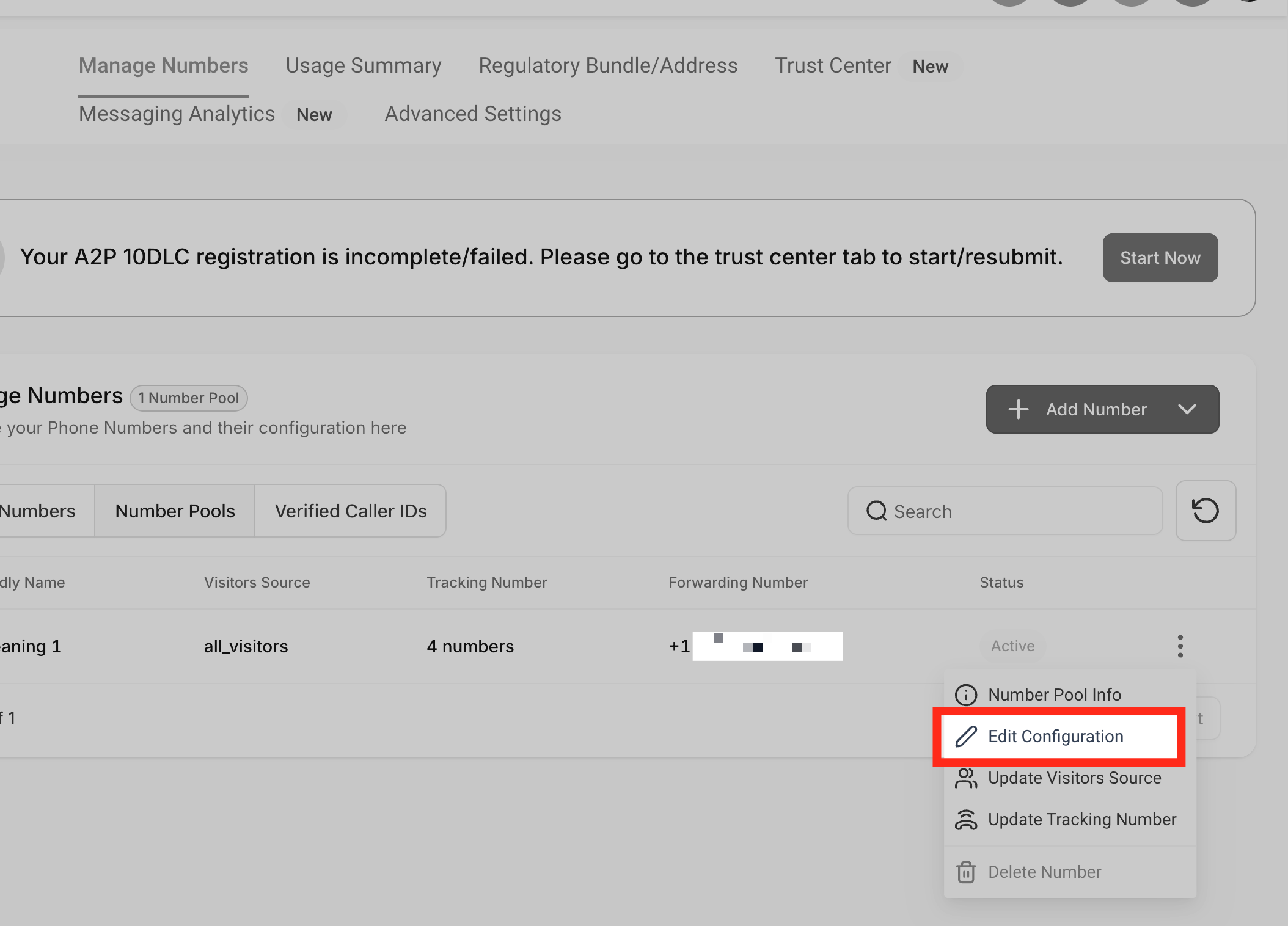
Use the pool configuration when you need the swapping number to differ from the forwarding number.
- Open the pool's three-dot menu.
- Click Edit Configuration.
- Clear Swapping number(s) same as forwarding number.
- Enter the desired swapping number in the available field.
- Click Add.
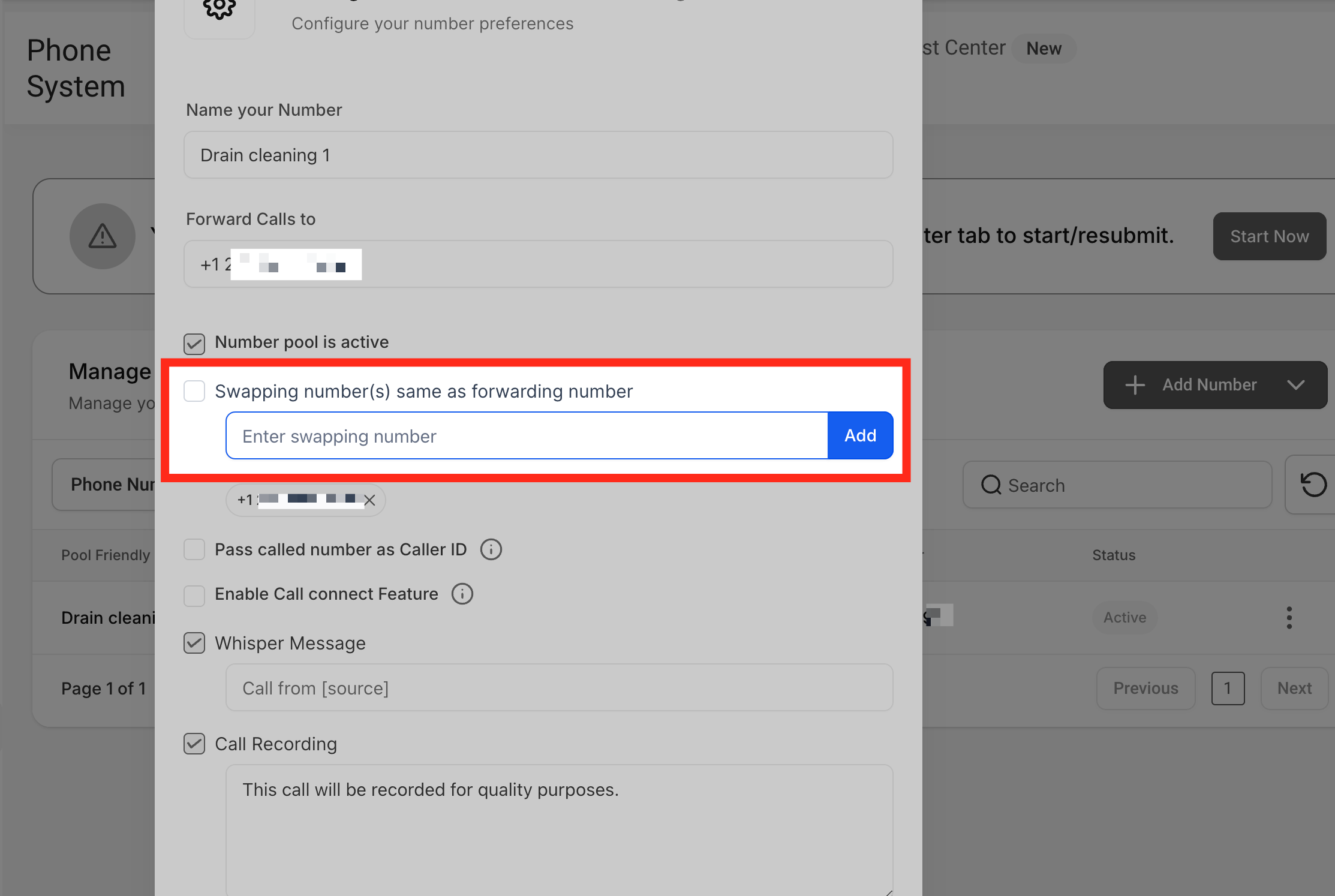
Important: Keep the forwarding destination separate from numbers managed by the same phone system to avoid routing loops.
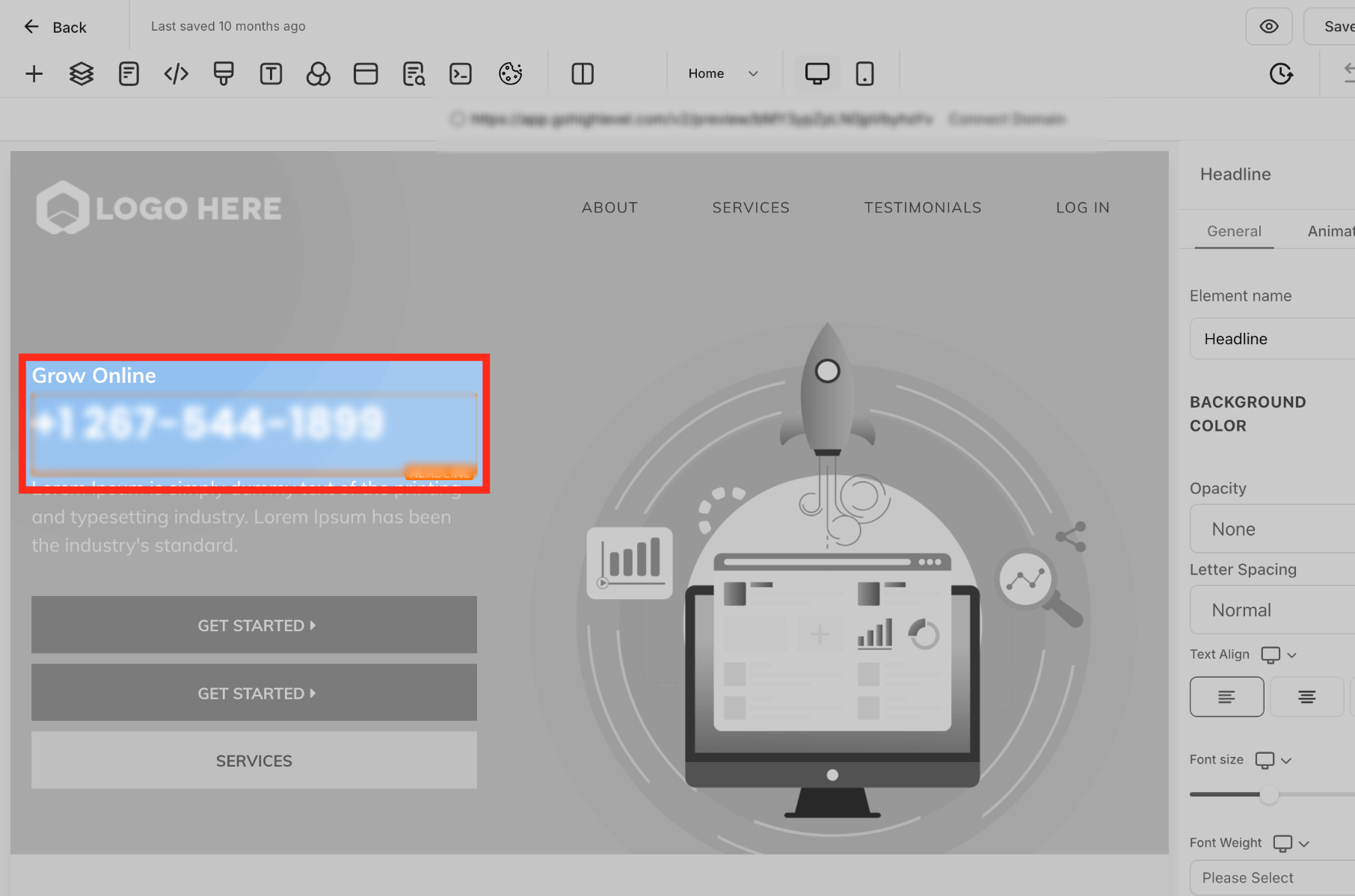
Update the Website
Use the configured swapping number on the pages where dynamic number replacement should occur.
- Return to the relevant website or funnel page.
- Find the phone number that the tracking script should replace.
- Update the number to match the pool's swapping number.
- Save the page changes using the available editor controls.
Step 5: Confirm Attribution in Call Reporting
After the pool is active and the website tracking script is installed, review call reports to understand the source of incoming calls.
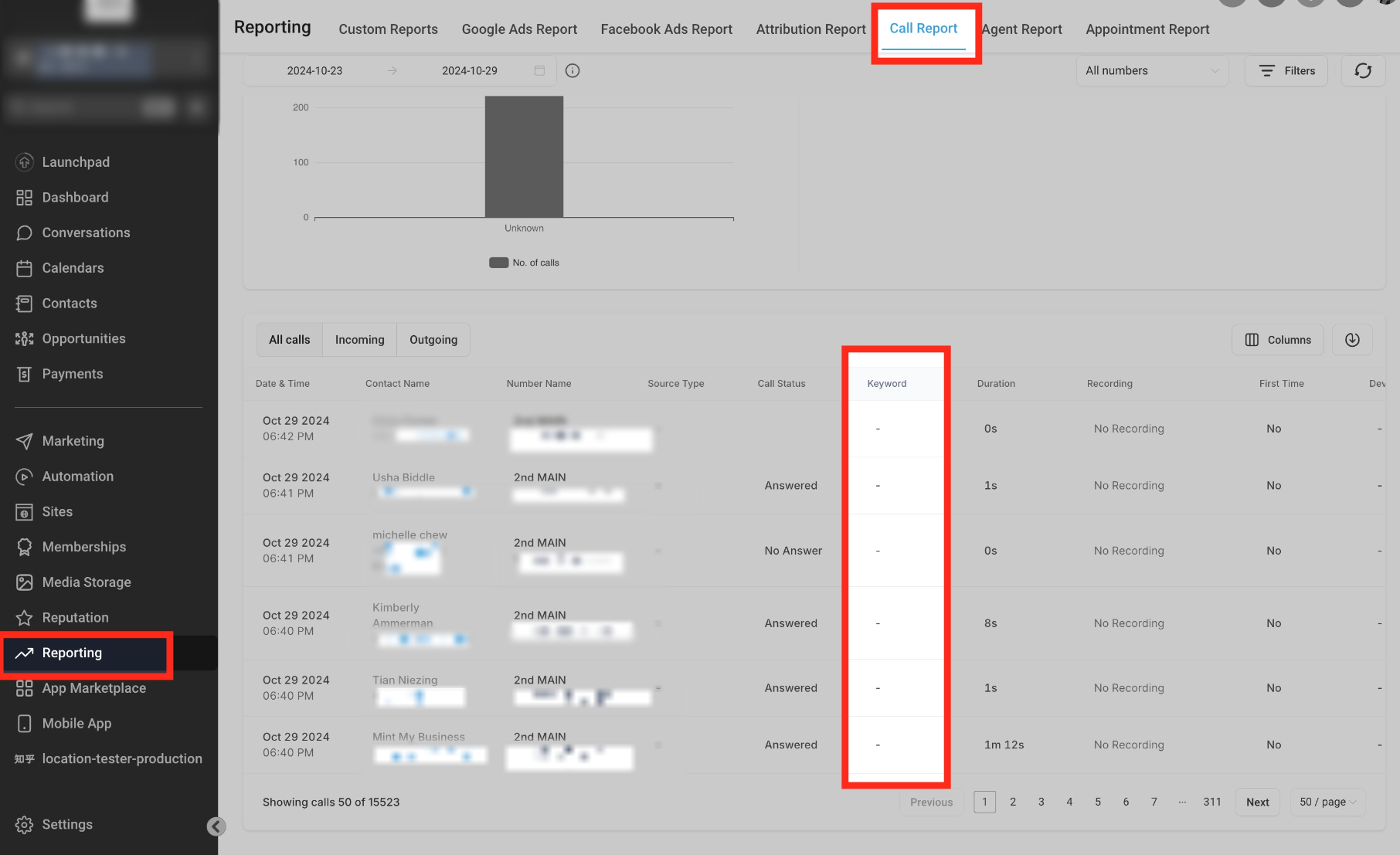
Open the Call Report
- Click Reporting in the left navigation.
- Select Call report.
- Review the Source summary.
- Check the Source type column in the calls table.
- Review the Keyword column when keyword information is available.
Understand Number-Pool Source Labels
Call-source attribution can identify supported advertising platforms and other referral sources using the tracking data available for each visit.
| Traffic Source | Source Behavior |
|---|---|
| Facebook Ads | Identified calls from Facebook advertising can appear as Facebook Paid. |
| Other Supported Advertising Platforms | Tracking can identify supported TikTok, LinkedIn, Microsoft (Bing), and Google advertising sources. |
| Tagged Advertising Links | Links containing utm_medium=cpc can use the platform name followed by Paid, such as Bing Paid. |
| AI Referrals | Referrals from ChatGPT and similar tools can appear as their own sources. |
Attribution Behavior and Limitations
Keep these behaviors in mind when reviewing your call reports.
- Automatic Script Updates: Existing number-pool tracking scripts receive the documented source-attribution improvement automatically.
- New Calls: Updated source labels apply to new calls. Historical calls retain the source values previously recorded.
- Direct Traffic: Some calls may still appear as Direct when the browser hides the referring source and the link has no usable ad-tracking code.
- Multiple Tracking Codes: When several supported ad-tracking codes are present, matching follows this order: Google, Facebook, TikTok, LinkedIn.
Example of a Facebook Paid source shown in call reporting.
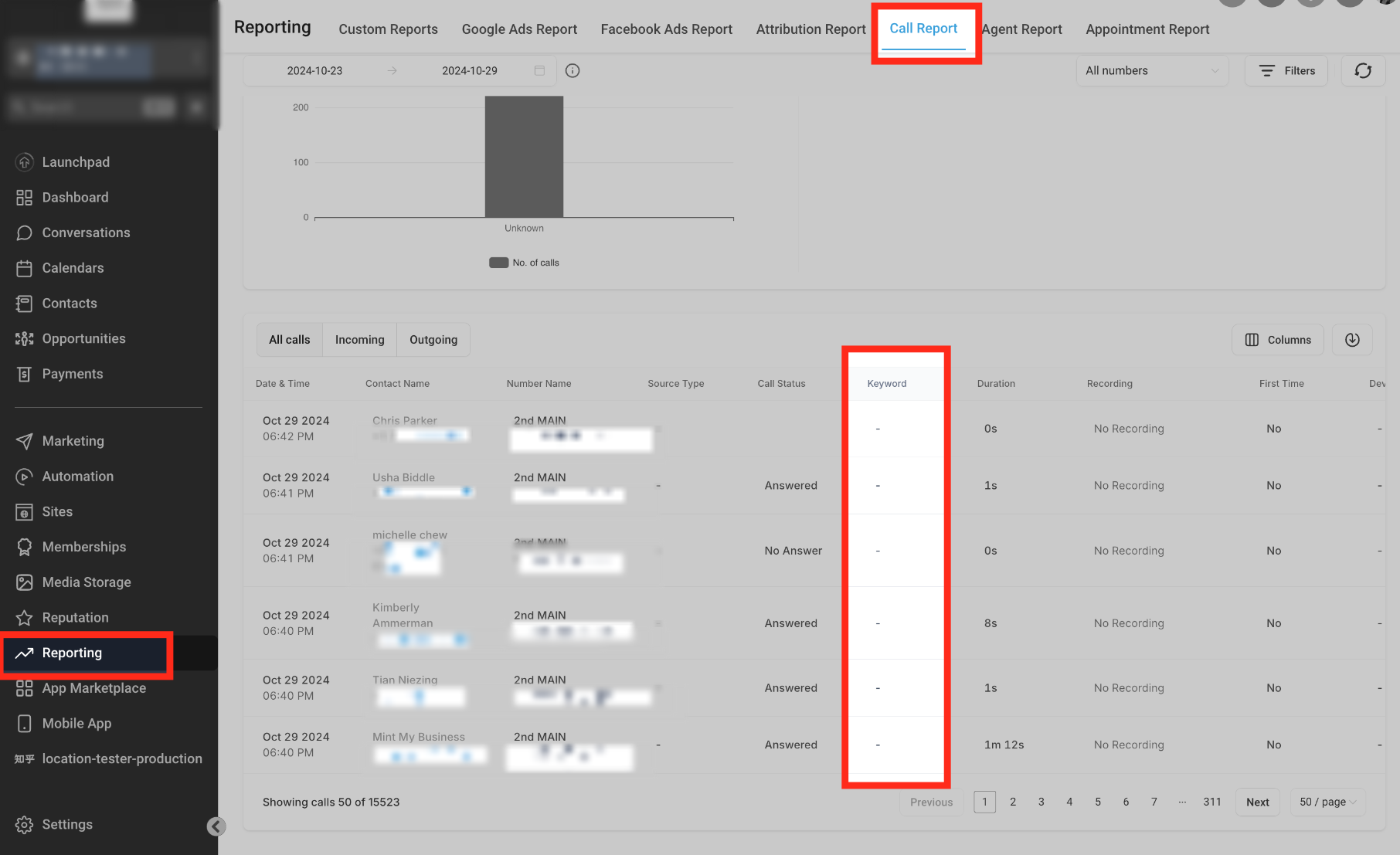
When available, you can scroll across the call table and expand the call details to review the website link associated with the activity. You can also open the contact's record to review available activity information.
How to Test Number Swapping
After installing the tracking code, test the website to confirm that the configured phone number is replaced for the selected visitor traffic.
Test in a Private Browser Window
A private or incognito browser window provides a way to test a new website visit.
- Open an incognito or private browser window.
- Visit the page where the tracking script is installed.
- For example, enter
yourwebsite.com/landing-page. - Review the phone number displayed on the page.
- Confirm whether it changes according to the selected tracking configuration.
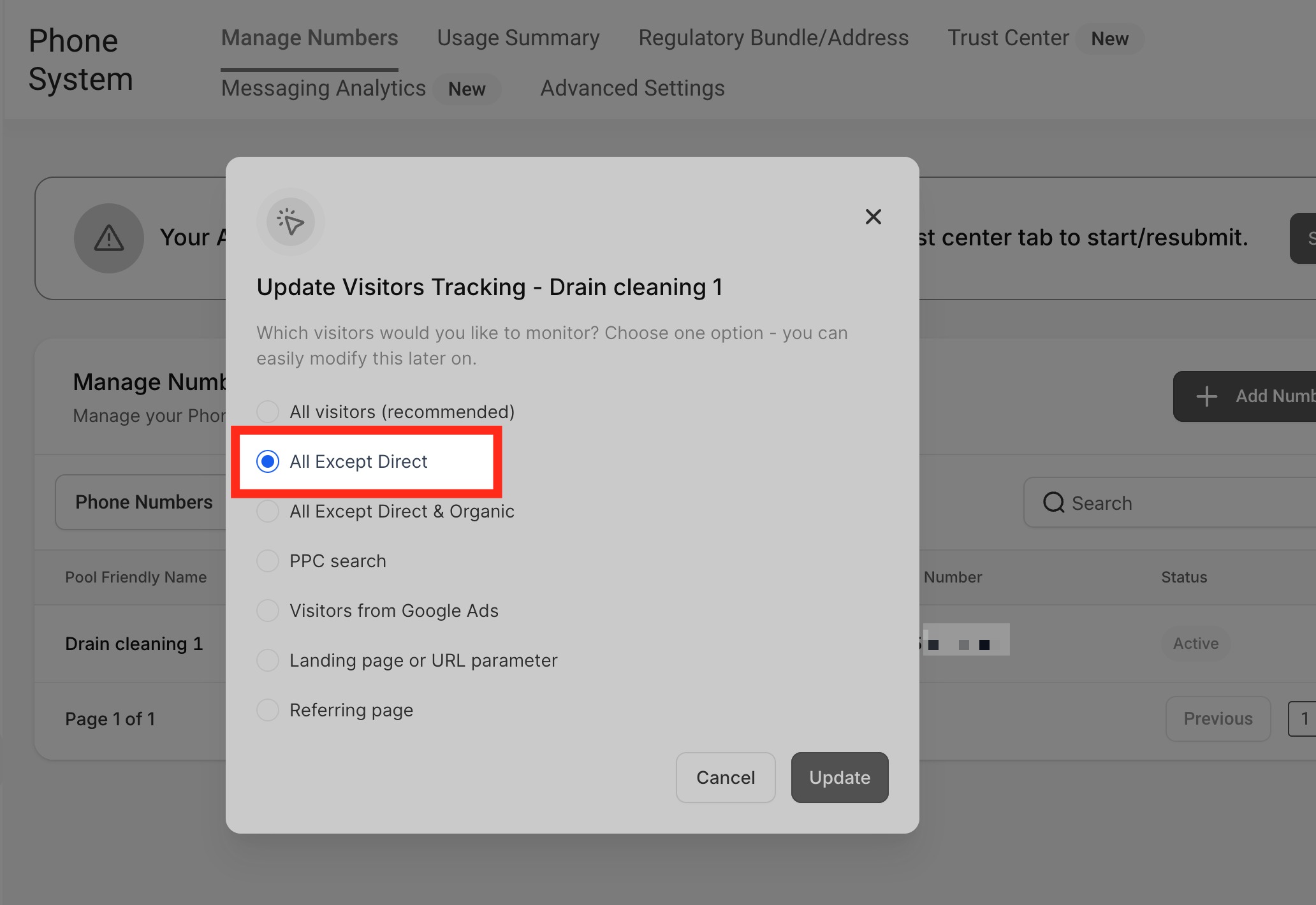
Test When All Except Direct Is Selected
If the visitor tracking option is All Except Direct, typing the website address directly into the browser does not reproduce a visit from another website.
- Open a different webpage containing a link to the tracked landing page.
- Click the link to open the tracked page.
- Check whether the phone number changes.
For example, create a link to yourwebsite.com/landing-page from another webpage, then open the link to test a referred visit.

Note: For paid-search tracking, test with eligible traffic from an actual ad. Adding a gclid parameter manually does not reproduce an authentic Google Ads click.
How to Set Up Keyword Tracking
Keyword tracking helps associate available Google Ads search-keyword information with calls received through a number pool. The tracking setup uses a keyword parameter in the advertising destination URL.
Add the Keyword Parameter
The source documentation specifies the parameter:
?keyword={keyword}
For example, if the landing page address is:
yourwebsite.com/landingpage
The example destination URL becomes:
yourwebsite.com/landingpage/?keyword={keyword}Use the configured URL in the relevant Google Ads destination settings. When the information is available, the recorded keyword can appear in the Keyword column of the call report.
Important: A genuine Google Ads click is required for the corresponding Google Ads click information. Manually inserting a gclid value is not a valid substitute.
How to Swap Numbers in a Button
When a website uses a clickable phone button, configure the button's phone link to match the number displayed on the page. Consistent formatting helps the tracking script replace both the visible number and its clickable destination.
Use a Telephone Link
You can create a clickable phone button with an HTML anchor tag using tel:.
<a href="tel:(972) 421-5139" class="btn btn-blue">Call Us</a>The visible or configured swapping number and the number inside the href attribute should use the same format.
Keep Number Formats Consistent
Number-pool matching does not automatically treat local and international formats as equivalent.
For example, the following two values use different formats:
- Local:
(02) 6193 4089 - International:
+61261934089
If the displayed number is (02) 6193 4089, use the same format in the clickable link:
<a href="tel:(02) 6193 4089">Call Us</a>
If you configure the swapping number as +61261934089, use that value consistently in the displayed number and link:
<a href="tel:+61261934089">Call Us</a>Important: Mixing local and international formats may cause the visible number to change while the clickable link still points to the original number.
How to Use Group ID
Group ID helps control number swapping when different number pools are configured for different traffic sources. It allows the tracking configuration to select the relevant pool rather than replacing every matching number from multiple pools.
Example Use Case
Suppose a business runs two advertising campaigns that direct visitors to the same website.
Visitors from the first campaign may see one tracking number, while visitors from the second campaign may see another. The appropriate source settings and Group ID help determine which number pool is used.
Configure a Group ID
Use the number-pool configuration to assign a group name.
- Open Settings > Phone System > Phone numbers.
- Under Manage Numbers, open Number Pools.
- Find the number pool you want to configure.
- Open the pool's editing controls.
- Click Add/Edit Group Id.
- Enter the group ID name.
- Click Update.
Copy the Group Snippet
The Group ID configuration includes a group-specific tracking snippet for website installation.
- Find the group information icon.
- Click the icon to view the group snippet.
- Copy the provided snippet.
- Add it to the footer of the website where the group-specific swapping behavior is needed.
Use the Group ID configuration together with the relevant traffic-source settings to control which tracking number appears.
Frequently Asked Questions
Q: Why should I use a number pool for call tracking?
Number pools help connect incoming phone calls to available website-source information. The tracking script can replace a displayed website number with a tracking number associated with a visitor's activity.When a visitor calls the tracking number, the system can associate the call with available website and tracking information. Supported keyword information can also appear in call reporting.
Q: Can I direct number-pool calls to the web app or mobile app?
Yes. Enable Ring Incoming Call to selected Users in the number-pool configuration. Select the recipients, then configure their Default Channel for Ring All as Web App, Mobile App, or another supported channel.
Q: How many team members can receive calls from one number pool?
The documented ringing feature supports up to six selected team members simultaneously. Each recipient uses their configured receiving channel.
Q: Do the displayed phone number and the clickable telephone link need the same format?
Yes. The configured swapping number, visible number, and value inside the tel: link should use consistent formatting. A mismatch can prevent the clickable link from changing along with the displayed number.
Q: Are local and international versions of the same number treated as equivalent?
No. Number-pool matching does not automatically normalize local and international formats. For example, (02) 6193 4089 and +61261934089 are different values for matching purposes.
Q: Can I use E.164 formatting with number pools?
Yes. Use the international format consistently across the configured swapping number, displayed phone number, and clickable telephone link.
Q: Why does the number not swap when I open the website directly?
The result depends on the selected visitor tracking option. If All Except Direct is enabled, opening a website address directly may not qualify for number swapping. Test by following a link from another webpage.
Q: Will older calls receive the updated advertising-source labels?
No. The source-attribution improvements apply to new calls. Earlier call records retain their previously recorded source values.
Q: Why does a call appear as Direct in the report?
A call may appear as Direct when the browser does not provide the referring source and the visit does not include usable ad-tracking information.
Q: Can I use a phone number managed by the same phone system as an external forwarding destination?
Do not use a phone number managed by the same phone system as the external forwarding destination. Use a separate external phone number to avoid call-routing loops.
Need Help?
If a number pool does not swap the expected phone number, route calls correctly, or report the expected source, review the settings and tracking code before making additional changes.
- Number Pool Is Missing: Open Settings > Phone System > Phone numbers and check Number Pools under Manage Numbers.
- Number Is Not Swapping: Confirm that the number pool is active, the tracking snippet is installed, and the displayed website number matches the configured swapping number.
- Number Does Not Swap for Direct Visits: Review the visitor tracking option. If All Except Direct is selected, test from another webpage rather than entering the address directly.
- Calls Are Not Reaching the Destination: Check the forwarding number and ensure that it is an appropriate external number. Review the pool's selected-user ringing settings if those are enabled.
- Multiple Users Are Not Receiving Calls: Confirm that Ring Incoming Call to selected Users is enabled and that each intended recipient has a saved Default Channel for Ring All.
- Caller ID Is Unexpected: Review the Pass Call Number as Caller ID option and the documented enabled or disabled behavior.
- Clickable Phone Button Uses the Wrong Number: Make sure the number in the
tel:link matches the format of the visible number and the configured swapping number. - Keyword Information Is Missing: Review the Google Ads keyword parameter and confirm that the call is associated with a visit containing usable keyword information.
- Call Source Shows Direct: Check whether referral information or supported ad-tracking data was available for the visit.
- Wrong Number Pool Is Used: Review the traffic-source selection and Group ID settings when multiple pools are configured.
- Call Report Is Missing Expected Details: Open Reporting > Call report and review the available Source, Source type, and Keyword information.
If the issue continues, contact support with the number-pool name, affected website or funnel page, expected behavior, actual behavior, and relevant screenshots. Do not include passwords, private credentials, or unnecessary personal information.